Showing posts with label Windows Live Services. Show all posts

Thursday, October 16, 2014

Quickly Archiving Mail with Outlook 2013 when using Outlook.com

Third post in a series of posts on how to single-click (or swipe/tap) to Archive mail when using Outlook.com.  The first covered how to swipe-tap to archive in iOS 8, and the second covered on how to set up an Instant Action to mouse over and click to Archive a mail on the web client. 

This post covers the most famous email client of them all: Outlook.  And most specifically Outlook 2013.  As mentioned in the first post, the pre-setup for this one is to create a folder called Archive in your mailbox. I covered how to do this this in the iOS8 post.

With Outlook 2013, there is a Quick Steps box.  You’ve probably never noticed it, it’s at the top, on the ribbon.  Well, it’s a set of customizable actions, where the Outlook team has taken the liberty of defining ones for you, mostly destined for business.  If this is the first time you’ve used these, take a look around, they are really powerful. Even on a personal account.  For example, I have one called “To Wife” which just forwards the email to my wife.  I do this a lot when I get an email on something that she should know, but I digress.  Here is what my personal account looks like:

Quick Steps

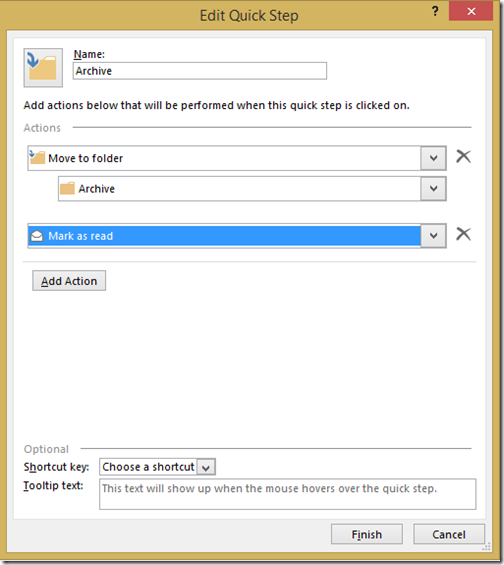
Here’s how to set up the Archive one Quick Step

  1. Click on the Create New button in the Quick Steps box (you may have to scroll down using the arrows to see it), it’s depicted above.
  2. Fill out the Quick Step, with your Name, and any number of actions you want to happen, it’s like a mail macro!  This is how mine is set up.  You can also assign a short cut key if you’re a keyboard kowboy. Edit Quick Step
  3. Click on Finish.

You’re Quick Step is ready to use.  Simply select the email you want to Archive and hit the new Archive Quick Step button, and the mail gets marked as read, and placed into your Archive folder.

Related Posts

Quickly Archiving Mail from the Outlook.com Web Client

In a previous post, I talked about how to quickly archive email in Outlook.com from the iOS 8 mail client. Similar to what you do with GMail, but of course we all don’t do our mail on our phones, we use computers as well! 
In this post I’ll tell you how to configure an Instant Action to do the same thing.  If you haven’t followed that post, then you are missing the pre-step to this one, which is to create a new folder called “Archive” (the name is key for iOS, not for the web client).  So do that first, then jump into these steps!
  1. First, log into your Outlook.com email account
  2. Click on the Settings gear (Settings Gear) in the top right hand corner of the page and select Options.
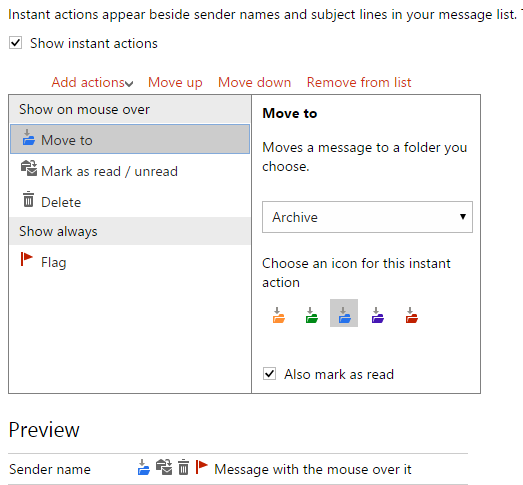
  3. On the Options page, under Customizing Outlook.com, you want to click on Instant Actions, in which you should see this Instant Actions
  4. Click on Add actions and then select Move To, and you’ll notice a Move To item show up in the list “Show on mouse over”. 
  5. In the right hand pane, choose to move a message to the “Archive” folder that you created, give it a coloured icon, and you can also choose to mark it as read if you want.  You can see how i might look in the preview (and how my preview looks above).  If you don’t like it the ordering, you can use Move Up and Move Down to order the list how you want.
That’s all there is to it.  Now when you mouse over the message in the message list, you get the Instant Actions to appear, and the Archiving icon you just created will single click it to the right folder.  Here is what mine looks like on the web:
Move this Message to Archive and mark it as read
Related Posts

Wednesday, February 19, 2014

Backing up your Contacts from the Cloud

I can’t stress how important backing up is, I even have a special tag just for tips and tricks with backup, across various technology. 

So you might think, well, my contacts are *in* the cloud, so they are safe right?  Wrong!  If you don’t take backups into your own hands, you can have issues down the road, even with all the resiliency built into these Cloud services, you can loose data, here are just a few ways:

  • The Delete key could get stuck on your wireless keyboard and end up deleting a majority of your contacts in an instant, which then syncs to your service and then instantly to all your devices (this happens in my inbox all the time when my keyboard battery is low). (don’t have this? learn how to set it up here)
  • You could get hacked, be that @Matt or @N style, or simply by a script kiddy (you’ve enabled 2-factor authentication for your account already right? (Outlook.com, GMail.com)
  • You could get a virus that deletes, corrupts or worse (encrypts) your data so you can’t access it
  • You could cause yourself to get locked out of your account, maybe because you broke the Terms of Use?
  • The cloud service can make a mistake and delete your files (although it’s likely they can get it back, this is hours of support calls)

So, it’s in your best interest to do your own backup, and manage your data on your own, even in a cloud service.  I keep my Contacts in the cloud and I backup periodically (manually, but all the same, it’s periodically).  What would be great if these services did this monthly and emailed it to you…. a request in progress!

This is how I do it with Outlook.com

  • Browse on over to https://people.live.com and log in
  • On the title bar at the top, choose Manage and click on Export for use with Outlook.com and other services. People Export
  • This will prompt you to download (or automatically download) a file called OutlookContacts.csv. which is a coma separated values file that contains pretty much every important field that is in your contacts.  This is what you have to save in a safe place.

If you loose your contacts for whatever reason, you can use this file to work on importing them into another app or the same service but different account, etc.

This is how I do it with GMail.com

  • Browse on over to https://www.google.com/contacts/ and log in
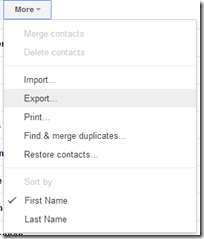
  • On the More drop down, select Export… to start the process Contacts Export
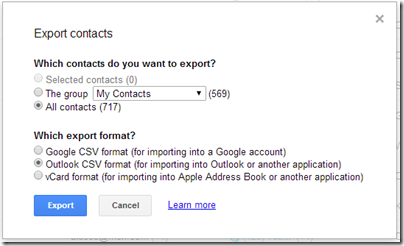
  • Choose the best format that you want to export in.  I think that Outlook CSV is the most widely used format, but you may wish to export in all formats, or specific formats to meet your needs. Export Contacts
  • This will prompt you to download a contacts.csv (or automatically download it), and this is the file you want to keep safe. 

There are multiple ways to import these files if your data is lost… more on that to come, but at least you doing this if only once a year, will save you a lot of hassle if you run into trouble.

Monday, April 29, 2013

Cloud Sharing your Email, Contacts, Calendar Between Different Devices

I’ve come across a lot of people who still struggle with different devices and having to physically plug them into their computer when they want to sync their calendar or contacts.  Sure, Email is a solved problem for them, but not that pesky Calendar or the list of Contacts.  This post is intended to help those people.  But those people have to embrace “the cloud”…

The cloud sounds scary, but it’s not, you’ve been using it for years, it’s just a server on the Internet that’s always accessible. Sure this can be a single mail server that’s been holding your email until you connect it, or it can be a scale-out solution that offers compute, storage, and database needs, but let’s start small.  Your email server, is in the cloud.  Yes, that same one offered to your by your Internet Service Provider (ISV).  That’s “cloud”.  See, you have email, you’re already using “the cloud”.  Your problem is you either (a), have an e-mail only server that uses POP3, or (b), you’re not taking advantage of the features of your server to leverage contacts and calendar.

If you have an e-mail server that only does email (i.e. only offers you IMAP or POP3 access), then you are living in the stone ages.  IMAP and POP3 are to email what rotary dialing is to the telephone.  The first is to switch to something that offers the email, calendar, contact suite of products.  I find it best to switch to the product that your spouse or significant other is using, primarily because it makes it easier to share things like the calendar.  My preference is Outlook.com, but you can also use GMail or Yahoo! Or if you wanted something more powerful, you could choose Office365.  The bottom line is you need to ditch that ISV email server.  Some ISVs leverage the above services for their email solution.  That’s better than POP3, but I still don’t like being tied to an ISV, because if you move or that ISV gets bought by another, things change, but this is your call.  This may or may not require you to get a different email address.  This is by far the most painful part of the process, so you’ll want to do this part once.  If you want to use your own domain name, so your email address never needs to change.  I have instructions on how to do this with Hotmail / Outlook.com.

Let’s overview the set up that you’re aiming for:

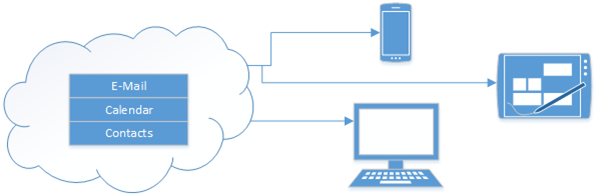
Cloud to Device


This means that each phone, tablet or computer connects directly to the Internet (or cloud) to get your Email (which it does today) and your calendar and your contacts.  This means that the primary location for your E-mail, Calendar and Contacts is in the cloud.  Your devices and computers are just a “view” into that.  While you probably won’t need this with today’s devices. All of my computers are configured to use Exchange Active Sync (EAS).  Apparently Google is the only service that doesn’t use this anymore.

This works for me, and allows me to share my calendar with my wife, so we can always be in sync (provided she enters her events into her calendar!). 

I have the following devices, that are always up to date and never need to be plugged into a computer for “syncing”.

  • Windows Phone 8
  • Surface RT
  • Windows 8 PC (both built in e-mail client, and Outlook 2013)
  • iPhone
  • iPad
  • Blackberry Playbook

This is the set up you “don’t” want, as you are now dependent on your computer, and if you’re computer crashes, or dies, you loose your calendar and contacts.

Bad Setup

Monday, April 23, 2012

How to Sync Folders to the new SkyDrive without moving them to the SkyDrive folder

imageSo the new SkyDrive is out today, you can read about the awesome new features here (on the Building Windows 8 blog).  The SkyDrive team really amped up their battle with DropBox in this new version.  With Windows Phone, iPad, iPhone support, along with MAC and PC support, it really is pretty cool, and now completely accessible.  Also with HTML5 support, it’s super fast on the PC and MAC for browsers that hardware accelerate HTML5 based graphics.

However, I will miss Mesh.  I wasn’t asked to un-install it, as part of the upgrade, but I can see it coming (no I have no details here, speculation only)

Mesh had this ability to sync *any* folder to the cloud, which is now gone from this version of SkyDrive.  Apparently all the DropBox fans have forced the hand on this one.  Fortunately, on Windows (and I’m sure this works on a MAC too, but I can’t test it, any mac fans post how to do it in the comments and I’ll add it to the post) you can create links to folders to have things sync to your SkyDrive that aren’t actually in your SkyDrive folder!

To do this you’ll need to bust out the ol’ Command prompt, in Administrator mode, because a symbolic link just isn’t enough for SkyDrive to pick it up, you need a hard link.

  1. Click Start, and type in CMD, right-click on the cmd.exe and choose Run as Administrator
  2. Change to your SkyDrive folder, mine is c:\users\<username>\skydrive (so cd /d c:\users\seanda\skydrive)
  3. Next we’re going to make a link to a directory that lives in My Documents Folder, I’m going to do that with this command to sync my “tools” directory: mklink /j “Tools” “c:\users\seanda\documents\tools”.  You’ll get a line that says "Junction created for Tools <==> c:\users\seanda\documents\tools.

You’ll notice a new tools directory being created, and it looks exactly the same as the other directory (contents and all, you didn’t need to copy anything in).  Now you can simply drop stuff in your c:\users\seanda\documents\tools directory, and SkyDrive will pick it up.  (You might need to restart the SkyDrive system tray app for it to pick this directory up, although I didn’t.)

Additionally, if you’re trying to get this to sync between two computers, you’ll have to set up the Junction before SkyDrive can drop files in there (meaning create the folder locations manually with the junction in place.  I only use the one computer, so I didn’t test this.

Thursday, October 07, 2010

Customizing what is an e-mail alert on Aurora and Vail

[This post comes courtesy of Adrian Maziak, our System Health PM]

Windows Server “Aurora” is currently in Beta (You can download it from Connect, or read about the beta announcement). You’ve had it for a few months, and have probably run out of things to try on this beta. Well, I wanted to get you back involved with some customization goodies for the health and monitoring alerts that are built both into the Aurora and the Vail products that will carry into the final release.

In previous versions of Home Server, Monitoring could only be done without an add-in in the local console, or from the system tray icon on a local client. You needed something like @WHSTweet to get the alerts off the box (which by the way was a wicked application, I use it for my V1), or perhaps another add-in that I’m not aware of. Also, in previous versions of Small Business Server, there was an Exchange mail server locally to send the alert. But in Aurora there is no exchange server, that’s saved for SBS7.

With Aurora or Vail we provide the ability to insert a “SmartHost” email server that you can send mail through. This can be an email server that lives out on the Internet that you have access to, or the one at your ISP that you simply have access to simply by being part of their network.

Set up email notification for alerts

However, not all alerts will generate e-mail. The health team took a hard look at all the alerts and have made a call on which ones might be critical for the admin to know immediately, and which ones that can wait until the admin is on the network. But while we optimize this for certain scenarios, we may have missed yours. This is where customization comes in.

Each health alert is defined in a health definition file. These definition files are stored in C:\Program Files\Windows Server\Bin\FeatureDefinitions\Microsoft Base\definition.xml.config.

For example, if you were to scroll down in this file to the “AutoStartServicesVistaWin7Client” for the alert about auto started services on clients that aren’t running. This doesn’t alert by default via email, but if you wanted it to, you can add a line to the XML file <Escalate>true</Escalate>.

<HealthDefinitionConfiguration Name="AutoStartServicesVistaWin7Client">
<Configurations>
<Enable>true</Enable>
<Escalate>true</Escalate>
</Configurations>
<Arguments>
<Argument Name="Description">don’t touch this stuff</Argument>
</Arguments>
</HealthDefinitionConfiguration>

Likewise, if you are getting an alert via email that you really don’t care about, then simply open up the definition xml file and remove the <Escalate> line.

Important Tip: Make sure you back-up the definition.xml.config file before you change it. You never know when you’re going to need to revert back to the default version!

Some Known SmartHosts

SMTP Server SSL? Auth? Port Logon Information
smtp.live.com Yes Yes 587 Full LiveID username & Password
smtp.comcast.net Yes No 587 Must be in Comcast’s Network
smtp.gmail.com Yes Yes 587 Full GMail username & password
smtp.mail.yahoo.com No Yes 25 Email Name and password

*Subject to change without notice

SMTP Settings

Example using the Live Smart Host

Thursday, October 29, 2009

How to Import your Facebook Events Calendar into your Personal Calendar

Facebook has really taken off these days, especially for keeping in touch with friends, family and things you Like.  I’ve been invited to Halloween parties, Soccer matches, Work events, pretty much any invite these days comes in through Facebook.  It’s taken over as the new social scheduling calendar.

Unfortunately for many of us, that means copying the details out of the Facebook calendar and into the one we use most primarily.  As you probably guess, I use Outlook/Exchange for my work functions, but for my home and personal events, I use Windows Live Calendar..

Recently I stumbled across a post from Sean Bonner on how to import your Facebook events into Google Calendar, discovered through one of my favorite blogs, LifeHacker.  All Sean is using is the iCal format, and not only Google Calendar supports this format.  In fact, most things do!  So I’m going to expand on his instructions, and provide you the same instructions for Outlook 2007/2010 and Windows Live.  Additionally I copied his steps for Google to have them all in one place.

Here’s how I did it.  First we need to get the iCAL internet link from Facebook:

  1. In Facebook, Go to your Events page
  2. At the top of this page, click Export Events, Facebook will give you a URL for the iCAL of your private events function.
  3. Don’t click and save the ICAL file, simply copy the link to your clipboard

 Facebook iCAL export

At this point you’re ready to import this link into a number of different calendar programs, choose the one that you use:

Windows Live Calendar

Windows Live Calendar is where I keep all my personal events, so I’m going to show this one first.

  1. Open your Live Calendar
  2. Click the Subscribe button at the very top of the page

Windows Live Calendar

  1. Paste the Facebook iCAL link from above into the Calendar URL
  2. Give it a calendar name, I called it “Facebook Calendar”
  3. Click subscribe, and then Done on the next page

The Windows Live Calendar will refresh every 24-hours from the Facebook feed.  Mine refreshed around midnight PST and then took another day to update.

Outlook 2007

  1. Flip to the Calendar mode and choose File and Import and Export…
  2. Select to Import an iCalendar (.ics) or vCalendar file (.vcs) and click Next.
  3. A familiar dialog will open asking you for a file name.  Paste in the Facebook iCAL URL from above and click Open
  4. The next dialog offers you a choice to import as a new or into your current calendar.  If you import into your current calendar, you can’t quickly remove it.  So I choose as Open as New.
  5. Outlook then names your calendar in the “Other Calendars” section based on the URL, To fix that, I right-clicked on this and choose Properties.
  6. I just chose a name and typed that in, such as “Facebook” Outlook 2007 Properties
  7. Chose OK

Now you’ll see your Facebook calendar next to your other calendar and you can drag and drop the ones you want into your actual calendar (if you want it on your Windows Mobile phone for example).  You can also turn this calendar on and off.

The challenge here is I don’t think that Outlook 2007 will auto-refresh this one, at least I can’t figure out why mine won’t refresh.  Seems to me like an area the Office team has improved on (given the Beta of 2010).

Outlook 2010

Outlook 2010 is still in Beta, so these steps might change slightly.  This is much simpler than Outlook 2007

  1. Change to the Calendar mode and select the down arrow next to Open Calendar, then select From the Internet

image

  1. Paste in the Facebook iCAL URL from above and choose OK.
  2. Click the Advanced… button, given the folder name the name of the calendar like “Facebook” and click OK.
  3. Click Yes to subscribe to updates

I’ve noticed that Outlook 2010 takes about 30 mins to 1 hour to obtain any new items that appear in the Facebook calendar, this is the fastest of the lot.  I guess I’d suspect this since you’re doing it for yourself, where the other hosted services are doing it for millions of people.

Google Mail

As I mentioned earlier, this section is courtesy of Sean Bonner.

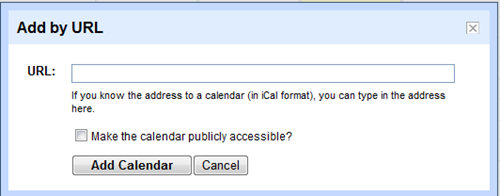
  1. In Google Calendar, you’ll see Other Calendars on the left, click the Add link and choose Add by URL

image

  1. Paste in the Facebook iCAL link you copied earlier

The Google Calendar will refresh every 12-24-hours from the Facebook iCal feed.  Everything I can find online says it’s 24-hours, but from my experience it’s twice/day

Once you set this up, Facebook becomes just a little bit more powerful, and you become just a little bit more in the know.

Friday, August 21, 2009

How to Participate in the SBS 2008 Newsgroups

Windows Small Business Server 2008

This morning I awoke to a mail in my inbox regarding participation in the Windows Small Business Server 2008 newsgroups.  Newsgroups are forums that are monitored by Microsoft Employees as well as Microsoft MVPs (or Most Valuable Professionals).  It’s a place where you can attempt to get free support before calling Microsoft, so you should know how to get into the Newsgroups.

First, point your browser over to the SBS 2008 Connect Webpage.  In the top left, you will see a link to “Newsgroups”.

From this link you can dive right in and start participating within the newsgroup.  But viewing on the webpage can sometimes be cumbersome.  Above the newsgroup list, you will see an “NNTP Setup Instructions” link:

image

This link will let you set your password for the newsgroups (this can take up to 5 hours to set in the system), and then give you instructions for configuring the newsgroup inside a newsgroup reader such as Windows Live Mail (Win7), Windows Mail (Vista) or Outlook Express (XP).

I usually like to change the options to download more than 300 messages at a time, and I always leave it running as to not miss anything.  When you set-up a newsgroup account, I’d recommend using an email address that a human could understand, but that doesn’t resolve directly to your mailbox to prevent “bots” from spamming you.  For example, if you’re email is foo@bar.com, then consider entering it as foo@online.bar.com, or foo@delete.bar.com.

Friday, August 07, 2009

Digital Lifestyle: Syncing Your Digital Life

digital life

I’m starting something new: The Digital Lifestyle corner.

On Friday’s (when I have time), I wanted to write a blurb on some different types of technologies, how I use them and how they have made my life easier.  Plenty of times my wife complains that “computers slow her down”, but that’s not what computers, software and the Internet do for me, and I wanted to share my usage with different technologies in hopes that you can leverage computers to save you time as well, for the fun stuff!

Today’s topic: I want to discuss some software that has changed the way I use multiple computers.  “Sync”

I’m probably not a typical computer user in the fact that I use 4 computers almost daily, but I’m sure a lot of people use at least two.  I was talking to a friend the other day who has a desktop but wants to use a Netbook for taking notes at school, but then be able to work on homework using the bigger monitor and more powerful desktop.  Using Sync technology she need only have a hotspot at school to get those files home.  Ease of access *and* a backup! How convenient eh?

I primarily use two Sync technologies today.  Windows Live Mesh, and Windows Live Folder Sync.  Both have their pros and cons as I’m sure any other sync technology would.  Again, I am only covering what I have familiarity with, comments are open for other apps that you love.

Live Mesh

First, Windows Live Mesh provides a number of different services.  Synchronizing files is it’s primary function, but it also provides remote desktop functionality and sharing with friends, family or co-workers as secondary functions.  I primarily use it to Sync my own files and folders.  Mesh can sync files between many different PCs, you can choose any personal folder on your system to sync with any folder on different PCs, and you can choose it to sync with your “Mesh Desktop”.  This is the best part!  The Mesh desktop is a 5GB store that you can throw data up to, so you can use the “Mesh Desktop” as your always-on PC.  Plus I bet it has better bandwidth than any of your home or mobile PCs, so once the data is synced with the “Mesh Desktop”, it screams down the pipe to your other PCs.  The limit here is of course the 5GB limit of space.  Once it’s gone, it’s gone, and you’re doing PC-2-PC sync, which is slower, and requires your PC to be on.

Currently with Mesh, I sync

  • My Favorites.  Having my favorites the same on all my PCs is awesome, I can add a favorite on the couch watching TV at night, and it’s ready for me on my PC at the office the next day.
  • A Wallpaper directory. Windows 7 will rotate desktops as part of the OS, so I sync my wallpaper (280 pictures) from PC to PC and have Windows 7 rotate these.  Once I drop a photo in on my home PC, I see it on my work PC a few days later, without making a change
  • A Tools directory.  I have a directory that has a bunch of .reg files and .cmd files as well as some apps that I want to install on all of my PCs.  After installing Mesh, I’m set with everything else that needs to be installed all being local
  • The Live Writer Posts Directory.  I blog from 3 of my 4 different PCs, so having all the offline posts sync is great.  Start it on one PC, finish it on another
  • Collaboration folders.  I share some work with some peers around the Internet, and instead of emailing the file, we just drop or edit it out of the directory and the updates are handled and distributed to the peers.
  • Mobile Pictures. I run the Mesh beta client on my Windows Mobile device, such that when I take a photo, that photo syncs to the cloud and my home PC almost immediately!

In addition to the sync, you can access your files from anywhere in the world simply by going to the Mesh Homepage.  If you’re not at your PC, but just need that tool, or that favorite, or access to that file you know is up there, just log in and download it directly to the PC you’re at!  And finally, Mesh let’s me Remote Desktop to any PC turned on to boot! (Although I wouldn’t say it’s as fast as remoting to your PC directly, or using a product like Windows Home Server or Small Business Server directly, but it works in a pinch!)

Ok, so here is my problem with Mesh, it uses between 45-100mb of RAM depending on what it does.  Between the “MOE.EXE” (Mesh Operating Environment) and the “MOEMONITOR.EXE”.  This is problematic for those Netbooks that are limited to 1GB of RAM.  Especially when you jump from your 250MB Windows XP footprint to your 550MB Windows 7 footprint.  After your applications, you’re a bit limited.  For that I jump over to Windows Live Sync.

Live Sync

Windows Live Sync was born from an older technology called FolderShare.  Live Sync is will synchronize files between PCs without the cloud back-end, so you are limited to at least one of your PCs being on for the sync to occur.  But you still get to sync between PCs and you can also sync with other peers or co-workers that are using Windows Live Sync.

The good news for Netbooks about Live Sync is the foot print (as I’ve monitored it over time) is less than 2 MB!, perfect for a Netbook running Windows 7!  I use it to sync my documents that I create on my Netbook and my favorites.  Thus meaning that if I add a favorite on my Netbook, Live Sync will update it on my home desktop, which will then use Mesh to toss it around all the other client computers.

Thursday, June 25, 2009

Windows Live Writer Crashes in Tools/Options

Since the release of Windows Live Writer, I have been using it to update my blog.  It allows me to update my blog offline as well as speeds up the adding of blog posts (such as this one) to my blog.

A little while ago, Windows Live Writer started crashing when I was adding hyper-links into my post.  It didn’t matter if I used CTRL+K, or the menus.  I wanted to check out if I had a failing plug-in installed, but going to Options would also crash Writer.

Searching on the Internet, I discovered that Windows Live Writer has issues with a corrupted Glossary.  Essentially it boils down to the glossary XML file having a bad format.  I still haven’t determined *how* this happened, because I’m not updating it manually, I only use Writer to update it.

Anyways, if you check out the Writer Log file (which is at c:\users\<username>\AppData\Local\Windows Live Writer\Windows Live Writer.log), you’ll notice the following:

System.Reflection.TargetInvocationException: Exception has been thrown by the target of an invocation. ---> System.TypeInitializationException: The type initializer for 'WindowsLive.Writer.HtmlEditor.Linking.GlossaryManager' threw an exception. ---> System.Xml.XmlException: The 'entry' start tag on line 3 does not match the end tag of 'glossary'. Line 76, position 3.

Essentially this will point you to the fact that your Glossary Manager is having problems.  Your glossary XML file is at “c:\users\<username>\AppData\Roaming\Windows Live Writer\LinkGlossary\linkglossary.xml"

I took a different approach to fixing the problem than my source, I ended up renaming the file to linkglossary-old.xml, and then re-opening Writer.  Writer will create a new file for you.  I opened the new file in Notepad and noticed that it only contained a single <glossary> tag.  I hit enter and added a </ glossary> tag, then copied one by one all the "<entry></entry>” blocks out of the old file into the new file.  Once I found one that didn’t work, I just deleted it (since I can always re-create it if I want).

Wednesday, June 24, 2009

Using the POP3 Connector to download Windows Live E-Mail

[This post courtesy of Vita Xiao]

If you haven’t heard, Windows Live Mail has recently made access to your mail via POP3 a standard account, instead of a premium paid account feature!  This means that you can configure your Small Business Server 2008 POP3 Connector to download mail directly from Windows Live Mail, making a transition from Windows Live Mail to Small Business Server and Exchange even easier!  You can do this for all your @hotmail.com, @live.com and @msn.com email addresses!

Simply use the following settings in your POP3 Connector UI:

  • POP3 Server: pop3.live.com
  • Port: 995
  • Require SSL
  • Logon Type: BASIC
  • Provide your LiveID credentials

The UI will look like this:

image

While you’ll also notice you can send mail via Windows Live via their SMTP server (smtp.live.com, port 25), Live requires that you send as the LiveID you authenticate as, so while it might be tempting that you use Windows Live as your smart host, you won’t want to because all of your company email will come from one email address.  Furthermore, when you send mail through the Live Mail service, you are sending on behalf of that particular user.  If you send too many pieces of email, or too many NDRs, that particular user can be classified as a spammer, and limited in their ability to use their account.  So stay away from using this as a smart-host!

Enjoy your seamless transition to Exchange from Hotmail.

Friday, May 29, 2009

Bing - The Decision Maker

Yesterday Microsoft announced "Bing", a new Internet search engine. The press release mentions how Bing is attempting to revolutionize search by changing the rules of being a "Search Engine" to being a "Decision Engine".

Clearly great search results are at the top of the list, but embedded within those results is organization to help you sift through the data faster, and more efficiently with computer assisted insight. Check out this virtual tour for more details:


On June 3rd, make sure you head over to Bing! for your first chance to try out the search engine.

Bing-it baby!

Tuesday, May 05, 2009

How to get Live Messenger back in the System Tray on Windows 7

Ok, so Windows 7 has a fancy new task bar, and Windows Live Messenger shows up on the task bar even when it’s closed.  It definitely looks fancy, and it will help folks like my parents and grandparents find messenger on their computer.  I love that I don’t have to explain “that tiny little chess piece in the right hand corner of the screen, no further down, no all the way down, near the clock, no to the left of the clock”.  Yes, I do this often.

However, for me, and probably a lot of power users that take advantage of the fact that Windows can task-switch and have plenty of windows open, you really don’t want Live Messenger to take up a section of that, when you’re used to it sitting right in the corner out of the way.  You can get that back to the way it was in Vista/XP simply by running it in compatibility mode. 

If you want to get Live Messenger back into the System Tray, you can customize that by following these steps:

  1. Simply close Live Messenger by clicking on it and closing it.  Make sure it’s not minimized, but actually closed, so it doesn’t even appear in your Task Manager as a running program
  2. Then browse to c:\Program Files (x86)\Windows Live\Messenger (this could be c:\program files, without the (x86) if you’re running a 32-bit operating system)
  3. Right-click on msnmsgr.exe and choose properties.
  4. Under the Compatibility tab, choose to run this under Windows Vista (SP2) compatibility mode: image
  5. Click OK, and then run messenger again

Now Live Messenger is sitting back in the system tray.  Don’t forget to customize the hiding feature, so it doesn’t hide on you for not using it!!

image

So, it’s easy to get Live Messenger back in the system tray.

Thursday, April 02, 2009

Viewing RSS feeds by Webpage with Windows Live Reader

I use the Windows Live Mail client (available from Live Downloads) to read all of my RSS feeds.  One of the things that bothers me about RSS is how the feed doesn’t contain the entire item, so you get something like this:

The strangest thing happened the other day when I combined an olive, a cyclist and a … (read more)

Now you’re forced to view it online, and you have to open a web browser.  Windows Live Mail has a feature that allows you to view the webpage in the mail reader.

Edit RSS Feed

Simply check the “Show articles as web page, instead of summary”.  Now instead of loading in the RSS feed summary, that blog post opens directly in the mail client.  I find this works out great for those short feeds as above, or perhaps as a photo blog where they show their small un-viewable thumbnail in the feed. 

Where it breaks down is when the post has a lot of comments, they are all loaded as if you were looking at the webpage.  Additionally, I don’t think this works with offline viewing, but it’s a time saver while you’re connected!

Friday, February 20, 2009

The Importance of a Strong Password

I can’t emphasis enough how important creating a strong password is. Lots of people have easy to remember passwords that are just not secure.  The most notable ones are bank PIN numbers.  The difference here is you have to physically have the card to use the password, in an environment where you only have a username and password, the password is super important.  It’s quite likely that your username is right there in your email address, so the password is all that keeps those hackers out.

If you like the idea of having something “physical” that you are required to have with you, you can add these technologies to Windows Small Business Server.  Using 3rd party software, you can either take advantage of SmartCard authentication built right into Windows, or use something designed specifically for SBS, called Auth Anvil, which requires you to have a FOB with a random number on it when logging into Remote Web Workplace.

If a low cost solution is required, you can jack up the password policy requirements on your network and require users to have super strong passwords.  Below is the password policy out of the box with Windows Small Business Server 2008. 

image

You can change the frequency of when the password needs to change, which prevents brute force attacks (as those usually take time), and change the number of characters.  When you enable password complexity requirements, you’re forcing the following:

  1. Not containing the user’s account name or parts of the user’s full name that exceeds 2 consecutive characters
  2. Contains letters from the following:
    1. English Uppercase A-Z
    2. English Lowercase a-z
    3. Base 10 digits 0-9
    4. Non-alphabetic characters (e.g. !, $, #, %)

The trick of course is to educate your end users to remember these passwords.

Microsoft has a great article on Strong Passwords: How to Create and Use them.  Creating (and remembering) a strong password is far easier than you think.  Microsoft calls out these 5 easy steps:

  1. Think of a sentence that you can remember. This will be the basis of your strong password or pass phrase. Use a memorable sentence, such as "My son Aiden is three years old."
  2. Check if the computer or online system supports the pass phrase directly. If you can use a pass phrase (with spaces between characters) on your computer or online system, do so.
  3. If the computer or online system does not support pass phrases, convert it to a password. Take the first letter of each word of the sentence that you've created to create a new, nonsensical word. Using the example above, you'd get: "msaityo".
  4. Add complexity by mixing uppercase and lowercase letters and numbers. It is valuable to use some letter swapping or misspellings as well. For instance, in the pass phrase above, consider misspelling Aiden's name, or substituting the word "three" for the number 3. There are many possible substitutions, and the longer the sentence, the more complex your password can be. Your pass phrase might become "My SoN Ayd3N is 3 yeeRs old." If the computer or online system will not support a pass phrase, use the same technique on the shorter password. This might yield a password like "MsAy3yo".
  5. Finally, substitute some special characters. You can use symbols that look like letters, combine words (remove spaces) and other ways to make the password more complex. Using these tricks, we create a pass phrase of "MySoN 8N i$ 3 yeeR$ old" or a password (using the first letter of each word) "M$8ni3y0".

If you want Microsoft to check how secure your password is, you can use the handy password checker.  I would recommend going for at least a password that indicates a Strong or Best green rating.  Weak passwords are usually compromised easily either by brute force attacks, or simply by knowing a bit about you.

Wednesday, December 03, 2008

New face for home.live.com

For those of you who don’t know, the new Live Home page has re-launched with a new version at http://home.live.com.  Looks more functional, with feeds, profiles, and the ability to link your websites together, including Flixter, Facebook, Twitter, StumbleUpon, etc.

Definately worth checking out, it also includes a new version of SkyDrive, which appears to now offer 25GB of space, instead of 5GB.  What do you think?

Thursday, October 30, 2008

Windows Home Server & Mesh, together soon!

If you haven’t seen what Mesh can do, then you haven’t moved into Web 2.0 yet.  Granted it’s still in Beta, but it’s very very cool.  Being able to sync your files with the cloud and desktops has simplified my life greatly.  In addition to access to your files from any connected device, you can remotely connect to any PC, regardless of firewall configuration!  What will make it even cooler is when it can combine with Windows Home server via an add-in.

Looks like they announced some of that at PDC this week.  Details on the HomeServer Blog.

Tuesday, September 30, 2008

Windows Live has their next Beta available to try out

If you’re an avid user of Windows Live Services, and software like I am, you might be interested to know that the latest beta software is out.  You can get it from their download site.

The new MSN Messenger has a completely new look (so far), with the ability to add Favorite contacts, and direct access into spaces.

I’m using the new Windows Live Writer to type up this blog post, and now I can preview it, and view the source!

But my favorite is the updated Windows Live Mail client, now with access to a personal calendar!  This is nicely bundled with a new release of Windows Live Calendar.  You’ll need a copy of Outlook if you plan on porting your old calendar objects to the new calendar, but beyond that, it seems very slick.  I can’t wait to keep playing with the new features!

Tuesday, May 13, 2008

Windows Live for Windows Mobile available

Do you have a Windows Mobile device? Interested in getting IM, Search and your Hotmail down to your phone? well, now you can, with the new Windows Live Mobile!

Point your Windows Mobile devices here: http://wl.windowsmobile.com 

There is something to be weary of though:

Q: Why am I seeing duplicate contacts when I choose to save Windows Live contacts on my device?

A: Upon first time sign in to Windows Live, if you choose to save Windows Live contacts to your device’s contacts store, they will then be accessible via the Windows Mobile Contacts application and will appear alongside the contacts you have created on your device (either manually, via Microsoft Outlook, or via Exchange ActiveSync). If you did not check "Merge duplicate contacts", Windows Live contacts that have the same First Name and Last Name as contacts already on your device will appear as duplicates. If you checked "Merge duplicate contacts", a merge will take place but there will still be likelihood that some of your Windows Live contacts may not be merged correctly.

https://www.microsoft.com/windowsmobile/mobile/wl/faq-en-us.mspx


Note: Standard is the Smartphone, non-touch screen version, and Professional is the Pocket PC touch-screen version.