Showing posts with label Office 2013. Show all posts

Thursday, October 16, 2014

Quickly Archiving Mail with Outlook 2013 when using Outlook.com

Third post in a series of posts on how to single-click (or swipe/tap) to Archive mail when using Outlook.com.  The first covered how to swipe-tap to archive in iOS 8, and the second covered on how to set up an Instant Action to mouse over and click to Archive a mail on the web client. 

This post covers the most famous email client of them all: Outlook.  And most specifically Outlook 2013.  As mentioned in the first post, the pre-setup for this one is to create a folder called Archive in your mailbox. I covered how to do this this in the iOS8 post.

With Outlook 2013, there is a Quick Steps box.  You’ve probably never noticed it, it’s at the top, on the ribbon.  Well, it’s a set of customizable actions, where the Outlook team has taken the liberty of defining ones for you, mostly destined for business.  If this is the first time you’ve used these, take a look around, they are really powerful. Even on a personal account.  For example, I have one called “To Wife” which just forwards the email to my wife.  I do this a lot when I get an email on something that she should know, but I digress.  Here is what my personal account looks like:

Quick Steps

Here’s how to set up the Archive one Quick Step

  1. Click on the Create New button in the Quick Steps box (you may have to scroll down using the arrows to see it), it’s depicted above.
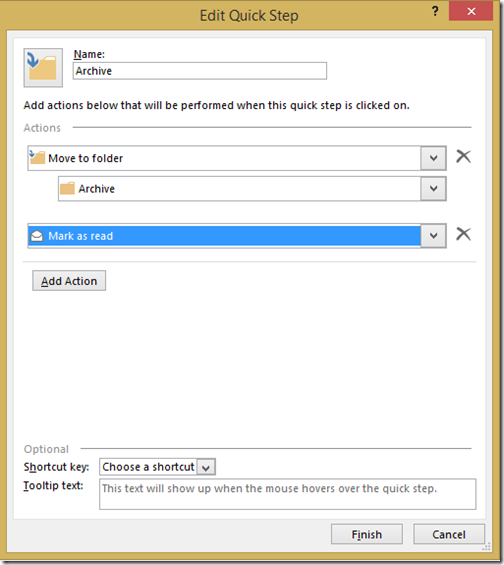
  2. Fill out the Quick Step, with your Name, and any number of actions you want to happen, it’s like a mail macro!  This is how mine is set up.  You can also assign a short cut key if you’re a keyboard kowboy. Edit Quick Step
  3. Click on Finish.

You’re Quick Step is ready to use.  Simply select the email you want to Archive and hit the new Archive Quick Step button, and the mail gets marked as read, and placed into your Archive folder.

Related Posts

Tuesday, January 07, 2014

How to fix Outlook's Jump Lists

I'm a big fan of the Jump Lists in Windows 7/Windows 8.  I use them a lot to get to key documents and most importantly start a new mail message or new calendar request with Outlook 2013

It's super easy to just right-click, and then select New E-mail Message, and you're off to the races, no need to make Outlook the foreground or anything. 

However, twice now I've found this list corrupted, I right click and there is just the bottom three, and the "task" available is a "mailto:a_lot_of_garbage", and it does nothing.  Productivity drops instantly.  

I did however managed to find this support article on tasks missing once Outlook is pinned to the task bar.  It provides two work arounds, both times the first one worked.  Instead of the backup, I just renamed the "LastUILanguage" key and re-opened Outlook. 

Method 1: Delete the LastUILanguage registry value

To export and delete the LastUILanguage registry value, follow these steps:
  1. Unpin the Outlook 2013 icon.
  2. Exit Outlook 2013.
  3. Use Regedit to export the following registry key:

    HKEY_CURRENT_USER\Software\Microsoft\Office\15.0\Outlook
  4. After you export the Outlook registry key, delete the LastUILanguage registry value.
  5. Start Outlook 2013, and then re-pin the icon.

Method 2: Export and delete the Setup registry key

If method 1 does not resolve the issue, export and delete the Setup registry key. To do this, follow these steps:
  1. Unpin the Outlook 2013 icon.
  2. Exit Outlook 2013.
  3. Use Regedit to export and then delete the following registry key:

    HKEY_CURRENT_USER\Software\Microsoft\Office\15.0\Outlook\Setup
  4. Start Outlook 2013, and then re-pin the icon.
Hopefully this helps you....