Showing posts with label Office 2010. Show all posts

Tuesday, January 07, 2014

How to fix Outlook's Jump Lists

I'm a big fan of the Jump Lists in Windows 7/Windows 8.  I use them a lot to get to key documents and most importantly start a new mail message or new calendar request with Outlook 2013

It's super easy to just right-click, and then select New E-mail Message, and you're off to the races, no need to make Outlook the foreground or anything. 

However, twice now I've found this list corrupted, I right click and there is just the bottom three, and the "task" available is a "mailto:a_lot_of_garbage", and it does nothing.  Productivity drops instantly.  

I did however managed to find this support article on tasks missing once Outlook is pinned to the task bar.  It provides two work arounds, both times the first one worked.  Instead of the backup, I just renamed the "LastUILanguage" key and re-opened Outlook. 

Method 1: Delete the LastUILanguage registry value

To export and delete the LastUILanguage registry value, follow these steps:
  1. Unpin the Outlook 2013 icon.
  2. Exit Outlook 2013.
  3. Use Regedit to export the following registry key:

    HKEY_CURRENT_USER\Software\Microsoft\Office\15.0\Outlook
  4. After you export the Outlook registry key, delete the LastUILanguage registry value.
  5. Start Outlook 2013, and then re-pin the icon.
Method 2: Export and delete the Setup registry key

If method 1 does not resolve the issue, export and delete the Setup registry key. To do this, follow these steps:
  1. Unpin the Outlook 2013 icon.
  2. Exit Outlook 2013.
  3. Use Regedit to export and then delete the following registry key:

    HKEY_CURRENT_USER\Software\Microsoft\Office\15.0\Outlook\Setup
  4. Start Outlook 2013, and then re-pin the icon.
Hopefully this helps you....

Monday, June 04, 2012

How to Share Hotmail Calendars between two or more people

I’m a huge user of Hotmail. It’s where I store my personal email.  I looked at hosting it in Office 365, but to have to pay for one mailbox or a few mailboxes for personal use is kind of cumbersome.  There is no doubt that Office 365 is better for businesses, but for personal use, Hotmail is just fine for me.

However, there are some features that *just happen* with Office365, that don’t necessarily happen in Hotmail, like Calendar sharing.  I’ve started using my Hotmail calendar for anything personal that I need to track, and then create a calendar request to my work calendar if it’s during business hours (like a Dr’s appointment).  My wife actually uses her Hotmail calendar to track her work schedule.

My wife is bad at remembering to update digital calendars, so once/month, I perform secretary duties, which just makes both our lives easier.  But the key is I update her calendar, from my account.  We can also view each other’s calendar on our PCs, our iPads and our SmartPhones.  Here’s how.

  1. From each account you want to share, go to Hotmail.com, log in, and click on your Calendar.
  2. Click on the Share link above your calendar
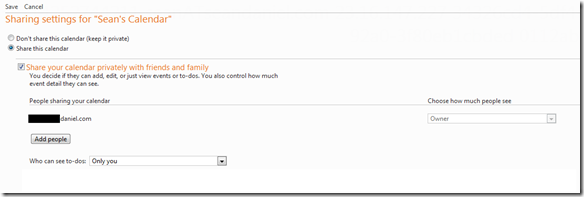
  3. Change the Don’t share this calendar (keep it private) to Share this calendar Share this Calendar
  4. When you select Add People you can select from your address book of people to share from and how much access you want that person to have.  For example, I had my wife give me co-owner access so I could update her calendar once/month with all the items she writes down in her day planner, and I gave her view details:  Calendar Access
  5. Then hit Save all the way down at the bottom of the page.image

The beauty with this is the calendar, with your access level just pops into your calendar list, you can choose to overlay it in your calendar (default), or just uncheck it.  Given that I want to know what my wife and daughter are up to, I just keep it active.  Then at a glance I’ll know if my wife is working on Friday or not and if I can go to soccer practice.

Even further into the beauty of Hotmail calendaring, is now this is accessible from all the different calendar views that you might use.  For example, if you use an iPhone or an iPad as we do in this house, you get your Hotmail calendar’s right there on your phone.

iOS Calendar

Additionally, if you use the Outlook Hotmail Connector (the primary reason I use this is for the calendar), then you can see all of your chosen calendar’s in the single Outlook view.  Which makes it for even easier update, select the calendar you want to update, and then just type into the calendar like you would with any Outlook calendar.

image

And yes, I am anal about my calendar’s, so I even make them all the same colour on all the views/devices.  My work calendar is always blue, my home calendar is always brown, Kendra’s calendar always yellow (except yellow doesn’t look good in the Outlook view).

I highly recommend sharing calendars for people you are with a lot, especially a spouse, it just makes life easier for us to stay in touch and know what’s going on.

As a final note.  If you wanted just do a 1-time send of your free/busy information to someone, Hotmail has you covered there.  I have yet to use this feature, because my personal calendar just isn’t that packed, and not everyone is as religious about their calendars as I am.  But on that same Share tab, Hotmail serves up all the personalized links and you can choose which one to send

Links Only

Tuesday, September 13, 2011

Outlook 2010 Speed Tip: Using the Quick Step Box

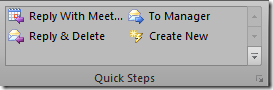
Outlook 2010 has been out for a while, but one of the more recent features I started to depend on to make email faster for me is the Quick Steps box on the dialog:

Quick Steps

The Quick Steps bar allows you to make quick and customized operations on pieces of email that you have in your inbox.  There are a bunch of default ones that I use all the time, and I’ve also created a few new ones myself. 

Let’s first talk about how to use it, it’s pretty simple.  If you have a message you want to take action on, simply make sure it’s collected and select the one you want.  If you want to reply and delete it, simply click that button.  A reply message is opened to the individual, and the original message is deleted.  It’s that simple. 

Let’s say we often move mail to a specific folder in our inbox, and it involves selecting the message, dragging it to a folder that may or may not be collapsed in the tree view, and then dropping it there.  Instead, we can create a new Quick Step for this.  To do that simply:

  1. Select the Create New Quick Step image
  2. Give the Quick Step a name like “Move to Follow Up”
  3. Select Move to a folder, under the Actions drop down. 
  4. Then select the folder in the drop box that appears that you want to move the message to. 

And that’s it.  You can additionally assign a short cut key, give it tool tip text if you have complicated rules, or even add additional actions.

It’s made my life easier, with the amount of messages I get each day, I highly suggest checking out the Quick Steps.  Allows you to cut through email pretty fast.