Showing posts with label Personal Cloud. Show all posts

Thursday, December 05, 2013

Adding Server Shares to Modern Photo App – Windows 8.1

Windows 8.1 updated the photo app to remove Facebook, and Flickr, and make it only look like you can view pictures on your local device, and on your SkyDrive.  However, this isn’t entirely true.  If you’re like me and have a NAS or in my case, a Home Server on your network, you could quite possibly have GBs of pictures stored on your server that you want to show to friends and family on your tablet.  That can be cumbersome to get to if you don’t set it up first.  And nothing makes family or friends more bored of looking at your pictures, than watching you struggle to get to them.

Here is how to add those GBs of photos to your surface “view” without actually copying them to your surface.

First you need to make sure your surface has access to the server share.  I recently wrote a post on how to do that – Using the Windows Credential Manager to Store Server Credentials in Windows 8.1.

Next follow these steps:

  1. Open up the Desktop app if you haven’t already
  2. Open up Windows Explorer and navigate to the picture folder on your remote machine
  3. Right click on the folder containing the pictures, and go to Include in library, and select Pictures to include it into the pictures library. Include in Pictures library
  4. Now you’ll see in your libraries that you have two locations for PicturesPictures library
  5. Next go back into the Photos Modern app and choose the local computer, you’ll notice all the folders inside the pictures folder you chose in step #3, if you’re on the local network Pictures Library Modern App

Now when you’re on your local network, you just look like you have a HUGE photo collection.  The downside is if you take pictures at 21megapixel like I do and use very little compression, that you’ll end up having to wait for Wireless to download each picture as you go to view it.  I find a good 2-3 second story about each picture is enough for the next picture to download in the background. Smile

Monday, July 16, 2012

How to add a “Send To” shortcut for SkyDrive

With personal cloud computing on the rise with SkyDrive, Google Drive, Drop Box, etc.  you want super easy ways to get things into and out of the Cloud.  If you’re like me, sometimes you’re in a hurry and just need to slap something into the cloud on the way out the door, and organize it later.

SkyDrive

Into Windows has a great article on how to add a “Send to SkyDrive” shortcut to the context menu of the shell. You can find that article here.  Basically it boils down to simply putting a shortcut to the SkyDrive folder into your sendto special folder.  You need to be also running the SkyDrive software for Windows.

Here’s what I did, after installing the SkyDrive software

  1. Navigate to the folder above your SkyDrive folder, it’s typically c:\users\%username%\ (where %username% is the username of you on your computer)
  2. Right-Click on the SkyDrive folder and choose create shortcut.
    1. I renamed this file from SkyDrive – Shortcut to just SkyDrive, for a cleaner look
  3. Next open up Start, then Run, and type in “shell:sendto ”. This will open another explorer window in your sendto folder. 
  4. Move the shortcut created early into this sendto folder.

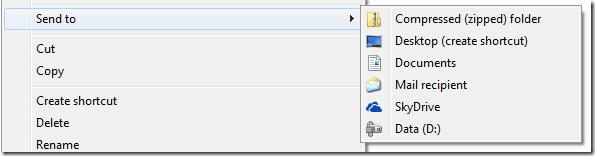
That’s it! now simply right click on any file you want to send to your SkykDrive, go to the “Send To” option and you’ll see SkyDrive in the list.

SendTo SkyDrive

Just remember to leave your laptop open long enough to wait for that file to be sync’d to the cloud!

Monday, July 02, 2012

Enjoying the Cloud way of Life

A few years ago, I made a decision to move almost everything to the cloud. Steve Ballmer did say that Microsoft employees were "All In!" and I decided to take that to heart. See what it's like. I have since ditched running Exchange in my house for the power of Hotmail (Although I also have an Office365 account), and I have focused most of my energy on cloud services in the public cloud instead of those in the private cloud, although I still run Windows Home Server strictly because cloud storage is expensive.

I have to say that thus far I like it. I have minimized the number of computers in my house from 4 desktops, 2 laptops and a server, down to 1 laptop and a tablet and a [light-weight] server. It makes patch-tuesday much easier to swallow as I'm not chasing down computers for updates. My wife still has her laptop and her phone, but otherwise it's a minimalistic approach.

I did make some other changes. I switched out my Zune player for a Sonos player (well, actually 2!), and I stopped buying CDs and ripping them to my home server and now simply subscribed to Rdio, which is kind enough to allow me to play any song I want at any time, to any device. It's cheaper than actually buying the CDs now too. It fits nicely in with the Sonos player as well.

Part of moving to the Cloud was I wanted to have almost no data on my computers or tablets. I store a backup of all my personal documents on my SkyDrive using their new app for the PC, which gives me access to all my stuff from my iPad and soon to be Windows Surface! I store all my work documents on SharePoint at the office, and my laptop is really just a vessel of information that's actively being worked on until it's saved to one of those two locations.

In fact, all I use my Home Server for is media storage. Ripped DVDs for streaming to the xbox, my old music collection, and most importantly my photo collection. My Home Server also provides a gateway to the cloud for online backup (see my Online Backup posts). It's also the "computer" that's on all the time, so it runs any long-time running tasks which allows my PC to sleep as often and as aggressively as it likes.

So far living the Cloud is easy, but I've made some important decisions as to where I store my data, and admittedly, there is some data that I still don't put in the cloud, but I could probably count it on one hand.

Are you in the cloud yet? why not? Drop me a comment and let me know why.

Monday, April 23, 2012

How to Sync Folders to the new SkyDrive without moving them to the SkyDrive folder

imageSo the new SkyDrive is out today, you can read about the awesome new features here (on the Building Windows 8 blog).  The SkyDrive team really amped up their battle with DropBox in this new version.  With Windows Phone, iPad, iPhone support, along with MAC and PC support, it really is pretty cool, and now completely accessible.  Also with HTML5 support, it’s super fast on the PC and MAC for browsers that hardware accelerate HTML5 based graphics.

However, I will miss Mesh.  I wasn’t asked to un-install it, as part of the upgrade, but I can see it coming (no I have no details here, speculation only)

Mesh had this ability to sync *any* folder to the cloud, which is now gone from this version of SkyDrive.  Apparently all the DropBox fans have forced the hand on this one.  Fortunately, on Windows (and I’m sure this works on a MAC too, but I can’t test it, any mac fans post how to do it in the comments and I’ll add it to the post) you can create links to folders to have things sync to your SkyDrive that aren’t actually in your SkyDrive folder!

To do this you’ll need to bust out the ol’ Command prompt, in Administrator mode, because a symbolic link just isn’t enough for SkyDrive to pick it up, you need a hard link.

  1. Click Start, and type in CMD, right-click on the cmd.exe and choose Run as Administrator
  2. Change to your SkyDrive folder, mine is c:\users\<username>\skydrive (so cd /d c:\users\seanda\skydrive)
  3. Next we’re going to make a link to a directory that lives in My Documents Folder, I’m going to do that with this command to sync my “tools” directory: mklink /j “Tools” “c:\users\seanda\documents\tools”.  You’ll get a line that says "Junction created for Tools <==> c:\users\seanda\documents\tools.

You’ll notice a new tools directory being created, and it looks exactly the same as the other directory (contents and all, you didn’t need to copy anything in).  Now you can simply drop stuff in your c:\users\seanda\documents\tools directory, and SkyDrive will pick it up.  (You might need to restart the SkyDrive system tray app for it to pick this directory up, although I didn’t.)

Additionally, if you’re trying to get this to sync between two computers, you’ll have to set up the Junction before SkyDrive can drop files in there (meaning create the folder locations manually with the junction in place.  I only use the one computer, so I didn’t test this.