Showing posts with label Security. Show all posts

Tuesday, January 21, 2014

Checking your sign-in history in Outlook.com

Well, I thought I knew everything about Hotmail..err.. Outlook.com there was to know, but instead I was talking to a friend today who said that a month or so ago, someone tried to access his account from Chili. Wait, what?! how does he know this?

Your Microsoft Account stores all the successful and unsuccessful log in attempts in your profile for you to view at any time.  Simply browse over to https://account.live.com and log in, then click on Recent Activity.  You can scroll through each one if you want, or just scroll until you find an Incorrect Password Entered or a weird Location.  Like this one in my account:

Recent Activity

Wow, someone attempted to log in to my Outlook.com account from Poland, good thing I have 2-factor auth enabled.  So if they did have my password for whatever reason, they’d still need my cell phone to actually get the second auth factor… which I have right here with me… aka, not in Poland.

Kind of nice there is an audit trail.  If one of the successful log ins wasn’t you, you can contest it right there and Outlook.com will help you take evasive action!

Have fun snooping on your snoopers!

Wednesday, December 04, 2013

Using the Windows Credential Manager to Store Server Credentials in Windows 8.1 (and on Surface!)

My wife got a new laptop, first one in 10 years.  I’m very proud of her.  She’s the opposite of me, and pretty much doesn’t like change on her computer.  This is most likely due to the fact she touches a computer for less than 1/2 an hour a day, and doesn’t want to spend 10 minutes of the 30 figuring out where the “File” menu went (yes, the IE7 upgrade just about killed my wife).  She went with the Lenovo Yoga 2 Pro. It’s an amazing laptop, but doesn’t have a TPM chip, so I can’t use it for work (otherwise I’d have one too!)  The screen is breathtaking, but I digress.

We have a Home Server 2011 in our house (obviously), but it doesn’t back up UEFI machines (not that I know of anyways) via the Client Backup.  So installing the Launch Pad seemed a bit of overkill so she could just go to \\server.  Her Windows Explorer has a link to the root of the Server share so she can get to the pictures, the videos, the TV shows, and so on.  I’m a big fan of security, and she has her own account on the server, but I couldn’t get her username and password to save for the server through a reboot.  And as you can probably guess, it has to be easy for her (a click to get access). 

I ended up simply saving this into her Windows Credential Storage (details below).  Worked like a charm.  It got me thinking, does this work on my Surface 2?  Sure enough it did!!  This means that I can simply access the server without providing credentials every time.  Now when I’m in my home, my Surface can just access an additional 4TB of data, right from inside the Metro Apps (more on this in my post "Adding Server Shares to Modern Photo App"). 
Let me tell you how to use the credential manager first. 
  1. Hit the Start key or swipe out the charm bar and press the Start button
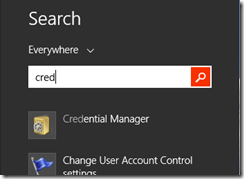
  2. Type in Cred to search the start menu for the Credential Manager. Search for 'Cred'
  3. Launch the Credential Manager, and select the Windows Credentials button. 
  4. Under that button, simply click the Add a Windows credential.
  5. Fill out the wizard with the name of your server, in my case “SERVER”, my credentials Fill out the Add a Windows Credential Wizard
  6. Notice it’s in the list and then close the Credential Manager
Now you may try this instantly and it might not work.  This is most likely because you’ve already tried to connect to this server and stored the fact that you don’t need a username or password.  A reboot or sign-out/in will fix that as long as the item stays in the Credential Manager.  You can also open the command prompt and type in “net use * /d” to delete all active connections which will force Windows to re-open new ones, using the Credential Manager.

For reference, here is the official Windows Help topic on this.

Tuesday, October 08, 2013

Removing the Required PIN code on Windows Surface

My corporate E-Mail requires that any device I sync it to, enable a 4-digit PIN to unlock the device, at a minimum.  I can make this as complex as I like, but I must at least have a 4-digit PIN.  I'm fine with this, I think it's a good practice to have a PIN on your phone or tablet, so if it's lost, the thief or casual finder can't access all the data on it.  Even more so all those corporate secrets that I have! (har har! Like I'm trusted with corporate secrets!)

What I'm not fine with, is once you decide that you no longer want your work account on a device, you can't get rid of the requirement for the PIN, like how I'm re-purposing an old SurfaceRT (yes, I pre-ordered a Surface2!) to be a digital music player / weather station / morning news station / upstairs Skype phone, in the bedroom, I don't have *anything* on it that would need a PIN, and the likely hood of the tablet leaving the bedroom aside from when I move houses, is extremely small.

Searching around turned up nothing, asking around (especially @Microsoft) usually turns up something.  And this time it turned up this super handy How do I Turn Off the AutoLock in Windows 8 article.  And here I was searching around in gpedit.msc or regedit, and it's right there in the Control Panel UI!

Here's how to do it:
  • Open up the Control Panel (either Win+X or Win+R then type "Control", enter)
  • Click on the title User Accounts and Family Safety
  • Click on the title User Accounts
  • Click on the Reset Security Policy 
  • Click on the Reset Policies Button 
That's all there is to it. Now you can go into PC Settings and set the password policy to never required!  This also allows you to change the default screensaver time out as well.

There you have it.  It took me a lot of effort to find that, so I'm sharing it here (so I don't forget as well).  And now I don't have to factory reset my SurfaceRT! w00t!

Thursday, October 04, 2012

Beware Social scammers that call pretending to be the Microsoft HelpDesk

On 9/21/2012, I received my first social engineering hacking attack. An attempt to obtain access to my computer and my credit card, leveraging my stupidity and lack of computer skills :o)
I'm outlining what happened here so you can save yourself if you get a similar phone call.

Apparently the FTC is aware of this and is cracking down on these support calls, but I figured I’d post this here as well, because well, the end is hilarious.  Additionally, these folks seem to be blind calling (aside from knowing your surname) as they didn’t realize that I actually worked for Microsoft.  In some cases, they call right into honeypots just waiting for their call.

Please note that the first few minutes of this call, I was confused as I had 3 tickets open with the *internal* Microsoft helpdesk about random stuff related to my job.  I found the conversation hilarious.


This phone call from 206-397-1127, the caller idea was a bunch of numbers. This is how the call went:


Me: Hello?
Caller: Hello Mr. Daniel? (I have no idea how they got my name)
Me: Hi
Caller: This is the Microsoft Help Desk calling, we have seen issues that your browser is infected with a virus and we're calling you to help you fix your computer.
Me: Oh? (At this point I'm thinking it might be the internal Microsoft helpdesk, but the number is wrong, which I'm aware of)
Caller: Yes, I'm calling because I can help you fix this problem. Is your computer on?
Me: Yes it's on, I'm sitting at it
Caller: Well, click the start button in the bottom right hand corner of your screen
Me: There is no start button (I'm running Windows 8, if you recall, there is actually no start button anymore)
Caller: Yes, it is there, in the bottom left of your screen, all the way at the bottom, all the way to the left
Me: I'm looking there, I do not see a Start button
Caller: ok, we will do this another way, do you have a keyboard?
Me: Yes (I wish I was using a Surface at this point, as I wouldn't have a keyboard either!)
Caller: Ok, beside the CTRL button, there is a button with a flag on it, 4 squares in a flag. push that
Me: (trying to hold in my laughter at this point). Nice try, you obviously don't know that i'm running Windows 8, and there is no start button, SCAMMER! <click>

As a Microsoft employee, I'll tell those of you who aren't, that Microsoft will never call you about a virus on your computer in this fashion. They do provide you with FREE antivirus solution called Security Essentials for Windows.

Friday, March 18, 2011

Going “Pro” using Proxure’s KeepVault Pro for Windows Home Server 2011

If you read my post from Tuesday of this week, on using Proxure’s KeepVault for Windows Home Server 2011 or Windows Small Business Server 2011, and when you got to the bottom, you thought to yourself.  Heck yeah I’m going Pro! Then this I post is for you. 

If you are running Windows Small Business Server 2011 Essentials, then this post will simply show you the features before you buy, because you had to get KeepVault’s pro version for your version of Windows Small Business Server. 

First, the upgrade process: If you have Windows Home Server 2011, and you’ve been enjoying the standard features KeepVault has to offer, but want to upgrade because one or more features in my previous blog post were appealing, here is how you do it:

  1. From the Launchpad, click on the Dashboard link and type in your Home Server Password to load up the Dashboard.
  2. Navigate to the KeepVault tab already installed in your Dashboard
  3. On the My Online Backup Job tab, click the link your account name.  For me it’s my email address to go to KeepVault’s website.
  4. Log into KeepVault’s website (you’ll need that subscription ID again) and follow the instructions to upgrade to Professional.
  5. Now you have to make the software aware that you’re running pro.  I remembered that the “Restore Files” link had an upgrade option, so I used that: Upgrade KeepVault Backup for Windows Home Server
  6. Since I already did the upgrade on the web, I just clicked Apply Upgrade, but you could also skip the first few steps and  have the Purchase Upgrade take you to KeepVault’s website.  When you’re finished upgrading the back end, you get this: Welcome to KeepVault Backup Pro
  7. Wow, I don’t even have to close the File Recovery wizard, I instantly have another option to selectively download from other computers I might backup. Selective Download
  8. I cancelled the above wizard, and I’m still in KeepVault Pro

You’ll now notice little changes throughout the UI like the above recovery option, for example, if you flip over to the My Local Backup Job tab, you’ll see in the drop down list that you can add a network drive to backup locally to:

Add a Network Drive ...

Sub Users and roaming backups

In addition, the Pro account now gives me access to add “Sub Users”.  Brilliant!  So now I can just install the Windows 7 version of KeepVault on my wife’s computer, and have her files and folders backed up directly to the cloud while she roams around with her laptop.  Or better yet, in Windows Small Business Server 2011, you often have roaming sales people or people who are away from the office for long periods of time (perhaps even satellite offices?) you can simply install KeepVault on their PC, sign them up as a sub-account and have them back up directly to the cloud.  Need a file from them? Then simply restore it to the server. 

Adding a Sub User Account

Accessing your Backup through the Web Portal

When you click on your account name (in my case my email address) in the My Online Backup Job and log in with your subscription ID, you can click on the Web Access tab.  It’ll prompt you for a web access password (I skipped this because I was so excited about Sub Users, If you’re like me, simply disable web access and enable web access and it will prompt you again).  Once you have your password in place, you can click the Open Now web link to jump right into your online backup.

Web Access Tab

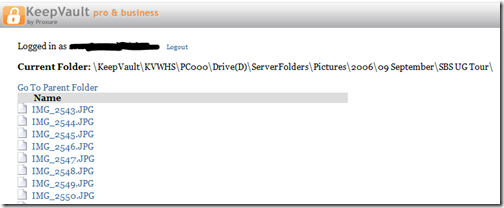
If you don’t want to log in with your Subscription ID, there is a quick jump to http://web.keepvault.com, which will jump you right to your web view of your backup.  Which by the way is raging fast, even though it’s reading encrypted files.  For example, if I wanted to download files from my 2006 User SBS Group Tour, I can simply browse to the folder, click the file and download:

KeepVault Backup Web Access

Retention Policy

As mentioned in my previous post on KeepVault, you also get a retention policy of 5 versions of files.  To restore previous versions of the files, simply do a Selective Restore, and when you get to the file, right-click it and choose the version of the file you want.  If there is no context menu, you only have one version (the latest) backed up.

From the Web Access, if you click on a file (screenshot above), you see all the versions of the file available to download.  You should keep in mind the following:

  • If you delete a protected file from KeepVault, it deletes all versions
  • File versions younger than 48 hours are never deleted (if you save a word document 10 times for example in the same day and backup is configured to “automatic”
  • The oldest 5 versions of a file are pruned (read recovered storage space) after the 10th version of a file is successfully uploaded

So as it turns out, it’s pretty easy to go Pro, if that suites you, and Small Business Owners, now you have details of all the Power Pro gives you at your finger-tips.

Tuesday, March 15, 2011

Online Backup using Proxure’s KeepVault for Windows Home Server 2011 and Windows Small Business Server 2011

As I’ve mentioned before, being a photographer, my photos are my most critical piece of data that lives on my Home Server.  When using Windows Home Server v1, I had found an Online Backup solution that I previously reviewed on this blog.  While I still think it’s a good solution, it has some draw-backs depending on the Amazon S3 back-end.  Like the cost of Amazon S3 is about as expensive as it gets, and signing up for Amazon S3 was probably one of the more confusing processes I have ever done.

While at SMB Nation 2010 in Las Vegas, I had ran into a company called Proxure who build a solution called KeepVault.  I watched a demo of their solution run and it seemed reasonable, at least to check out.  I thought it was pretty cool that they offer versions for Windows XP, Vista, Windows 7, Standard Server (03 & 08 via their Professional version), and most importantly for me: Windows Home Server.

KeepVault Add-In

While this blog covers KeepVault on Windows Home Server 2011 (codename “Vail),  the same add-in offers cloud storage to both the Windows Small Business Server 2011 Essentials (codename “Aurora”) and the Windows Storage Server 2008 R2 Essentials.  However, for these business products, you need to get KeepVault Pro.  The steps and UI, aside from the color of the dashboard, is identical.  KeepVault Pro can also be used on Windows Small Business Server 2011 Standard (codename “SBS7”), although that UI is not shown in this blog post.

Back to the review: The first thing I notice was KeepVault doesn’t bill you for what you use, they bill you for storage space in chunks (40Gb, 80GB, 130GB, 200GB … 3.5TB!).  So if you’re only backing up a very small amount of data, you could end up over paying, but if you compare to Amazon’s 15cents/GB (up to the first TB), you really see a cross over at about 15GB.  Once you get over 15GB, Proxure seems to win hands down on cost.  Plus when you hit the top mark, you click a link and you can bump up your storage. 

The Setup Process

Using the AWIECO Drive Info add-in, I determined I wanted to back up my Pictures and Documents, the things that I really care about.  That came out to about 117GB, so I signed up for the 130GB plan from Proxure.  You don’t need the AWIECO add-in, but it made it a “glance” to compute.

Installing the add-in is just as painless as installing any add-in.  Just double click on it on the server, or on any server-joined client, read and accept the EULA, and then Install it.  You’ll have to re-start the Dashboard to have it appear in the global tabs.

Proxure KeepVault Add-In

The initial page doesn’t look intimidating at all.  Simply click on the Order a KeepVault Backup for Windows Home Server Subscription Now button and sign up. I thought it was pretty slick you could pay via PayPal or with a standard credit card. I’m all for yearly payments too, so I got to save my 10%!! Within 5 minutes I was emailed my subscription ID. Typing that in, with my email ID and I’m good to go.

Choosing an encryption key I can type one in myself, or KeepVault will randomly generate one for me.  If you generate one yourself, you have a risk that you forget your key and now your cloud backup is useless.  If you’re like me, you’ve installed WHS 2011 on new hardware and it’s probably a while before that fails, so you might forget it.  If you don’t want this cumbersome task, you can let KeepVault choose one for you.  The interesting thing here is that they generate the key based on your ID and subscription numbers (as its computer agnostic).  To me that means that someone at KeepVault *could* decrypt your backup.  Although my suspicion here is that you are still safe because our data is stored in blobs and because KeepVault has more than one customer, it’ll be hard for the lay-man IT person at KeepVault to match this up to your backup.  For what it’s worth, I went with “Let KeepVault choose one for me”.

I like how KeepVault really focused on the simplicity of the solution.  With the previous solution I reviewed I could create multiple backup jobs and multiple schedules, which was nice, because parts of my collection barely every change, I just wanted them backed up.  But it was overwhelming at first.  KeepVault’s “Always/Real Time” schedule by default and the single “Job” configuration removes any daunting thoughts you might have.  The only confusion on the whole page for me was enabling the protection on the shares.  I didn’t realize the grey bar across the page were actually buttons, as most of the WHS 2011 console they are just “headers” of columns.  So once you realize that you can just click on Enable Protection to add that shared folder to the cloud backup, it was all good.  As any good add-in, you can also right-click on a Share in the list and select to enable or disable it from the context menu.

Enable Protection for Shared Folders

Using the Add button you can also add any folder you wish on the system, so it doesn’t have to be shared out to the network in order for you to back it up.  You’ll also notice in the screenshot above that I have changed the schedule to be between midnight and 6am.  This is because I am uploading 115GB of data, and I work from home, so from 8am-6pm I use my bandwidth for work, and from 6pm-midnight, I use it for entertainment.  By default, KeepVault will Encrypt and Compress your data on the box before it sends it over the wire.  Nifty…

KeepVault Job and Setting Options

The only feature that I think is missing from the Job scheduler is the ability to run 24/7 but use less bandwidth during the day, and all of it at night.

Looking at the other options, you can always pause the backup, view and delete your protected files online (ie. if you want to permanently delete some files, you can delete the file locally, and use this task to delete it from the cloud as well), view the protection/upload history, configure a proxy if your ISP requires one, and most importantly (the reason we all do backups), Recover Files.

The Event Log is KeepVault’s own list of events (like service start/stop, etc events).  Messaging (while somewhat confusing of a name, maybe “Job Notifications” or “Job Alerts” might be better, is actually really well done.  You can receive emails or SMS alerts (via your carriers E-Mail to SMS service) based on your backup failure rates.  KeepVault obviously has some mail service on the back-end that they allow you access too, because unlike the WHS 2011 Built-in Alerts, they don’t ask you to configure an SMTP service.

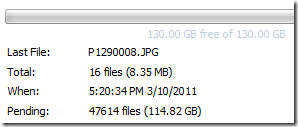
When the backup eventually kicks off, if you’re backing up as much data as I am, even with the 1900kbps as advertised in my standard version of KeepVault, I’m in for a long wait…  This is the same with every cloud solution the first time you back-up.  The progress is good, you get both global progress as well as file level progress
Global Progress of Upload

From 5pm to 9am (~16 hours) on a Thursday night over my cable connection, I backed up 5.1GB to KeepVault’s cloud.  Not quite as fast as the Amazon S3 solution, but then again, I don’t have a Pro account with KeepVault.

Once your data is uploaded, it lives in Proxure’s Data-Center, encrypted for only you to download in the event of a disaster.  Fingers crossed that this is just an insurance policy, and never used.

KeepVault Local Backup

You may have noticed in the above screenshots there was another sub-tab called My Local Backup Job.  Yes, KeepVault can back up to a local disk.  In the Standard version, it’s similar to the built in WHS 2011 Backup in the fact that it can only backup to hard drives attached to the system (the recommendation is still for USB for offsite storage).  If you have KeepVault’s Premium version, you can also back up to SMB Share (i.e. \\NAS\Share), so if you have another device on your network, you can back up to another share on your network.

Also, you’ll notice that this tab also allows you to compress or encrypt.  So if you’re taking that disk offsite, the encryption piece might be something you want to consider for safe storage of that disk should it be compromised.  If you don’t encrypt it.  Files are stored in “explorer friendly” format so a restore on any computer without KeepVault installed is possible.  In comparison, WHS 2011 backup is stored in VHD format, which requires you to first mount the VHD before you can actually do the restore of files.

Recovery of Files

File Recovery

The One-Click Recovery, really is just that.  Let’s say that you have a little child at home, and their favorite past time was to go into your prized photo library and use the delete button, just randomly through your collection.  Or maybe you were searching for your favorite files, and then miss-clicked and deleted your favorite files across your 100GB collection.  Restoring that can be painful.  This One-Click Recovery makes that a breeze.  As *soon* as you click next (i.e., one click), the service will compare the cloud to the local box, and recover all missing files.  If the file exists, the restore will be skipped, preferring the local file over a recovery.  So you can recover all those files our child deleted randomly, yes with one-click.  Obviously this is how you would go on a new server, because none of the files exist.

Selective File Recovery DialogThe Selective Recovery is more of the natural way we think about recovering.  You get your standard tree-view and you can drill into your cloud backup and select different files to recover.

This way is not a single-click restore, but a selective restore.  On the left-hand side if you select a folder, you can select files and folders on the right-hand side for restore.  So if you’re restoring a whole folder, select the folder above it, and then check the box next to the folder you want to restore. If you’re restoring all but a few files in a folder, that can take a few extra clicks.  Thankfully you can use the CTRL or SHIFT Keys to multi-select as you need (similar to Windows Explorer). Before moving on, you need to select if you want to over-write existing files.  This was weird to see on this dialog, because I figured it would be a sub-option on the recovery location which is next.

Once you’re comfortable with the set of files you’re going to restore (and if you want to over-write files), you next choose if you want to restore the files to the original location, or another location.  Unless I’m restoring a completely new server, I’d probably always choose another location to make sure that I’m getting what I expected.  Once you’ve chosen the folder for the location of the restore, I hit “Recover”, and just wait for the software to download the files and put them in the appropriate place.

Recovery Progress

The restore is in fact pretty painless, and yes, my photos came down in-tact…

Test Restore Thumbnail View

Why Go Pro?

As you saw above, KeepVault has two versions, Standard (which they just call “KeepVault”) and Professional (or “KeepVault Pro”).  As a home user, you  might not ever need the Pro version, but it’s certainly something you need for businesses.  So what do you get if you go Pro?

  • Support for Server solutions (aside from the WHS).  For example, the Windows Small Business Server 2011 Essentials, Standard and Windows Storage Server 2008 R2 Essentials.  Also, if you have additional servers in your environment, you can back them up to the same account (Standard Server 2008 and Standard Server 2003).
  • A much faster upload rate (5250kbps instead of 1900kbps).  This comes in handy with that first backup.  The faster you get the files to the cloud, the sooner you are protected!
  • Local Backup to UNC share.  Meaning you can back up your server to a local server share as well.
  • Higher encryption levels (256-bit encryption can be chosen instead of 128-bit)
    • This reminds me.  If you backup a file with the pro version, and then downgrade, your standard client can’t understand the 256-bit encryption and thus can’t restore the files.  It does work the other way around though.  So just be careful which way you go!
  • More Access to your data (Web Access, cross device access for restore) and other administration features.  Notice my screenshot under “Restore” above, if I had the pro version, I could backup files and folders from other computers, right to this single computer.  This means I could support cloud backup on my client computers, and then restore this to the server in the event that the client was dropped while out on a trip!  Another brilliant business feature.
  • If you’re using a management solution, error notification includes system events, so you can track errors in your online backup with your monitoring tools.
  • 5 version retention policy.  If you are with KeepVault standard, you only have the latest version stored on the internet, with Pro it keeps up to 5 versions so you can go back in time when you wish to restore.

As a business user, you’ll have to use the Professional version to get the add-in installed.  As a Home User, you should review the features above and gauge how critical they will be for you. 

If you’re still debating having a Cloud Backup solution for your most prized data, you should approach it like an insurance plan.  You have one for your house, you have one for your car.  You cross your fingers every day that you don’t need to use it, but when you do, it’s there for you.  If your hard-drive fails, recovery of such drives can often cost $1,000s, with no guarantee you can get your data back.  If you’re house burns down, like my uncle’s, this sort of thing is priceless.

I’m using KeepVault, what are you using?

UPDATE: Want to learn more about KeepVault Pro? Check out my Going Pro with Proxure’s KeepVault blog post.

Thursday, August 19, 2010

Dana Epp – SBS MVP and Security Expert talks about Remote Access and security precautions to take

Dana Epp on Five by 5–Securing Remote Access

Dana covers important topics about what you can do to give your employees remote access, while at the same time ensuring the security to your network is maintained.  Learn more about Dana’s AuthAnvil program at Scorpion Software.

Monday, July 12, 2010

Announcing the next releases of Windows Small Business Server

Today we (as in our fearless leader Kevin Kean) pulled the lid off what our team has been working on for the past few years. Two new versions of Windows Small Business Server. That’s right. TWO new versions.
From a traditional standpoint, we’ve continued the single-server mantra with Windows Small Business Server “SBS7”. This version includes updates to all the major products in SBS, such as Windows Server 2008 R2, Exchange Server 2010 SP1, SharePoint 2010 Foundation, WSUS 3.0, and SQL 2008 R2 (with Premium edition). These new versions provide our customers with security and management. We also included a brand-spanking new version of Remote Web Workplace! This version of SBS will continue to support the familiar 75 users

The second version, code named Windows Small Business Server “Aurora” is the new edition of SBS. It’s cheaper than SBS7, and is even a lighter weight “first server” option for small businesses as is a hybrid server delivering both on premise services, as well integrates with the cloud. It also includes PC Backup, and server backup/restore capabilities. The same new version of Remote Web Workplace! This version of SBS will support up to 25 users.

Aurora

“Aurora” also brings a key new functionality of add-ins to drive integration between new and existing on-line services with Aurora. Developers can find the SDK on Connect. We have been working with a lot of partners with SBS Aurora such as Symantec, Level Platforms and Disk Keeper are all making statements this week around plans to integrate products with SBS Aurora. HP is not only showing SBS Aurora in their booth at the Microsoft Worldwide Partner Conference, but has a sneak peek at http://www.facebook.com/CoffeeCoaching. And you’re sure to hear more as we get closer to releasing the preview.

You can sign-up to be notified when the Preview of these servers are available over on the SBS Connect website.

It’s nice to finally be able to talk about the products I’ve been working on for the last number of years!

[Official Blog Post on the Official SBS Blog]

[First discovered review of SBS7 and Aurora, by Paul Thurrott]

Thursday, July 01, 2010

How to Stay Safe on Public Wi-Fi Networks

Over on Lifehacker.com, one of my favorite sites, they talk a bit about how to stay safe on Public, or even those looming “open” networks that you might discover in an apartment building.  It’s important to consider these because network traffic, when not encrypted, bounces off other computers or is just visible to snooping computers and can leave you compromised.  In fact, this is one reason I refuse to use straight-up POP3 (without SSL), because back in University, my roommate showed me how he was just getting usernames and passwords to email addresses on Rogers ISP.  Kind of scary when you see that.

Browse on over to LifeHacker to get details, but I’ll copy the essentials here for easy reading.  Lifehacker also provides both Windows 7 and MAC UI and instructions.  I’ll copy the Windows ones here

Turn off File & Printer Sharing

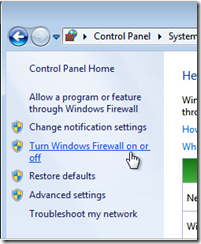
Enable Your Firewall

Use SSL Where Possible

Consider using VPN

Turn it off when you’re done

Change to the Public Profile


Some other things I’d recommend above and beyond are:

  1. Make sure you have an Anti-Virus/Anti-Malware solution installed.  If you don’t have one, there is a few free ones, such as Microsoft Security Essentials, which is what I use.
  2. Make sure the password you use for your PC is a strong one.
  3. Don’t save standard SSIDs such as “DLink” or “Linksys” or “Netgear” into your saved networks to prevent accidental connections to bad networks.
  4. Opt into Microsoft Update to keep all your software up to date.  And ensure it’s all up to date.
  5. Ensure your Bluetooth network adapter isn’t discoverable (although this is more of a personal area network, instead of a WiFi network)

As it turns out, that little “unsecure lock” you see on those public Wi-Fi networks is there for a reason, to give you extra warnings to head, as mentioned above.

It’s a zoo out there, stay safe!

Wednesday, April 21, 2010

McAfee Update Shuts Down XP Machines

McAfee corporate customers across the globe using Windows XP experienced massive shutdowns today as an update to McAfee's security suite deleted svchost.exe—a very common Windows process—causing machines to reboot continuously. McAfee has confirmed the problem and removed the faulty virus definition file from the update. Only McAfee's corporate users were affected.

If you or your workplace were affected, Twitter user scratchfury offers this (unverified) tip:

boot to safe mode, rename mcshield.exe, reboot, run Virus Console, pick Tools -> Rollback DAT, name back to mcshield, reboot

We don't have a machine to test it on, so follow his tip at your own risk, and only if you know what you're doing. If you've fixed it already, let's hear how you did it in the comments.

Courtesy of LifeHacker

Tuesday, April 13, 2010

Create SUPER complex passwords with touch typing skills

I found this awesome tip on LifeHacker, one of my favorite blogs… Shift your fingers one key for easy to remember, super complex passwords!

500x_top-secret-password

You're constantly told how easy it would be to hack your weak passwords, but complicated passwords just aren't something our brains get excited about memorizing.

His clever solution: Stick with your weak, dictionary password if you must; just move your fingers over a space on the keyboard.

If you want a secure password without having to remember anything complex, try shifting your fingers one set of keys to the right. It will make your password look like gibberish, will often add in punctuation marks, and is quick and simple.

When John Pozadzides showed us how he'd hack our weak passwords, he listed his top 10 choices for getting started hacking away at your weak passwords. Let's take a look at how a few of those popular passwords fare when finger shifting to the right:

  • password => [sddeptf
  • letmein => ;ry,rom
  • money => .pmru
  • love => ;pbr

Something longer but still really lame, like, say, "topsecretpassword", becomes "yp[drvtry[sddeptf". These may not be perfect compared to secure password generators, but they're likely orders of magnitude better than a lot of people's go-to passwords.

Thursday, October 15, 2009

Top Mac OS (OS X) Security Myths

CRN, a pretty active magazine in the small business space has a great article on what to watch out for when installing MACs into your business, or that connect to your business.  Most of it boils down to protecting the end-user from themselves.  I’m copying the article below, but here is the original article.

Mac OS X = Security?

Mac OS X = Security?
You've heard the rumors: Macs are safer than PCs. Macs don't need separate antivirus software. Snow Leopard is the safest OS in existence. The list goes on and on. But how many of those claims are the truth and how many are just, well, myths? We explored fact vs. fiction, and here is what we came up with.


Myth 1: Macs Are Safer Than PCs

Myth 1: Macs Are Safer Than PCs
Thanks to aggressive marketing from Apple, Mac users often think they are impervious to the viruses, Trojans and numerous other assaults that have plagued Windows users for decades. Security experts say that if Mac users are less susceptible to attack, it's simply due to the fact that there are fewer viruses written for Macs than for Windows. That is rapidly changing, however, as Macs gain market share. Meanwhile, users who have the unfortunate experience of being attacked by information-stealing Trojans will likely have their systems compromised and their data stolen ... just like every other PC user out there.

Myth 2: Macs Have Fewer Vulnerabilities Than Windows

Myth 2: Macs Have Fewer Vulnerabilities Than Windows
Not true. In fact, studies have shown that Macs actually have MORE vulnerabilities than their Windows counterparts, experts say. The reason? Constituting a "seek and ye shall find" phenomenon, it was simply a matter of attention, experts say. Some maintain that Apple's credibility in the security community increased as it gained traction in the marketplace. Others contend that a disproportionate amount of researchers in the field prefer Apple, and subsequently put their efforts into finding Windows' vulnerabilities instead. But once security experts began to seriously research Apple, the number of vulnerabilities increased exponentially, experts say. However, whether exploits target those vulnerabilities is another question.

"We can compare it to the situation with Internet Explorer and Firefox. Lots of people were saying that [Firefox] was so much more secure than IE," said Roel Schouwenberg, senior antivirus researcher for Moscow-based Kaspersky Lab. "It actually gained in popularity. Now all of a sudden a lot of vulnerabilities were being found in Firefox. I don't think you can underestimate the importance of market share."

Myth 3: Mac OS X Users Don't Need A Separate Antivirus Solution

Myth 3: Mac OS X Users Don't Need A Separate Antivirus Solution
Not so. Not even Apple says that anymore, even if it has downplayed the fact that users also should equip themselves with third-party antivirus software. There are just too many Mac Trojans and viruses out there that can evade Mac's built-in security systems -- and the numbers are growing.

"If you look at the Apple consumer base, and how they generally tend to think about security, the vast majority of Apple users will assume this is all they need," Schouwenberg said. "It's really nothing fancy and it can be easily bypassed."

Fortunately, there also are a number of antivirus offerings specifically designed for the Mac OS X platform.

Myth 4: The Antivirus Feature In Snow Leopard Is Enough To Protect Users

Myth 4: The Antivirus Feature In Snow Leopard Is Enough To Protect Users
Or not. If anything, experts say, the antivirus feature lulls users into a false sense of security -- that is to say, even more than the one they already had. Apple turned heads earlier this month with the release of its Mac OS X version 10.6 Snow Leopard, which touted that it came equipped with antivirus and additional security features. However, upon closer inspection, security experts said that the built-in antivirus feature was designed to block a whopping total of two -- yes, two -- Mac Trojans, despite the fact that researchers have detected dozens of malicious threats that target the Mac OS X platform. According to researchers at Intego, the built-in antivirus only scans files on a handful of applications, including Safari, Mail, iChat, Firefox, Entourage and a few other browsers, but fails to scan from other sources, such as BitTorrent or FTP files.

Myth 5: Most Mac Exploits Target The Operating System

Myth 5: Most Mac Exploits Target The Operating System
No. Actually, experts maintain that most of the attacks targeting Mac OS X will exploit the Web browser, and ultimately, the user's behavior. As in any PC, the biggest threat typically starts with the user and quite often via e-mail -- falling for phishing sites, clicking on malicious links, surfing infected Web sites, etc.

And as with their PC counterparts, Mac Trojans are becoming more sophisticated and stealthy, frequently designed to steal information and evade antivirus software. This means that as Mac's market share further grows well into the double digits, users can only expect to see more Trojans, worms and other Web-based threats taking over their favorite machines.

"The main danger for Mac comes not from the operating system but it comes from the behavior of the user," said David Perry, director of global education for Trend Micro. "Falling for bad phishing Web sites, responding to ads on Craigslist -- that is enough so that the end user requires additional protection."

Myth 6: Apple Is Just Like Microsoft And Has An Army Of Security Henchmen

Myth 6: Apple Is Just Like Microsoft And Has An Army Of Security Henchmen
Er, no. In fact, the company's historic lack of emphasis on security issues has left Apple vastly underprepared to deal with the barrage of anticipated Mac malware coming down the pike. Experts contend that Apple lacks the necessary manpower to create and test patches on a monthly basis and still needs the extensive specialized team needed to develop significant changes to Mac OS X internals that would make the platform more resilient to sophisticated malware attacks. And security experts also emphasize that Cupertino needs to stay on top of security issues in its open source projects and third-party components.

However, Apple appears to be trying. In light of a groundswell of Mac OS X malware, Apple recently hired its first security guru, the former head of security architecture at One Laptop Per Child (OLPC) Ivan Krstic, to oversee the security division at Apple.

Myth 7: Apple Needs To Implement A Monthly Update Cycle Like Microsoft

Myth 7: Apple Needs To Implement A Monthly Update Cycle Like Microsoft
Not necessarily, security experts say. This is simply due to the fact that there still isn't the necessary volume of vulnerabilities to warrant a monthly update cycle. However, experts agree that Apple could definitely stand to address security bugs in a more timely manner. After all, there are more efficient ways to repair vulnerabilities than with a patch that averages 70 to 80 fixes every few months.

Meanwhile, Apple scrambled to repair a six-month-old critical Java vulnerability this spring after -- but only after -- researcher Landon Fuller published a proof of concept exploit exposing the flaw six months after it was first detected. Yowza.

However, Apple will likely consider a more frequent patch cycle as malware authors more frequently find ways to launch attacks that exploit its vulnerabilities.

Myth 8: Unlike Windows Viruses, Mac Malware Is A Recent Phenomenon

Myth 8: Unlike Windows Viruses, Mac Malware Is A Recent Phenomenon
Actually, some of the first and most destructive viruses were initially written for Mac, experts say -- back in the 1980s when Mac still had sizable market share. Viruses for Macs dropped significantly in the mid 90s, along with Mac's market share and credibility in the marketplace. But the viruses have since experienced a resurgence as Mac gained popularity after 2001 with its Tiger, Leopard and now Snow Leopard operating systems.

Myth 9: There Is Only A Handful Of Mac Malware, And It's Pretty Benign

Myth 9: There Is Only A Handful Of Mac Malware, And It's Pretty Benign
Granted, the number of Trojans and worms targeting the Mac platform does not even come close to the number for Windows platforms. That said, some of the current malware is pretty destructive. Last year a Mac Trojan swept from machine to machine, forcing users to download bogus antivirus software. Earlier this year, Mac users were pummeled with two variants of a Mac-only iServices Trojan distributed via pirated versions of Apple's productivity suite iWorks and cracked Adobe Photoshop CS4 applications. The Trojans later developed into a full-fledged global botnet that infected more than 40,000 Macs. And experts say that Mac users can expect to see more drive-by and browser attacks.

Myth 10: Mac Users Will Surely Complain When Security Issues Become A Problem

Myth 10: Mac Users Will Surely Complain When Security Issues Become A Problem
Here's the thing -- experience is always the best teacher. Unlike PC owners, Mac users are simply not used to dealing with rampant malware, experts say. As a result, Mac users are much more likely than their Windows counterparts to underprotect their machines, or not protect them at all. PC owners acknowledge, in fact expect, that their machines will be riddled with security flaws, which leaves them susceptible to all kinds of malicious code. If their PCs are a little slow or erratic, most will simply download that antivirus upgrade they had been meaning to install and go about their day. Not so Mac owners, who often assume that they're perfectly safe, even when they're not. So the upshot is, Mac owners don't know what they don't know. And that could likely be the biggest mistake of all.

Tuesday, September 01, 2009

How to Make a Shortcut Always Launch as Administrator / UAC

Windows 7

Since the User Account Control (UAC) was introduced in Vista, and improved in Windows 7 I’ve been looking for ways to optimize ways around it, while still being able to keep it on for safety sake.  This is shown by my previous post on how to always launch a program as elevated. 

With Windows 7, there is a super fast way to do this.  I use the command prompt a lot, probably because I’m always looking at IP addresses, routes and other networking items that are just easier for me to do in a command prompt.  As you probably know, I use AutoHotKey to make Win+C open a Command prompt window for me, but that only opens it in non-administration mode.

On the Start Menu, I have another command prompt that opens in Administrator mode.  To do this do the following:

  1. Right-Click on the item you want to always launch as administrator, and go to properties.
  2. On the Shortcut tab, click on Advanced.
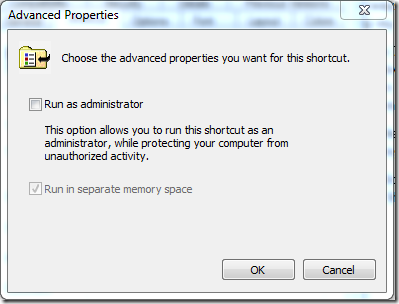
  3. Check the Run as Administrator check box Run as Administrator

Now each time you click on this link, the shortcut will always launch under administration mode, and you no longer need to right-click and choose run as administrator, which is far more clicks!

Wednesday, August 12, 2009

How to Prevent Interactive Logon using Local Policy

In some instances, a server is not a domain controller, it could be a Windows Client computer stuck in a corner of an office, or it could be a Windows Home Server, or some other type of windows machine.  The key thing here is that this computer is a sanctuary for data and usually accessed over the network, not by users logging into it.

By default, if you have a domain controller, such as Windows Small Business Server 2008, then disabling end-users from logging into such servers is done by default for you.  If you aren’t running a domain controller, you may want to ensure logon to the server is limited to just the administrators. 

To do this, you just have to change the local policy on this server.  Here’s how:

  1. Log in as an administrator to the client computer, verify that you are an administrator (this step is important, because if you make a mistake here, you could lock yourself out of the server!)
  2. Load up the local policy by going to Start, Run, and typing GPEDIT.MSC
  3. Once the Local Group Policy Editor loads, navigate down to to Computer Configuration / Windows Settings / Security Settings / Local Policies / User Rights Assignment.
  4. Select the Allow log on locally policy and remove the “Users” group from this policy and hit Apply

Local Group Policy Editor - Allow Log on locally policy

That’s it! you’re all finished.  Since this is local policy, there is no need to run a “gpupdate /force” to make it take effect.  Simply try to log in as a standard user account to the server again, and you’ll notice that access is denied, making your network more secure, even if you don’t have SBS!

Friday, June 26, 2009

Re-Creating the Forefront Security for Exchange Scheduled Tasks

If you’re using Forefront Security for Exchange with Small Business Server 2008, and you somehow managed to erase all of the scheduled tasks, you may also notice that Forefront never updates itself automatically, this is because the scheduled tasks kick off the updates.

Before you do anything, you should make sure follow the Forefront Security for Exchange Repair Document.  If that still fails, you can re-import the Forefront scheduled tasks by downloading this ZIP file of XML tasks that were exported from a working SBS 2008 Server.

Here is what you need to do:

  1. Un-Zip the files to the desktop of the server
  2. Click Start and then point at Administrative Tools and click Task Scheduler.
  3. Agree to the UAC prompt
  4. Ensure Task Scheduler Library is selected in the left tree view and then right-click in the white space of the list view and choose Import Task …
  5. In the window that opens, select the the first XML file on the desktop and click Open.
  6. Verify the Settings in the Create Task dialog that opens and click OK. Task Scheduler Create Task
  7. Repeat for all 11 Tasks

Now you should receive updates automatically for Forefront Security for Exchange.  Thanks to a Canadian SBS Partner, Andrew, for figuring this out!

Tuesday, June 23, 2009

Microsoft Security Essentials Beta


Looks like Microsoft’s new Anti-Malware software is available for download in beta.  I’ve been running the Alpha for a while now on my Acer Aspire One Netbook.  I like it because the Acer has limited resources. I’m running Windows 7 RC on the Acer, the Live Essentials for email, messenger, and I wanted to protect the laptop because it jumps between networks often.

I like MSE because:

  1. It’s invisible.  I’ve opened the UI twice, once to see what it looked like, and once to perform a scan because it hadn’t been on for a few days, but even that was superfluous, as you can just click “yes” from the Action Center
  2. It provides “hero” statistics when I want to go and see them (ie, opening the UI), but otherwise, it’s completely invisible, just silently protecting the Netbook
  3. It uses very little RAM and processor power, essential for my Netbook
  4. It’s Free, Once this is RTM, I can toss out the OneCare yearly fee I pay for my grandfather, my sister, my parents, and even my cousins! (yes that’s right, it’s easier for me to pay than it is for me to explain the value in them paying).

So if you wanted to try out the new Security Essentials, you can today!