Showing posts with label Remote Access. Show all posts

Monday, July 16, 2012

How to add a “Send To” shortcut for SkyDrive

With personal cloud computing on the rise with SkyDrive, Google Drive, Drop Box, etc.  you want super easy ways to get things into and out of the Cloud.  If you’re like me, sometimes you’re in a hurry and just need to slap something into the cloud on the way out the door, and organize it later.
SkyDrive

Into Windows has a great article on how to add a “Send to SkyDrive” shortcut to the context menu of the shell. You can find that article here.  Basically it boils down to simply putting a shortcut to the SkyDrive folder into your sendto special folder.  You need to be also running the SkyDrive software for Windows.

Here’s what I did, after installing the SkyDrive software

  1. Navigate to the folder above your SkyDrive folder, it’s typically c:\users\%username%\ (where %username% is the username of you on your computer)
  2. Right-Click on the SkyDrive folder and choose create shortcut.
    1. I renamed this file from SkyDrive – Shortcut to just SkyDrive, for a cleaner look
  3. Next open up Start, then Run, and type in “shell:sendto ”. This will open another explorer window in your sendto folder. 
  4. Move the shortcut created early into this sendto folder.

That’s it! now simply right click on any file you want to send to your SkykDrive, go to the “Send To” option and you’ll see SkyDrive in the list.
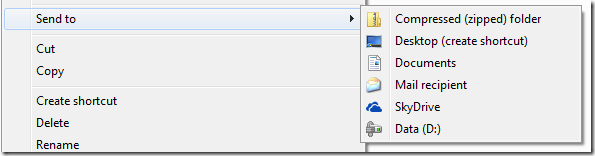
SendTo SkyDrive

Just remember to leave your laptop open long enough to wait for that file to be sync’d to the cloud!

Monday, April 23, 2012

How to Sync Folders to the new SkyDrive without moving them to the SkyDrive folder

imageSo the new SkyDrive is out today, you can read about the awesome new features here (on the Building Windows 8 blog).  The SkyDrive team really amped up their battle with DropBox in this new version.  With Windows Phone, iPad, iPhone support, along with MAC and PC support, it really is pretty cool, and now completely accessible.  Also with HTML5 support, it’s super fast on the PC and MAC for browsers that hardware accelerate HTML5 based graphics.

However, I will miss Mesh.  I wasn’t asked to un-install it, as part of the upgrade, but I can see it coming (no I have no details here, speculation only)

Mesh had this ability to sync *any* folder to the cloud, which is now gone from this version of SkyDrive.  Apparently all the DropBox fans have forced the hand on this one.  Fortunately, on Windows (and I’m sure this works on a MAC too, but I can’t test it, any mac fans post how to do it in the comments and I’ll add it to the post) you can create links to folders to have things sync to your SkyDrive that aren’t actually in your SkyDrive folder!

To do this you’ll need to bust out the ol’ Command prompt, in Administrator mode, because a symbolic link just isn’t enough for SkyDrive to pick it up, you need a hard link.

  1. Click Start, and type in CMD, right-click on the cmd.exe and choose Run as Administrator
  2. Change to your SkyDrive folder, mine is c:\users\<username>\skydrive (so cd /d c:\users\seanda\skydrive)
  3. Next we’re going to make a link to a directory that lives in My Documents Folder, I’m going to do that with this command to sync my “tools” directory: mklink /j “Tools” “c:\users\seanda\documents\tools”.  You’ll get a line that says "Junction created for Tools <==> c:\users\seanda\documents\tools.

You’ll notice a new tools directory being created, and it looks exactly the same as the other directory (contents and all, you didn’t need to copy anything in).  Now you can simply drop stuff in your c:\users\seanda\documents\tools directory, and SkyDrive will pick it up.  (You might need to restart the SkyDrive system tray app for it to pick this directory up, although I didn’t.)

Additionally, if you’re trying to get this to sync between two computers, you’ll have to set up the Junction before SkyDrive can drop files in there (meaning create the folder locations manually with the junction in place.  I only use the one computer, so I didn’t test this.

Friday, August 26, 2011

Obtaining a Domain Name in SBS 2011 Standard and Essentials

So my second video that I did with the HP/Microsoft Coffee Coaching is now live. This one is near and dear to my heart as it’s a program that I built almost from the ground up (admittedly I had a little help from my friends at the start). I dive into the nuances of obtaining a domain name for your Remote Web Access website in these two products. The “Essentials” side of the fence also pertains to Windows Home Server (except in the view I talk about .remotewebaccess.com, where in WHS its .homeserver.com, but it works the same way)

Additionally, if you are interested in some corny video footage and want to learn a bit more about me, you can view my rather embarrassing bio video. I swear it didn’t feel this corny when I was filming.