Showing posts with label MultiPoint Server. Show all posts

Wednesday, December 04, 2013

Using the Windows Credential Manager to Store Server Credentials in Windows 8.1 (and on Surface!)

My wife got a new laptop, first one in 10 years.  I’m very proud of her.  She’s the opposite of me, and pretty much doesn’t like change on her computer.  This is most likely due to the fact she touches a computer for less than 1/2 an hour a day, and doesn’t want to spend 10 minutes of the 30 figuring out where the “File” menu went (yes, the IE7 upgrade just about killed my wife).  She went with the Lenovo Yoga 2 Pro. It’s an amazing laptop, but doesn’t have a TPM chip, so I can’t use it for work (otherwise I’d have one too!)  The screen is breathtaking, but I digress.

We have a Home Server 2011 in our house (obviously), but it doesn’t back up UEFI machines (not that I know of anyways) via the Client Backup.  So installing the Launch Pad seemed a bit of overkill so she could just go to \\server.  Her Windows Explorer has a link to the root of the Server share so she can get to the pictures, the videos, the TV shows, and so on.  I’m a big fan of security, and she has her own account on the server, but I couldn’t get her username and password to save for the server through a reboot.  And as you can probably guess, it has to be easy for her (a click to get access). 

I ended up simply saving this into her Windows Credential Storage (details below).  Worked like a charm.  It got me thinking, does this work on my Surface 2?  Sure enough it did!!  This means that I can simply access the server without providing credentials every time.  Now when I’m in my home, my Surface can just access an additional 4TB of data, right from inside the Metro Apps (more on this in my post "Adding Server Shares to Modern Photo App"). 
Let me tell you how to use the credential manager first. 
  1. Hit the Start key or swipe out the charm bar and press the Start button
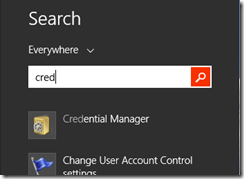
  2. Type in Cred to search the start menu for the Credential Manager. Search for 'Cred'
  3. Launch the Credential Manager, and select the Windows Credentials button. 
  4. Under that button, simply click the Add a Windows credential.
  5. Fill out the wizard with the name of your server, in my case “SERVER”, my credentials Fill out the Add a Windows Credential Wizard
  6. Notice it’s in the list and then close the Credential Manager
Now you may try this instantly and it might not work.  This is most likely because you’ve already tried to connect to this server and stored the fact that you don’t need a username or password.  A reboot or sign-out/in will fix that as long as the item stays in the Credential Manager.  You can also open the command prompt and type in “net use * /d” to delete all active connections which will force Windows to re-open new ones, using the Credential Manager.

For reference, here is the official Windows Help topic on this.

Monday, March 26, 2012

Extreme Make-Over–Take 2: Cincinnati Housing Partners Increase Efficiency

Well, Microsoft and HP are at it once again, performing an extreme make-over of a not-for-profit company.  In this case they are helping lower income families get their first home, Cincinnati Housing Partners.  Once again, Microsoft came together with HP lots of awesome technology including Windows Small Business Server 2011 Essentials running on an HP Proliant Microserver and Windows MultiPoint Server running on an HP ML110. as well as some other great hardware from HP (Printers and UPS devices!). 

Check out the video:

Find the Official HP Blog post here, and the Case Study here.

If you were wondering for previous Extreme Makeovers, you can see the first one here.

Learn more about Kevin Royalty and his company here.

Friday, September 16, 2011

HP/Microsoft do an Extreme Make-Over of a Not For Profit Organization

Earlier this year, I had the pleasure to be able to participate in a very heart warming story.  Families For Effective Autism Treatment of Washington (or FEAT WA), was the first winner of the HP & Microsoft Extreme technical make-over.  FEAT really does a lot of work for children with autism, and were struggling with their hobbled together IT infrastructure. 

Microsoft and HP came together to set up the IT Infrastructure backbone running Microsoft Windows Small Business Server 2011 Essentials on a maxed out HP ProLiant MicroServer. And for the children and office workers, Microsoft Windows MultiPoint Server 2011 Premium on an HP ML 110 G7; to be connected to with the HP t5749e thing clients and HP EliteBook 8460p Notebooks. HP also improved their networking infrastructure with the HP ProCurve 1810G-24 switch.

It was so awesome to meet and help out Brenne and Amanda at FEAT of WA to do their job and help children with autism.  Check out the video:

Friday, July 29, 2011

Learn about how Multi-Point 2011 Premium works with SBS 2011 Essentials on HP/Microsoft Coffee Coaching

I managed to finally get my schedule coincided with the HP/Microsoft Coffee Coaching filming crew. When I was with them I managed to create my first video which talks about how awesome MultiPoint 2011 Premium server is when you have Small Business Server 2011 Essentials already running in your network (details here). Check it out, it’s only 6 minutes of your time.

Friday, May 20, 2011

Can Small Businesses use Windows MultiPoint Server? Yes, Yes they can!

Yours Truly (Sean Daniel) talking about MultiPoint

Varvid‘s Aaron Booker caught up with influential blogger and Microsoft SBS Program Manager Sean Daniel to discuss how Multipoint‘s traditionally education-focused offering can also work well for small- to medium-sized businesses. Multipoint is big on universal connectivity, emphasizing ease-of-use without the need for much training. To learn more about Multipoint, go to http://microsoft.com/multipoint.

Monday, May 16, 2011

How to Split a workstation in Windows MultiPoint 2011

David Belanger shows how to split workstations in MultiPoint Server

My friend and co-worker David Belanger demo’s at Microsoft’s TechEd how to split a station in two on Windows MultiPoint Server 2011.  It’s pretty brain dead simple.

How USB thumb drives work with Windows Multipoint Server

David Belanger shows how USB thumb drives work with MultiPoint Server

How to projection works with Windows MultiPoint Server

Dean Paron shows how projection works with Windows MultiPoint Server

Tuesday, April 12, 2011

A Quick Interview with Harrybbbbb

After the Windows Small Business Server 2011 (Standard and Essentials) Launch in Vancouver, BC, Canada, I managed to catch up with Harry Brelsford from SMBNation. He had a bit of a working vacation up in BC and pinned me down on my way out the door for a quick interview. If you were interested the video is here
The conference had about 100+ SBS'rs that were in attendance and there was lots of good discussions around SBS Standard and SBS Essentials.

Harry covered a few items in his recent newsletter, where I discovered the video talking about
  1. Re-cap of the gotcha's of Migration with SBS, with shout outs to Susan Bradley and Jeff Middleton as key places for help with your migration in the community and,
  2. The use of MultiPoint 2011 in SBS Essentials,
Thanks for the quick interview Harry!

Wednesday, February 23, 2011

Windows Server Solutions Best Practice Analyzer (BPA)

Wow, the new Best Practice analyzer is up and ready for download! This new BPA can be installed on the following products and will show you best practices for each one!

  • Windows Small Business Server 2011 Standard
  • Windows Small Business Server 2011 Essentials
  • Windows Multipoint Server 2011
  • Windows Storage Server 2010 R2 Essentials

So if you’re unsure if you’re doing something right, or want to make sure you’re following best practices, get the BPA installed!


UPDATE: As called out in the comments, you'll also need the Microsoft Baseline Configuration Analyzer 2.0 before installing.

Monday, February 21, 2011

Windows MultiPoint Server 2011 has RTM’d!!!

I’ve mentioned Windows MultiPoint Server 2011 on this blog before, like how well it works with Windows Small Business Server 2011, or how it fits into your small business, and how you can leverage it to simplify your client story.  Or if you were at SMBNation Fall 2010 in Las Vegas, or attended the VICE(?) UG talk on SBS 2011 you had ability to actually hear me talk to you about it.

You’ve been patient, you’ve been waiting.  And now the wait is over.  Windows MultiPoint 2011 Server has RTM’d!!

Product Unit Manager of MultiPoint, Dean Paron, and Director of Marketing Sandrine Skinner announced today that MultiPoint is available (get the eval at the download center)!  MSDN and Technet subscribers are expected to receive it in the next week.  With the release of RTM, the hand off to the OEM partners happened earlier this month.


Dean Paron, Product Unit Manager, demos Windows MultiPoint Server 2011, source Brandon LeBlanc on the Windows Blog

More Details on the WMS Blog and SBS blog, but here is a snippit of that:

Volume License(VL) customers will be able to download and purchase Windows MultiPoint Server 2011 on March 1, 2011. Broader, public availability through partners will start mid-April 2011.

And by the way the evaluation version available on the Download Center today can be turned into a full production version when you purchase your VL license of Windows MultiPoint Server 2011- so there is no need for re-installation.

We also would like to take this opportunity to thank all of our beta testers for providing feedback and helping us refine and enhance the experience for this new product release.

There has been a lot of discussions around Windows MultiPoint Server 2011 over the last few weeks: it started at the BETT show, the largest tradeshow of Education technology, that took place in London early January where we first had the opportunity to showcase face to face Windows MultiPoint Server 2011 to customers and partners from around the world.

In our previous blogs around the Beta , we mentioned what’s new in Windows MultiPoint Server 2011 versus the previous release of Windows MultiPoint Server (WMS 2010) in terms of features and functionality.

We would like to also mention what’s new in terms of channel availability and SKU availability for Windows MultiPoint Server 2011:

Standard

Premium

Channel

OEM

VL Open Commercial

OEM (pre-install and ROK)

OEM Academic

VL Open Commercial

VL Academic

Number of simultaneous connected sessions you can run

10*

20*

Domain Join capability

Not supported

Supported

Hyper-V capability

Not supported

1+1 licensing model

*Actual number of connected sessions is based on host computer hardware capacity (CPU, memory, etc.), station hardware configuration (RemoteFX, PCI-E or USB) and usage workloads

As you can see in the table above, we now have 2 editions, Standard and Premium which have the same features and functionality except for the ability to join a domain, and ability to run as Hyper-V host or guest, which are only available in the Premium edition. Also the Premium edition is broadly available to customers and resellers through OEM and OEM Academic as well as through Volume Licensing Open Commercial and Academic.

Again VL customers will have access to Windows MultiPoint Server 2011 on the VL download site on March 1, 2011.

Also worth mentioning, we even had our own famous internal Windows 7 blogger, we’re sure you know him already, Brandon LeBlanc, who’s blogging about his experience with Windows MultiPoint Server 2011: check it out here at this link: http://windowsteamblog.com

We’re so excited about this release as in the WMS team we’re super passionate about delivering technology to help our Teachers and Students thrive and providing them with a Windows 7 experience, even as their school’s or campus’ IT budgets have been slashed.

Here’s the link to the Download Center for your convenience- Happy Windows MultiPoint Server 2011!!!!

Friday, February 04, 2011

Windows MultiPoint Server 2011 and Interaction with Small Business Server 2011 Essentials

I know I have talked before about Windows MultiPoint Server 2011, and how it can help your Small Business with thin clients, old clients, seasonal employees and even reducing the number of machines in the office by getting one nice one.

I wanted to touch on this again, now that the Release Candidate of Windows Small Business Server 2011 Essentials is available. With this release of SBS 2011 Essentials, a new level of integration between MultiPoint 2011 Premium and SBS 2011 Essentials is here. MultiPoint has some features that just work well with SBS, and vice versa. Let’s take a look at those so you know what to expect. You are required to get MultiPoint 2011 Premium for these features to work as that's the version that allows domain join.

1. MultiPoint Server Premium can Join the SBS 2011 Essentials Server

That’s right, MultiPoint can go straight to http://server/connect and join just as if it was a client computer. As the MultiPoint administrator on one of the local sessions, simply browse to the server /connect page and click the Join this Windows PC. The join is pretty seamless, which then brings us to the next point…

2. Domain users can log into the MultiPoint 2011 Premium Server

Once domain joined, the MultiPoint server allows all domain users to log in as standard users to the server. This includes local sessions or remote TS sessions. This can essentially render the Users tab of MultiPoint useless to you, but now you can manage your users from inside the Small Business Server 2011 dashboard.

3. MultiPoint Server shows up in the SBS 2011 Essentials Server Dashboard

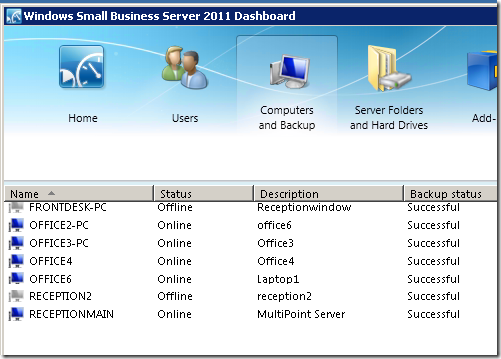
Yep, you can see your MultiPoint server in the dashboard, just along with your other clients, it appears online or offline depending on the state of the server.

MultiPoint Server in the SBS 2011 Console

This now brings me to my next point, because you probably saw that the backup status of this MultiPoint server is Successful

4. MultiPoint 2011 is backed up by SBS 2011 Essentials

Yep, as if it’s a client computer, the MultiPoint 2011 Server is backed up as if it’s a client computer. In fact, it’s the *only* server operating system that can be backed up by the SBS 2011 Essentials backup engine.

MultiPoint backup

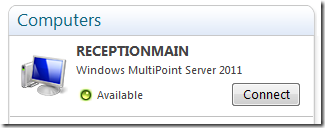
5. MultiPoint appears in the Remote Web Access of SBS 2011 Essentials

Last but not least, the MultiPoint 2011 server automatically appears in the Remote Web Access for SBS 2011 Essentials, and users can connect directly to this server remotely.

MultiPoint in RWA

Using the SBS 2011 Essentials dashboard, you can control which users have access to this computer simply on their user properties object

User Properties

There you have it. As mentioned before, MultiPoint is a TS-in-App-Sharing server on steroids. You can use local settings via USB, or remote sessions using either thin clients, remote computers, or just local computers you don’t want to upgrade to Windows 7, but still have this experience. The more users you configure to connect, the better the hardware you should configure.

While this is all content that applies to RTM, currently SBS 2011 and MultiPoint 2011 are in Beta.

Thursday, January 06, 2011

Windows Multi Point 2011 and How it Fits into Your Small Business

I’ve talked about Multi-Point before, and I mentioned it in my presentation at SMBNation in Las Vegas at the end of last year, but yet I still get the questions about education only, or can we use it in business? 

image

Well, it’s true that the current version of Multi-Point, 2010 that’s available today is out in the field for education only (or at least it’s hard to get or manage if you’re not in education).  If you’re in the market for it, because you like the idea of a single computer and multiple users, there were two major problems.  The OEM edition was non-domain joinable, and only supported 10 users.  The Academic version was only via volume licensing to qualified people, and supported 20 users and the beloved domain-join functionality.  So really, if you wanted something useful, really do have to be in the education field to even get your hands on it. 

Also, there are some features that are good for education, but kind of confuse users outside in the working world, like if you put a thumb-drive into one of the USB ports at a workstation, it appears to all the work stations.  Good for education, not so great for business.

Well, if you wrote off Multi-Point 2010 for business, you probably haven’t been paying attention to the new Multi-Point 2011, currently in Beta (obtain it here)

image

With Windows MultiPoint Server 2011, the licensing and purchase model has been simplified.  There are still two versions as before, with similar restrictions:

  • Windows MultiPoint 2011 Standard – still cannot join a domain and still has a max of 10 work stations
  • Windows MultiPoint 2011 Premium – CAN join a domain as before and can have up to 20 workstations

The most important piece of information to note in the SMB space, is that BOTH of these MultiPoint editions are offered in multiple Microsoft licensing channels.  So now you don’t have to be a large school to actually purchase the more useful edition of MultiPoint.

What’s better, is that USB issue mentioned above is fixed, a USB thumb-drive only appears to the session its plugged into, and not all the users on the server. 

Additionally, the 2011 version of WMS has support for thin clients.  Here is where I think the big win for Small Business lives.  If you have 12 XP workstations, you can simply obtain 1 copy of MultiPoint Premium and now each of those XP workstations have another 5 years of life but yet, they get a full Windows 7 experience when used as a WMS workstation over the network. 

What??

Yeah, that’s what.  WMS is essentially a turnkey TS server on steroids.  You can TS to it, or you can plug in USB based workstations, or use OS down-level desktops.  I’ve even seen old useless Linux based laptops, that have support for RDP be instantly turned into a powerful Windows 7 workstation.

If you’re a VAP, selling it should be a breeze.  Just show the business owner the console where you can get a thumbnail of each individual workstation.  Business owners will love that they can snoop on their employees desktops for when they are using Facebook, or other non-productive functionality, or even to just confirm employee behavior.

Thumbnail View of Desktops

You can really tell that the Windows MultiPoint Server, and the Windows Small Business Server teams share the same floor in Building 43 at Microsoft, our consoles look similar.  Sadly, they do not completely integrate for this release.

I’ve installed WMS into my SBS 2011 Essentials (Aurora) network and it works great.  I haven’t tried on an SBS 2011 Standard network, but there is nothing to prevent it from not working.  I’m seriously considering having the standard version run at my house for when guests arrive and want to use a computer.  Even John Zajdler has tried it in his Aurora Network

If you haven’t tried it yet, and it’s interesting to you get on it because the release candidate is already out.. which has gotta mean it’s close, right?

Tuesday, October 19, 2010

Simplify your Client Story with Windows MultiPoint Server 2011!

image

Back in February of 2010, Microsoft launched a new product, called Windows MultiPoint Server 2010, which is designed primarily for the education market to help schools increase computing access to more students for a lower total cost. Today the public beta of 2011 is available for you to try.

As an IT Consultant, why should you care?

If you look at the solution, MultiPoint can actually reduce the TCO (Total Cost of Ownership) of clients in a small business.  Much of the hard work of running products like Windows Small Business Server Codename “Aurora” and Windows Small Business Server Codename “SBS7” is dealing with client computers, keeping them patched and secure.  Typically in a small business each employee might have one sometimes two computers to manage.  With the release of MultiPoint Server 2011, you can reduce the number of clients in your infrastructure that need maintaining, while keeping (or if you choose, increasing) the number of virtual workstations via terminal services.  Using Terminal Services in App Sharing mode, and normal clients takes some of the risk away, but you still have to worry about patching those “thin” clients.  With MultiPoint server, you simply just patch the server and you’re done.  Simply join it to your “Aurora” or “SBS7” domain, and let your users log in to the MultiPoint server.

So what’s new with Windows MultiPoint Server 2011? We’ve been listening to customer and partner feedback and here are some of the new things you’ll find:

  1. Desktop thumbnails that make it easier for teachers to orchestrate activities across the classroom, see what students are working on, and interact with student sessions.
  2. Support for connecting thin clients over the LAN. This allows for virtually unlimited distances between stations.
  3. The ability to string multiple MultiPoint Server “pods” and manage them from a unified MultiPoint Manager console. Great for labs and libraries where there are a large number of stations in a single place.
  4. Split screen capabilities at each user station. Turn one screen into two separate stations for a new way of collaborative learning between students.
  5. An ISV extensibility model based on a common SDK with the next versions of Windows Small Business Server and Windows Home Server, which enables ISVs such as learning and classroom management providers to integrate with MultiPoint Server.
  6. Support for domain join to integrate Windows MultiPoint Server with your existing Active Directory infrastructure.

If your organization is struggling with providing enough computers for your users, decreasing technology budgets, limited technical support and outdated hardware and software, I encourage you to check out Windows MultiPoint Server 2010 today and to take a look at the enhancements we are thinking about for through the now available Windows MultiPoint Server 2011 beta.

You can read the official public blog post here, on the SBS blog.  Or if you’d rather jump right in, try out the Beta!