Showing posts with label Cloud. Show all posts

Monday, February 24, 2014

How to map your FourSquare data

I use FourSquare, not for the mayor-ships, or the points (although they are fun) but as a bit of history in my travels.  It’s easier to check in somewhere, then write it down the location and map it later.  My goal has always been to get some form of map with push pins in it.  Sure FourSquare provides a bit of history, but the map is SUPER tiny, and very hard to use
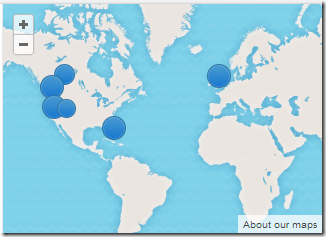
FourSquare activity - actual size

I’ve tried a bunch of solutions, usually provided by LifeHacker (one of my favourite websites), and they’ve all been just ok.  I think I’ve finally found a solution, that based on my check-in frequency, works for me.  LifeHacker posted a link to Billy Burle’s blog (follow BillyBurle here).  Billy had a blog post on How to Create a Heat Map of your FourSquare check-ins using Google Fusion Tables.  It’s quite frankly, awesome, but needed some adjustments.  I can get push-pins, or heat maps with this approach!  For example, here is my push-pin history for 2013:

Pushpin history

Or a Heat map of my travels to Seattle

Heat Map

Are you a map geek and want to do this?  So here is how…

Step 1: Obtain your check-in history from FourSquare

First you need to get your FourSquare check in history.  For this I browsed to my FourSquare Feeds, and got the URL for my KML feed.  It has a unique character set in it, because that’s your private feed.

Clicking the link will give you the last 50 or so check-ins.  what I did was right click on the link and say “Copy” url, pasted it into the address bar, then at the end of the URL I added the text “?count=1000” to get the last 1000 items (1000 is a key number in a lower step).  This will download a .kml file with the file name patching that crazy string character set in the URL.  I renamed mine to “Foursquare Data 2013”, just to make it easier to find.  Since I stored the .kml files for use if a better solution comes up down the road.

Step 2: Prepare the KML file to have only the years data

It’s pretty unlikely that you checked in exactly 1000 times in a given year, but in Step 1 we downloaded exactly 1000 historical check-ins.  So let’s make that exactly the year.  What I did (and I’m trying to figure out how to automated some of this) is to open the .kml file I downloaded in Notepad (I also turned on “word wrap”, since the file is one line, that’s 1000s of characters long).  I searched for “31 Dec” (or “30 Dec” or the last day you checked in on the previous year).  Then I scanned backwards in the file from that last check-in from the previous year until I found the “</Placemark><Placemark>”.  This is the end of the first check in of the current year, and the start of the last check in of the previous year.  I put my cursor between “><” characters and scrolled to the bottom of the document.  I then held shift and clicked between the “><” of the “</Placemark></Folder>”.  I then hit delete.  The end of the file should still look like “</Placemark></Folder></kml>”, but now everthing from the beginning of the document to the end of the document is exactly the current year you wish to display. 

The reason you need to do this, is because the Fusion Tables (at least as far as I can tell) have a hard coded limit of 1000 objects in them. So by limiting it to the year, I noticed in 2013, I had 783 check-ins, which is well under the 1000 limit.  But if I included 2010-2014 (my entire life of FourSquare check ins (obtained by adding to the URL: ?Count=10000”), I had 1723 check ins, and I was missing a bunch of data, hence my decision to break it up by year.  You may have to break it up further if you’re a FourSquare fanatic.

Step 3: Prepare Google Drive if you haven’t already

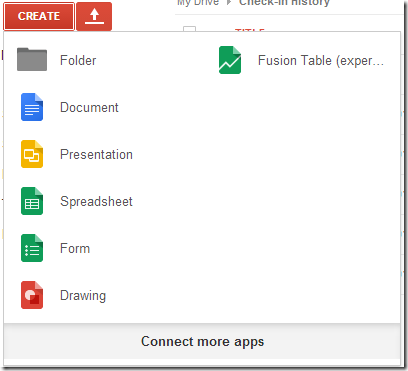
This was my first time using Google Drive, and as such, this is a one-time step I did for each year I imported.  I have OneDrive, where most of my online data is stored and I have a Home Server where my local data is stored, so I haven’t needed it. So I logged into my Google Drive account, and needed to add Fusion tables.  I clicked the down arrow on the settings gear ( Gear) and chose Manage Apps, then clicked on Connect more apps in the pop-up window.  In the search box I typed “fusion table”, and it was the only one I could install.  I installed it.  At the time of writing it is an experimental app…. which I figure is just typical of Google.  Is anything ever really out of Beta with them? ;o)

Step 4: Importing the data into a Fusion Table

This is where Billy Burle’s blog post really shines (I had to figure out all the above), and even helped in the comment section of Billy’s post with the data.  So here is the fun part

  1. Click on the Create Button
  2. Choose to create a new Fusion Table (experimental) Create / Fusion Table
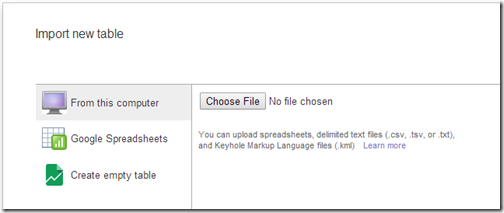
  3. Choose to upload a file from your computer by clicking Choose File and select the file that you created and edited in step 1 and 2, then click Next Choose File
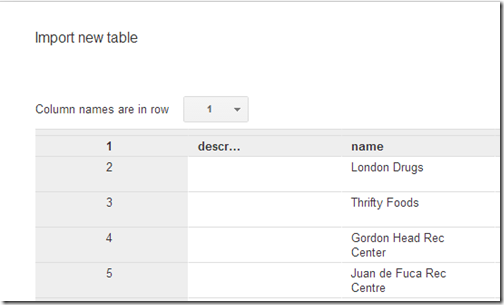
  4. On the import new table row, I just click Next again and leave the columns as is Column Headers
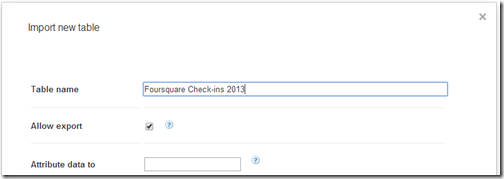
  5. On the final page, I give it a good friendly Table Name, and click Finish Import Finish
That’s it, now you have a new Fusion table.  Ready to see your check-in history?  Check out the Map of Geometry page, and now you can play around with the map, and choose the Feature Map (default) which is the push-pin view, or the Heatmap view:

Map of Geometry

Last but not least, if you ever want to revisit your data, just hit up your Google Drive and select the fusion table and it’s all saved there for you for that year.  So you can quickly pull it up at a map-tastic party.  What’s also awesome, is if you have a Windows 8.1 tablet (Like a Surface 2) then you can also just get the Windows Google Drive Client, and show it there instantly.  Works like it does on the web!

Enjoy and have fun with your data!

Wednesday, February 19, 2014

Backing up your Contacts from the Cloud

I can’t stress how important backing up is, I even have a special tag just for tips and tricks with backup, across various technology. 

So you might think, well, my contacts are *in* the cloud, so they are safe right?  Wrong!  If you don’t take backups into your own hands, you can have issues down the road, even with all the resiliency built into these Cloud services, you can loose data, here are just a few ways:

  • The Delete key could get stuck on your wireless keyboard and end up deleting a majority of your contacts in an instant, which then syncs to your service and then instantly to all your devices (this happens in my inbox all the time when my keyboard battery is low). (don’t have this? learn how to set it up here)
  • You could get hacked, be that @Matt or @N style, or simply by a script kiddy (you’ve enabled 2-factor authentication for your account already right? (Outlook.com, GMail.com)
  • You could get a virus that deletes, corrupts or worse (encrypts) your data so you can’t access it
  • You could cause yourself to get locked out of your account, maybe because you broke the Terms of Use?
  • The cloud service can make a mistake and delete your files (although it’s likely they can get it back, this is hours of support calls)

So, it’s in your best interest to do your own backup, and manage your data on your own, even in a cloud service.  I keep my Contacts in the cloud and I backup periodically (manually, but all the same, it’s periodically).  What would be great if these services did this monthly and emailed it to you…. a request in progress!

This is how I do it with Outlook.com

  • Browse on over to https://people.live.com and log in
  • On the title bar at the top, choose Manage and click on Export for use with Outlook.com and other services. People Export
  • This will prompt you to download (or automatically download) a file called OutlookContacts.csv. which is a coma separated values file that contains pretty much every important field that is in your contacts.  This is what you have to save in a safe place.

If you loose your contacts for whatever reason, you can use this file to work on importing them into another app or the same service but different account, etc.

This is how I do it with GMail.com

  • Browse on over to https://www.google.com/contacts/ and log in
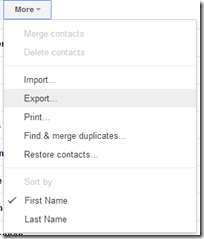
  • On the More drop down, select Export… to start the process Contacts Export
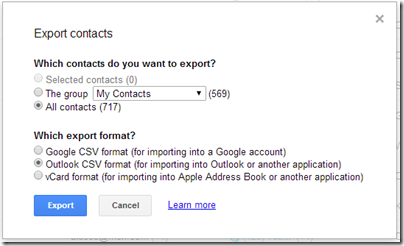
  • Choose the best format that you want to export in.  I think that Outlook CSV is the most widely used format, but you may wish to export in all formats, or specific formats to meet your needs. Export Contacts
  • This will prompt you to download a contacts.csv (or automatically download it), and this is the file you want to keep safe. 

There are multiple ways to import these files if your data is lost… more on that to come, but at least you doing this if only once a year, will save you a lot of hassle if you run into trouble.

Tuesday, January 21, 2014

Checking your sign-in history in Outlook.com

Well, I thought I knew everything about Hotmail..err.. Outlook.com there was to know, but instead I was talking to a friend today who said that a month or so ago, someone tried to access his account from Chili. Wait, what?! how does he know this?

Your Microsoft Account stores all the successful and unsuccessful log in attempts in your profile for you to view at any time.  Simply browse over to https://account.live.com and log in, then click on Recent Activity.  You can scroll through each one if you want, or just scroll until you find an Incorrect Password Entered or a weird Location.  Like this one in my account:

Recent Activity

Wow, someone attempted to log in to my Outlook.com account from Poland, good thing I have 2-factor auth enabled.  So if they did have my password for whatever reason, they’d still need my cell phone to actually get the second auth factor… which I have right here with me… aka, not in Poland.

Kind of nice there is an audit trail.  If one of the successful log ins wasn’t you, you can contest it right there and Outlook.com will help you take evasive action!

Have fun snooping on your snoopers!

Monday, April 29, 2013

Cloud Sharing your Email, Contacts, Calendar Between Different Devices

I’ve come across a lot of people who still struggle with different devices and having to physically plug them into their computer when they want to sync their calendar or contacts.  Sure, Email is a solved problem for them, but not that pesky Calendar or the list of Contacts.  This post is intended to help those people.  But those people have to embrace “the cloud”…

The cloud sounds scary, but it’s not, you’ve been using it for years, it’s just a server on the Internet that’s always accessible. Sure this can be a single mail server that’s been holding your email until you connect it, or it can be a scale-out solution that offers compute, storage, and database needs, but let’s start small.  Your email server, is in the cloud.  Yes, that same one offered to your by your Internet Service Provider (ISV).  That’s “cloud”.  See, you have email, you’re already using “the cloud”.  Your problem is you either (a), have an e-mail only server that uses POP3, or (b), you’re not taking advantage of the features of your server to leverage contacts and calendar.

If you have an e-mail server that only does email (i.e. only offers you IMAP or POP3 access), then you are living in the stone ages.  IMAP and POP3 are to email what rotary dialing is to the telephone.  The first is to switch to something that offers the email, calendar, contact suite of products.  I find it best to switch to the product that your spouse or significant other is using, primarily because it makes it easier to share things like the calendar.  My preference is Outlook.com, but you can also use GMail or Yahoo! Or if you wanted something more powerful, you could choose Office365.  The bottom line is you need to ditch that ISV email server.  Some ISVs leverage the above services for their email solution.  That’s better than POP3, but I still don’t like being tied to an ISV, because if you move or that ISV gets bought by another, things change, but this is your call.  This may or may not require you to get a different email address.  This is by far the most painful part of the process, so you’ll want to do this part once.  If you want to use your own domain name, so your email address never needs to change.  I have instructions on how to do this with Hotmail / Outlook.com.

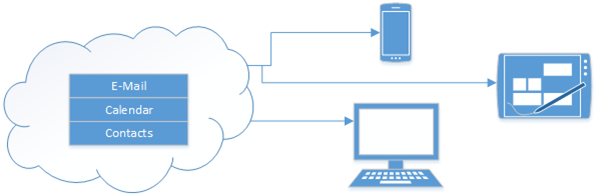
Let’s overview the set up that you’re aiming for:

Cloud to Device


This means that each phone, tablet or computer connects directly to the Internet (or cloud) to get your Email (which it does today) and your calendar and your contacts.  This means that the primary location for your E-mail, Calendar and Contacts is in the cloud.  Your devices and computers are just a “view” into that.  While you probably won’t need this with today’s devices. All of my computers are configured to use Exchange Active Sync (EAS).  Apparently Google is the only service that doesn’t use this anymore.

This works for me, and allows me to share my calendar with my wife, so we can always be in sync (provided she enters her events into her calendar!). 

I have the following devices, that are always up to date and never need to be plugged into a computer for “syncing”.

  • Windows Phone 8
  • Surface RT
  • Windows 8 PC (both built in e-mail client, and Outlook 2013)
  • iPhone
  • iPad
  • Blackberry Playbook

This is the set up you “don’t” want, as you are now dependent on your computer, and if you’re computer crashes, or dies, you loose your calendar and contacts.

Bad Setup

Monday, July 16, 2012

How to add a “Send To” shortcut for SkyDrive

With personal cloud computing on the rise with SkyDrive, Google Drive, Drop Box, etc.  you want super easy ways to get things into and out of the Cloud.  If you’re like me, sometimes you’re in a hurry and just need to slap something into the cloud on the way out the door, and organize it later.

SkyDrive

Into Windows has a great article on how to add a “Send to SkyDrive” shortcut to the context menu of the shell. You can find that article here.  Basically it boils down to simply putting a shortcut to the SkyDrive folder into your sendto special folder.  You need to be also running the SkyDrive software for Windows.

Here’s what I did, after installing the SkyDrive software

  1. Navigate to the folder above your SkyDrive folder, it’s typically c:\users\%username%\ (where %username% is the username of you on your computer)
  2. Right-Click on the SkyDrive folder and choose create shortcut.
    1. I renamed this file from SkyDrive – Shortcut to just SkyDrive, for a cleaner look
  3. Next open up Start, then Run, and type in “shell:sendto ”. This will open another explorer window in your sendto folder. 
  4. Move the shortcut created early into this sendto folder.

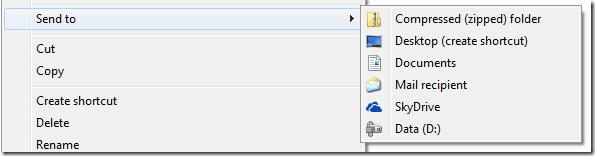
That’s it! now simply right click on any file you want to send to your SkykDrive, go to the “Send To” option and you’ll see SkyDrive in the list.

SendTo SkyDrive

Just remember to leave your laptop open long enough to wait for that file to be sync’d to the cloud!

Monday, July 09, 2012

Get Cloud Services working for you, even when you’re not!

As the saying goes, a user will do things over and over and over again, but a developer will automate it and never touch it again (until something breaks of course).

I am not a developer, but I do have a developer education, and that makes me want to automate stuff.  Why do something over and over again that a computer can handle just fine?  I do this sort of thing on a client computer, and often write scripts using AutoHotKey.  I wrote about it earlier, now’s a good time to check it out. 

I’m now excited to say that I’ve found a way for things to happen for you, without you doing anything.  Getting those beloved Cloud services working for you.IFTTT

Have you heard about If this then that? or IFTTT (pronounced “lift” without the “L”)

IFTTT is an online “batch” file service that allows you to set a trigger (“if this”), and have an action take place on your behalf (“then that”).  You can learn more about it here.

It’s my new favorite service.  Supporting all kinds of existing services including: Bit.ly, Blogger, Buffer, Craigslist, Date & Time, Delicio.us, Dropbox, Email, Evernote, Facebook, RSS feeds, Flickr, Foursquare, GMail (and almost all of Google’s services that I don’t use), Instagram, Last.fm, LinkedIn, SMS, Stocks, Twitter, Vimeo, Weather, Belkin power, Wordpress, Youtube, and more!

You can then simply create what they call “recipes”, which allows you to set some trigger on some service, and then have a action take place when that trigger happens.  For example, this is a popular one:

AutoSave Instagram Pictures to DropBox

It’s that easy, you set up your trigger actions and define your reactions.  In just a day, I’ve created a few recipes:

  • I save all my tweets to Evernote (easy and fast searching of historical tweets)
  • I automatically tweet blog posts (like this one), and then re-tweet them again later using BufferApp.com
  • I have an email alert set up for my favorite stocks
  • I automatically blog my Instagram shots on my photoblog.
  • I’m going to tweet exactly at Midnight on new years to wish everyone a great new 2013!

Security

What I like most about IFTTT is I never have to give it any of my passwords for my other sites/services, it just simply gets granted access, and I can always revoke it from the target service if I want.

So if you like automation, and you find yourself repeating the same actions over and over again, try out IFTTT

This blog post was automatically tweeted by IFTTT

Monday, July 02, 2012

Enjoying the Cloud way of Life

A few years ago, I made a decision to move almost everything to the cloud. Steve Ballmer did say that Microsoft employees were "All In!" and I decided to take that to heart. See what it's like. I have since ditched running Exchange in my house for the power of Hotmail (Although I also have an Office365 account), and I have focused most of my energy on cloud services in the public cloud instead of those in the private cloud, although I still run Windows Home Server strictly because cloud storage is expensive.

I have to say that thus far I like it. I have minimized the number of computers in my house from 4 desktops, 2 laptops and a server, down to 1 laptop and a tablet and a [light-weight] server. It makes patch-tuesday much easier to swallow as I'm not chasing down computers for updates. My wife still has her laptop and her phone, but otherwise it's a minimalistic approach.

I did make some other changes. I switched out my Zune player for a Sonos player (well, actually 2!), and I stopped buying CDs and ripping them to my home server and now simply subscribed to Rdio, which is kind enough to allow me to play any song I want at any time, to any device. It's cheaper than actually buying the CDs now too. It fits nicely in with the Sonos player as well.

Part of moving to the Cloud was I wanted to have almost no data on my computers or tablets. I store a backup of all my personal documents on my SkyDrive using their new app for the PC, which gives me access to all my stuff from my iPad and soon to be Windows Surface! I store all my work documents on SharePoint at the office, and my laptop is really just a vessel of information that's actively being worked on until it's saved to one of those two locations.

In fact, all I use my Home Server for is media storage. Ripped DVDs for streaming to the xbox, my old music collection, and most importantly my photo collection. My Home Server also provides a gateway to the cloud for online backup (see my Online Backup posts). It's also the "computer" that's on all the time, so it runs any long-time running tasks which allows my PC to sleep as often and as aggressively as it likes.

So far living the Cloud is easy, but I've made some important decisions as to where I store my data, and admittedly, there is some data that I still don't put in the cloud, but I could probably count it on one hand.

Are you in the cloud yet? why not? Drop me a comment and let me know why.

Monday, April 23, 2012

How to Sync Folders to the new SkyDrive without moving them to the SkyDrive folder

imageSo the new SkyDrive is out today, you can read about the awesome new features here (on the Building Windows 8 blog).  The SkyDrive team really amped up their battle with DropBox in this new version.  With Windows Phone, iPad, iPhone support, along with MAC and PC support, it really is pretty cool, and now completely accessible.  Also with HTML5 support, it’s super fast on the PC and MAC for browsers that hardware accelerate HTML5 based graphics.

However, I will miss Mesh.  I wasn’t asked to un-install it, as part of the upgrade, but I can see it coming (no I have no details here, speculation only)

Mesh had this ability to sync *any* folder to the cloud, which is now gone from this version of SkyDrive.  Apparently all the DropBox fans have forced the hand on this one.  Fortunately, on Windows (and I’m sure this works on a MAC too, but I can’t test it, any mac fans post how to do it in the comments and I’ll add it to the post) you can create links to folders to have things sync to your SkyDrive that aren’t actually in your SkyDrive folder!

To do this you’ll need to bust out the ol’ Command prompt, in Administrator mode, because a symbolic link just isn’t enough for SkyDrive to pick it up, you need a hard link.

  1. Click Start, and type in CMD, right-click on the cmd.exe and choose Run as Administrator
  2. Change to your SkyDrive folder, mine is c:\users\<username>\skydrive (so cd /d c:\users\seanda\skydrive)
  3. Next we’re going to make a link to a directory that lives in My Documents Folder, I’m going to do that with this command to sync my “tools” directory: mklink /j “Tools” “c:\users\seanda\documents\tools”.  You’ll get a line that says "Junction created for Tools <==> c:\users\seanda\documents\tools.

You’ll notice a new tools directory being created, and it looks exactly the same as the other directory (contents and all, you didn’t need to copy anything in).  Now you can simply drop stuff in your c:\users\seanda\documents\tools directory, and SkyDrive will pick it up.  (You might need to restart the SkyDrive system tray app for it to pick this directory up, although I didn’t.)

Additionally, if you’re trying to get this to sync between two computers, you’ll have to set up the Junction before SkyDrive can drop files in there (meaning create the folder locations manually with the junction in place.  I only use the one computer, so I didn’t test this.

Thursday, February 09, 2012

How to Configure a Vanity Domain on Hotmail

The Oatmeal, one of my favorite comic sites, has an info-graphic on what your e-mail address says about you.  While I disagree about the @gmail.com and @hotmail.com priority in life, I’m in pretty much agreement on using your own domain for your e-mail.  Especially for business, and quite possibly also for individuals (or *home* e-mail addresses as you might call them.)

Why do you want to have your own domain name for your e-mail address? Because it gives you long term flexibility without having to update your friends.  using my @seandaniel.com email address has helped me over the years as I first obtained it in University.  This meant I could just point the email domain to the university mailbox, then I moved it to my own SBS 2000 box, then SBS 2003, then SBS 2008, and then I moved it to GMail for a short period of time (which I discovered I didn’t like GMail at all), and now I actually have my personal e-mail hosted on Hotmail, and through all that, I didn’t have to notify my friends once about an email address change.

Naturally I get spam on my account, but Hotmail is so good, I never get any in my inbox, it just goes into the junk email folder, which I pay no attention to unless someone tells me to check my junk email folder.

Side note here: I find that with most spam filters these days, they are “learning” filters.  If you abandon your email account, it can’t learn your preferences with new spam so you end up with some in your inbox.  This is the same for Hotmail and GMail.

So let’s get started.  First you need a domain name.  If you’re in the US or Canada, I strongly suggest using eNom Central or GoDaddy.  Both registrars are incredible, but offer different experiences.  eNom is slightly more expensive, but I consider their UX cleaner and easier to understand.  GoDaddy wins for price though, you just have a gauntlet to run to check out.  So it’s up to you which one you choose.  Outside of the US and Canada, these domain registrars are still phenomenal choices, but there are some “local” registrars (particularly in Germany or Australia) that offer more local offerings you might want to check out.

Once you own a domain, you can do all sorts of things with it, but this post is focused on setting up your email address on Hotmail.  Let’s get started:

  1. Navigate over to Domains.Live.com, and sign-in with your LiveID (which is probably an existing Hotmail address)
  2. Click on Add Domain
  3. On the Create a Windows Live Experience for your domain page, type in the domain name you just bought.  For me it was “seandaniel.com”, and ensure that Set up Windows Live Hotmail for my domain is selected, and click Continue.
  4. Click I Accept on the agreement…. after you agree of course. :o)setting up foobar21.com

At this point you need to prove ownership of this domain name and you get a page that walks you through all the settings you need to configure in your DNS provider’s website.

This is a screenshot for one that I created called “foobar21.com” which of course I don’t own, this is just an example.

In a different browser window (since you’ll need to copy and paste from this one), you’ll want to navigate to your domain registrar’s website and log in.

Once logged in, you’ll want to find the host record management or Email/MX record management, that’s where you’re going to make the changes to your domain name. 

Since I use eNom Central, this is how I do it.  eNom has the MX (Mail eXchange) or email records separate than the host records

  • Log in, and go to Domains, and then My Domains.
  • I click on the domain that I want to manage, in this case, seandaniel.com
  • on the next page, I click on Email Settings.

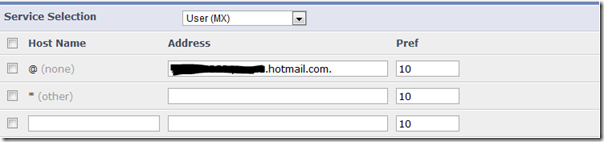
Now I’m ready to set up my email record to match the first item in the list on the Windows Live page.  the “@” record is the root of the domain (i.e. if you want your email address to be @seandaniel.com, that’s the root of the domain instead of @mail.seandaniel.com, which would be under the “mail” host name.  Here is how mine looks:

User MX settings

All I did was copy and paste the Live configuration site into the eNom too. Once the MX record is done, I hit Save and move onto the next record in the Live webpage’s list above.  The rest of the items are done on the Host Management page, so I switch to that.  Here is what mine looks like (I have a lot more but I stripped it down to just the mail records to make things easy to understand):

Host Records

Again, just a copy and paste above from the Live site into the eNom or your own GoDaddy tool.  Just a few things to note here

  1. My TXT record above is a standard (mostly adopted by Microsoft is my opinion) that tells mail servers that receive your email, which mail servers have permission to send on your domains behalf.  So you’re telling other servers that hotmail.com can send mail on your behalf.
  2. The SRV record is for using Windows Live Messenger, it’s listed at the bottom of the live page (which is cut off in the screenshot).
  3. The CNAME for mail, is one that I set up myself, which you also have to configure on the domains.live.com (under “custom addresses”), which automatically redirects mail.seandaniel.com to Hotmail’s logon page.  Kinda slick, but not necessary.
  4. The URL Redirect for * isn’t on all domain providers, it’s another neat DNS trick that eNom does, so if you type in FluffySlippers.seandaniel.com it redirects to my webpage.  Also optional.

Make sure you hit SAVE on your domain registrar’s page.

Now, the next part can take some time.  If you have a domain that’s been around for a while, it’s probably going to finish replicating in < 6 hours or so.  If your domain is new, it could take up to 2-3 days for it to get into all the systems around the Internet.  Regardless, you can keep returning to domains.live.com and refreshing to know when it’s complete.

Now that you have your domain set up, let’s create an account!

At this point, you again to to your management console and hit up the Member Accounts link.  This is where you create your mailbox(es) (I have some domains that I host family email on so in those cases I have multiple email addresses).

On the Member Accounts page

  1. Click the Add button to add your first user
  2. Give this user an account name, first name, last name, and a password, you can require them to change this when they log in.

That’s it, the account is created.  Now simply go to www.hotmail.com (or mail.domain.com if you set that up!) and log in as this user account.  The mailbox will be created for you upon log in.  The user will set up their new Hotmail account as if they were setting up a new Hotmail account on @live.com or @hotmail.com, complete with security related questions.

That’s all there is to it.  Mail starts flowing to your new Hotmail account with your own vanity domain name.  Create up to 500 email accounts.

Now when Hotmail adds the ability to add “aliases” to vanity domain names, I’ll be even *that* much more happy with the situation.

Oh, and one more thing, that Hotmail account that you signed into domains.live.com as? be sure to link it in the options to your new Hotmail account, then you can use either to log in.  You can also get the mail from one Hotmail account into another, so you only need to check one place as people learn your new vanity email address!

You can do this with GMail too, but they classify you as a business and I believe charge you $50/year, with Hotmail this functionality is free!  The link to get started on Gmail.