Showing posts with label SBS 2003. Show all posts

Wednesday, December 04, 2013

Using the Windows Credential Manager to Store Server Credentials in Windows 8.1 (and on Surface!)

My wife got a new laptop, first one in 10 years.  I’m very proud of her.  She’s the opposite of me, and pretty much doesn’t like change on her computer.  This is most likely due to the fact she touches a computer for less than 1/2 an hour a day, and doesn’t want to spend 10 minutes of the 30 figuring out where the “File” menu went (yes, the IE7 upgrade just about killed my wife).  She went with the Lenovo Yoga 2 Pro. It’s an amazing laptop, but doesn’t have a TPM chip, so I can’t use it for work (otherwise I’d have one too!)  The screen is breathtaking, but I digress.

We have a Home Server 2011 in our house (obviously), but it doesn’t back up UEFI machines (not that I know of anyways) via the Client Backup.  So installing the Launch Pad seemed a bit of overkill so she could just go to \\server.  Her Windows Explorer has a link to the root of the Server share so she can get to the pictures, the videos, the TV shows, and so on.  I’m a big fan of security, and she has her own account on the server, but I couldn’t get her username and password to save for the server through a reboot.  And as you can probably guess, it has to be easy for her (a click to get access). 

I ended up simply saving this into her Windows Credential Storage (details below).  Worked like a charm.  It got me thinking, does this work on my Surface 2?  Sure enough it did!!  This means that I can simply access the server without providing credentials every time.  Now when I’m in my home, my Surface can just access an additional 4TB of data, right from inside the Metro Apps (more on this in my post "Adding Server Shares to Modern Photo App"). 
Let me tell you how to use the credential manager first. 
  1. Hit the Start key or swipe out the charm bar and press the Start button
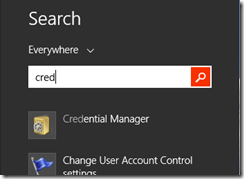
  2. Type in Cred to search the start menu for the Credential Manager. Search for 'Cred'
  3. Launch the Credential Manager, and select the Windows Credentials button. 
  4. Under that button, simply click the Add a Windows credential.
  5. Fill out the wizard with the name of your server, in my case “SERVER”, my credentials Fill out the Add a Windows Credential Wizard
  6. Notice it’s in the list and then close the Credential Manager
Now you may try this instantly and it might not work.  This is most likely because you’ve already tried to connect to this server and stored the fact that you don’t need a username or password.  A reboot or sign-out/in will fix that as long as the item stays in the Credential Manager.  You can also open the command prompt and type in “net use * /d” to delete all active connections which will force Windows to re-open new ones, using the Credential Manager.

For reference, here is the official Windows Help topic on this.

Friday, March 18, 2011

Going “Pro” using Proxure’s KeepVault Pro for Windows Home Server 2011

If you read my post from Tuesday of this week, on using Proxure’s KeepVault for Windows Home Server 2011 or Windows Small Business Server 2011, and when you got to the bottom, you thought to yourself.  Heck yeah I’m going Pro! Then this I post is for you. 

If you are running Windows Small Business Server 2011 Essentials, then this post will simply show you the features before you buy, because you had to get KeepVault’s pro version for your version of Windows Small Business Server. 

First, the upgrade process: If you have Windows Home Server 2011, and you’ve been enjoying the standard features KeepVault has to offer, but want to upgrade because one or more features in my previous blog post were appealing, here is how you do it:

  1. From the Launchpad, click on the Dashboard link and type in your Home Server Password to load up the Dashboard.
  2. Navigate to the KeepVault tab already installed in your Dashboard
  3. On the My Online Backup Job tab, click the link your account name.  For me it’s my email address to go to KeepVault’s website.
  4. Log into KeepVault’s website (you’ll need that subscription ID again) and follow the instructions to upgrade to Professional.
  5. Now you have to make the software aware that you’re running pro.  I remembered that the “Restore Files” link had an upgrade option, so I used that: Upgrade KeepVault Backup for Windows Home Server
  6. Since I already did the upgrade on the web, I just clicked Apply Upgrade, but you could also skip the first few steps and  have the Purchase Upgrade take you to KeepVault’s website.  When you’re finished upgrading the back end, you get this: Welcome to KeepVault Backup Pro
  7. Wow, I don’t even have to close the File Recovery wizard, I instantly have another option to selectively download from other computers I might backup. Selective Download
  8. I cancelled the above wizard, and I’m still in KeepVault Pro

You’ll now notice little changes throughout the UI like the above recovery option, for example, if you flip over to the My Local Backup Job tab, you’ll see in the drop down list that you can add a network drive to backup locally to:

Add a Network Drive ...

Sub Users and roaming backups

In addition, the Pro account now gives me access to add “Sub Users”.  Brilliant!  So now I can just install the Windows 7 version of KeepVault on my wife’s computer, and have her files and folders backed up directly to the cloud while she roams around with her laptop.  Or better yet, in Windows Small Business Server 2011, you often have roaming sales people or people who are away from the office for long periods of time (perhaps even satellite offices?) you can simply install KeepVault on their PC, sign them up as a sub-account and have them back up directly to the cloud.  Need a file from them? Then simply restore it to the server. 

Adding a Sub User Account

Accessing your Backup through the Web Portal

When you click on your account name (in my case my email address) in the My Online Backup Job and log in with your subscription ID, you can click on the Web Access tab.  It’ll prompt you for a web access password (I skipped this because I was so excited about Sub Users, If you’re like me, simply disable web access and enable web access and it will prompt you again).  Once you have your password in place, you can click the Open Now web link to jump right into your online backup.

Web Access Tab

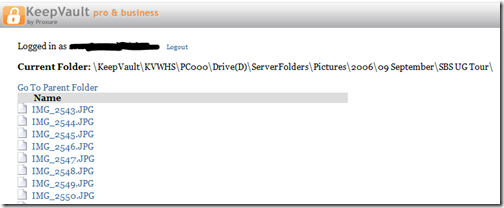
If you don’t want to log in with your Subscription ID, there is a quick jump to http://web.keepvault.com, which will jump you right to your web view of your backup.  Which by the way is raging fast, even though it’s reading encrypted files.  For example, if I wanted to download files from my 2006 User SBS Group Tour, I can simply browse to the folder, click the file and download:

KeepVault Backup Web Access

Retention Policy

As mentioned in my previous post on KeepVault, you also get a retention policy of 5 versions of files.  To restore previous versions of the files, simply do a Selective Restore, and when you get to the file, right-click it and choose the version of the file you want.  If there is no context menu, you only have one version (the latest) backed up.

From the Web Access, if you click on a file (screenshot above), you see all the versions of the file available to download.  You should keep in mind the following:

  • If you delete a protected file from KeepVault, it deletes all versions
  • File versions younger than 48 hours are never deleted (if you save a word document 10 times for example in the same day and backup is configured to “automatic”
  • The oldest 5 versions of a file are pruned (read recovered storage space) after the 10th version of a file is successfully uploaded

So as it turns out, it’s pretty easy to go Pro, if that suites you, and Small Business Owners, now you have details of all the Power Pro gives you at your finger-tips.

Tuesday, March 15, 2011

Online Backup using Proxure’s KeepVault for Windows Home Server 2011 and Windows Small Business Server 2011

As I’ve mentioned before, being a photographer, my photos are my most critical piece of data that lives on my Home Server.  When using Windows Home Server v1, I had found an Online Backup solution that I previously reviewed on this blog.  While I still think it’s a good solution, it has some draw-backs depending on the Amazon S3 back-end.  Like the cost of Amazon S3 is about as expensive as it gets, and signing up for Amazon S3 was probably one of the more confusing processes I have ever done.

While at SMB Nation 2010 in Las Vegas, I had ran into a company called Proxure who build a solution called KeepVault.  I watched a demo of their solution run and it seemed reasonable, at least to check out.  I thought it was pretty cool that they offer versions for Windows XP, Vista, Windows 7, Standard Server (03 & 08 via their Professional version), and most importantly for me: Windows Home Server.

KeepVault Add-In

While this blog covers KeepVault on Windows Home Server 2011 (codename “Vail),  the same add-in offers cloud storage to both the Windows Small Business Server 2011 Essentials (codename “Aurora”) and the Windows Storage Server 2008 R2 Essentials.  However, for these business products, you need to get KeepVault Pro.  The steps and UI, aside from the color of the dashboard, is identical.  KeepVault Pro can also be used on Windows Small Business Server 2011 Standard (codename “SBS7”), although that UI is not shown in this blog post.

Back to the review: The first thing I notice was KeepVault doesn’t bill you for what you use, they bill you for storage space in chunks (40Gb, 80GB, 130GB, 200GB … 3.5TB!).  So if you’re only backing up a very small amount of data, you could end up over paying, but if you compare to Amazon’s 15cents/GB (up to the first TB), you really see a cross over at about 15GB.  Once you get over 15GB, Proxure seems to win hands down on cost.  Plus when you hit the top mark, you click a link and you can bump up your storage. 

The Setup Process

Using the AWIECO Drive Info add-in, I determined I wanted to back up my Pictures and Documents, the things that I really care about.  That came out to about 117GB, so I signed up for the 130GB plan from Proxure.  You don’t need the AWIECO add-in, but it made it a “glance” to compute.

Installing the add-in is just as painless as installing any add-in.  Just double click on it on the server, or on any server-joined client, read and accept the EULA, and then Install it.  You’ll have to re-start the Dashboard to have it appear in the global tabs.

Proxure KeepVault Add-In

The initial page doesn’t look intimidating at all.  Simply click on the Order a KeepVault Backup for Windows Home Server Subscription Now button and sign up. I thought it was pretty slick you could pay via PayPal or with a standard credit card. I’m all for yearly payments too, so I got to save my 10%!! Within 5 minutes I was emailed my subscription ID. Typing that in, with my email ID and I’m good to go.

Choosing an encryption key I can type one in myself, or KeepVault will randomly generate one for me.  If you generate one yourself, you have a risk that you forget your key and now your cloud backup is useless.  If you’re like me, you’ve installed WHS 2011 on new hardware and it’s probably a while before that fails, so you might forget it.  If you don’t want this cumbersome task, you can let KeepVault choose one for you.  The interesting thing here is that they generate the key based on your ID and subscription numbers (as its computer agnostic).  To me that means that someone at KeepVault *could* decrypt your backup.  Although my suspicion here is that you are still safe because our data is stored in blobs and because KeepVault has more than one customer, it’ll be hard for the lay-man IT person at KeepVault to match this up to your backup.  For what it’s worth, I went with “Let KeepVault choose one for me”.

I like how KeepVault really focused on the simplicity of the solution.  With the previous solution I reviewed I could create multiple backup jobs and multiple schedules, which was nice, because parts of my collection barely every change, I just wanted them backed up.  But it was overwhelming at first.  KeepVault’s “Always/Real Time” schedule by default and the single “Job” configuration removes any daunting thoughts you might have.  The only confusion on the whole page for me was enabling the protection on the shares.  I didn’t realize the grey bar across the page were actually buttons, as most of the WHS 2011 console they are just “headers” of columns.  So once you realize that you can just click on Enable Protection to add that shared folder to the cloud backup, it was all good.  As any good add-in, you can also right-click on a Share in the list and select to enable or disable it from the context menu.

Enable Protection for Shared Folders

Using the Add button you can also add any folder you wish on the system, so it doesn’t have to be shared out to the network in order for you to back it up.  You’ll also notice in the screenshot above that I have changed the schedule to be between midnight and 6am.  This is because I am uploading 115GB of data, and I work from home, so from 8am-6pm I use my bandwidth for work, and from 6pm-midnight, I use it for entertainment.  By default, KeepVault will Encrypt and Compress your data on the box before it sends it over the wire.  Nifty…

KeepVault Job and Setting Options

The only feature that I think is missing from the Job scheduler is the ability to run 24/7 but use less bandwidth during the day, and all of it at night.

Looking at the other options, you can always pause the backup, view and delete your protected files online (ie. if you want to permanently delete some files, you can delete the file locally, and use this task to delete it from the cloud as well), view the protection/upload history, configure a proxy if your ISP requires one, and most importantly (the reason we all do backups), Recover Files.

The Event Log is KeepVault’s own list of events (like service start/stop, etc events).  Messaging (while somewhat confusing of a name, maybe “Job Notifications” or “Job Alerts” might be better, is actually really well done.  You can receive emails or SMS alerts (via your carriers E-Mail to SMS service) based on your backup failure rates.  KeepVault obviously has some mail service on the back-end that they allow you access too, because unlike the WHS 2011 Built-in Alerts, they don’t ask you to configure an SMTP service.

When the backup eventually kicks off, if you’re backing up as much data as I am, even with the 1900kbps as advertised in my standard version of KeepVault, I’m in for a long wait…  This is the same with every cloud solution the first time you back-up.  The progress is good, you get both global progress as well as file level progress
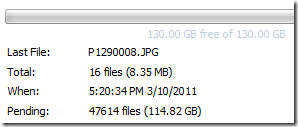
Global Progress of Upload

From 5pm to 9am (~16 hours) on a Thursday night over my cable connection, I backed up 5.1GB to KeepVault’s cloud.  Not quite as fast as the Amazon S3 solution, but then again, I don’t have a Pro account with KeepVault.

Once your data is uploaded, it lives in Proxure’s Data-Center, encrypted for only you to download in the event of a disaster.  Fingers crossed that this is just an insurance policy, and never used.

KeepVault Local Backup

You may have noticed in the above screenshots there was another sub-tab called My Local Backup Job.  Yes, KeepVault can back up to a local disk.  In the Standard version, it’s similar to the built in WHS 2011 Backup in the fact that it can only backup to hard drives attached to the system (the recommendation is still for USB for offsite storage).  If you have KeepVault’s Premium version, you can also back up to SMB Share (i.e. \\NAS\Share), so if you have another device on your network, you can back up to another share on your network.

Also, you’ll notice that this tab also allows you to compress or encrypt.  So if you’re taking that disk offsite, the encryption piece might be something you want to consider for safe storage of that disk should it be compromised.  If you don’t encrypt it.  Files are stored in “explorer friendly” format so a restore on any computer without KeepVault installed is possible.  In comparison, WHS 2011 backup is stored in VHD format, which requires you to first mount the VHD before you can actually do the restore of files.

Recovery of Files

File Recovery

The One-Click Recovery, really is just that.  Let’s say that you have a little child at home, and their favorite past time was to go into your prized photo library and use the delete button, just randomly through your collection.  Or maybe you were searching for your favorite files, and then miss-clicked and deleted your favorite files across your 100GB collection.  Restoring that can be painful.  This One-Click Recovery makes that a breeze.  As *soon* as you click next (i.e., one click), the service will compare the cloud to the local box, and recover all missing files.  If the file exists, the restore will be skipped, preferring the local file over a recovery.  So you can recover all those files our child deleted randomly, yes with one-click.  Obviously this is how you would go on a new server, because none of the files exist.

Selective File Recovery DialogThe Selective Recovery is more of the natural way we think about recovering.  You get your standard tree-view and you can drill into your cloud backup and select different files to recover.

This way is not a single-click restore, but a selective restore.  On the left-hand side if you select a folder, you can select files and folders on the right-hand side for restore.  So if you’re restoring a whole folder, select the folder above it, and then check the box next to the folder you want to restore. If you’re restoring all but a few files in a folder, that can take a few extra clicks.  Thankfully you can use the CTRL or SHIFT Keys to multi-select as you need (similar to Windows Explorer). Before moving on, you need to select if you want to over-write existing files.  This was weird to see on this dialog, because I figured it would be a sub-option on the recovery location which is next.

Once you’re comfortable with the set of files you’re going to restore (and if you want to over-write files), you next choose if you want to restore the files to the original location, or another location.  Unless I’m restoring a completely new server, I’d probably always choose another location to make sure that I’m getting what I expected.  Once you’ve chosen the folder for the location of the restore, I hit “Recover”, and just wait for the software to download the files and put them in the appropriate place.

Recovery Progress

The restore is in fact pretty painless, and yes, my photos came down in-tact…

Test Restore Thumbnail View

Why Go Pro?

As you saw above, KeepVault has two versions, Standard (which they just call “KeepVault”) and Professional (or “KeepVault Pro”).  As a home user, you  might not ever need the Pro version, but it’s certainly something you need for businesses.  So what do you get if you go Pro?

  • Support for Server solutions (aside from the WHS).  For example, the Windows Small Business Server 2011 Essentials, Standard and Windows Storage Server 2008 R2 Essentials.  Also, if you have additional servers in your environment, you can back them up to the same account (Standard Server 2008 and Standard Server 2003).
  • A much faster upload rate (5250kbps instead of 1900kbps).  This comes in handy with that first backup.  The faster you get the files to the cloud, the sooner you are protected!
  • Local Backup to UNC share.  Meaning you can back up your server to a local server share as well.
  • Higher encryption levels (256-bit encryption can be chosen instead of 128-bit)
    • This reminds me.  If you backup a file with the pro version, and then downgrade, your standard client can’t understand the 256-bit encryption and thus can’t restore the files.  It does work the other way around though.  So just be careful which way you go!
  • More Access to your data (Web Access, cross device access for restore) and other administration features.  Notice my screenshot under “Restore” above, if I had the pro version, I could backup files and folders from other computers, right to this single computer.  This means I could support cloud backup on my client computers, and then restore this to the server in the event that the client was dropped while out on a trip!  Another brilliant business feature.
  • If you’re using a management solution, error notification includes system events, so you can track errors in your online backup with your monitoring tools.
  • 5 version retention policy.  If you are with KeepVault standard, you only have the latest version stored on the internet, with Pro it keeps up to 5 versions so you can go back in time when you wish to restore.

As a business user, you’ll have to use the Professional version to get the add-in installed.  As a Home User, you should review the features above and gauge how critical they will be for you. 

If you’re still debating having a Cloud Backup solution for your most prized data, you should approach it like an insurance plan.  You have one for your house, you have one for your car.  You cross your fingers every day that you don’t need to use it, but when you do, it’s there for you.  If your hard-drive fails, recovery of such drives can often cost $1,000s, with no guarantee you can get your data back.  If you’re house burns down, like my uncle’s, this sort of thing is priceless.

I’m using KeepVault, what are you using?

UPDATE: Want to learn more about KeepVault Pro? Check out my Going Pro with Proxure’s KeepVault blog post.

Thursday, February 10, 2011

How to Enable TimeMachine Backup for your MAC to your Windows Small Business Server 2011 Essentials or Windows Home Server 2011

Well, I don’t often dabble around with a MAC, I just can’t get used to the single mouse button and pressing a key on the keyboard for a simple context menu.  I’ve quite possibly been assimilated to Windows.  However,  protecting your data is important, even if you are on a right-click less product.

As you probably know by now, the Release Candidate of both Windows Small Business Server 2011 Essentials, and Windows Home Server 2011 is now live. Which means you can download and install them!!  You should take a moment and do that now.  I’ll wait.

Once you have these installed, you can easily add your Windows based PC to the server and to the PC backup by simply going to http://server/connect on your client PC.  Click the install for Windows PC button and follow the instructions.  Windows PC’s are automatically added to the backup which takes place in a round robin style nightly.  When you’re on a Mac, it’s the same thing, but you click “Install for Mac”, you end up with a launch pad and access to the server, but no default backup.

It has to be possible right? I mean everyone knows that a MAC is really a *nix box with a really fancy UI (and no right-click).

Poking around on the Internet, you can find some steps, like how to get unsupported volumes to appear to the TimeMachine engine, with the help of a friend (thanks Fabian & Craig) we’ve managed to put together these steps, which work for both Home Server 2011, and SBS 2011 Essentials:

  1. First, create an SMB share on your server using the share permissions wizard, let’s call it Mac Backups.  Make sure the users who are on a Mac have Read/Write access.
  2. Change the Mac TimeMachine to show unsupported Network Volumes by going to Finder, then Applications, Utilities, Terminal.
  3. Inside the Terminal, type this command defaults write com.apple.systempreferences TMShowUnsupportedNetworkVolumes 1.  This sets the showing of unsupported network volumes to TRUE.

 Showing Unsupported Network Volumes

  1. Obtain the MAC’s MAC Address. A MAC Address is the hardware address of the local network card.  It’s important to choose the MAC address of the built in wired connection.  To obtain this, you can run the command from the terminal: ifconfig | grep en0.

 Finding the MAC Address

  1. Next (and this is the confusing part, so bare with me) we need to create a sparse file on the MAC and copy the server share.  A sparse file is a file that you define a CAP size, but it will probably take up much less (we’ll define it as 200GB in this example).  This file creation process is a little tricky.  To do this, type in to the same terminal above: command ‘hdiutil create –size 200g –fs HFS+J –volname “<CLIENT_NAME> Backup” <CLIENT_NAME>_<MAC_ADDRESS>.sparsebundle’ Where the MAC client is called <CLIENT_NAME> and the MAC Address on the primary wired connection to the MAC is <MAC_ADDRESS>.  This means if you’re client name was OSX, and your MAC address is 00:00:1F:12:82:92, then your command would be: command ‘hdiutil create –size 200g –fs HFS+J –volname “OSX Backup”  OSD_00001F128292.sparsebundle’  .  Here is what it looks like this client is called “macmini2” and has a MAC address of 34:15:9E:09:00:94


Sparse File Created

  1. Copy this file to “\\SERVER\Mac Backups\” that you created earlier on the server. As you probably know if you are a MAC user, you have to mount the volume:

 Mount the Server Share on the MAC

  1. Load up the Time Machine settings from within System Preferences, and the sparse file you created above should be in the list.  Select this as the target for your backups.  This will have every TimeMachine backup backup directly to a share on the server:

 Configuring TimeMachine to use the sparse file

  1. Repeat for all your Mac computers on your network.

Once you have completed these steps, your MAC will start using the Windows Home Server 2011 or Windows Small Business Server 2011 Essentials as the backup TARGET.  This means it will back up over the network using the built in timeline functionality, on the schedule you define inside timeline.

What is also cool, is while the MAC won’t show a percentage complete like the PC does when performing the client backup, it will tell you the status right in the console, which of course falls through to the alerts.

Mac Backup Successful:

Mac Backup Successful

Mac Backup Unsuccessful:

Mac Backup Unsuccessful

So there you have it, How to backup a MAC to a Windows Home Server 2011 (aka Vail) or Windows Small Business Server 2011 Essentials (aka Aurora) Server.

For reference, here is the team reference for WHS v1

Thursday, January 06, 2011

Windows Multi Point 2011 and How it Fits into Your Small Business

I’ve talked about Multi-Point before, and I mentioned it in my presentation at SMBNation in Las Vegas at the end of last year, but yet I still get the questions about education only, or can we use it in business? 

image

Well, it’s true that the current version of Multi-Point, 2010 that’s available today is out in the field for education only (or at least it’s hard to get or manage if you’re not in education).  If you’re in the market for it, because you like the idea of a single computer and multiple users, there were two major problems.  The OEM edition was non-domain joinable, and only supported 10 users.  The Academic version was only via volume licensing to qualified people, and supported 20 users and the beloved domain-join functionality.  So really, if you wanted something useful, really do have to be in the education field to even get your hands on it. 

Also, there are some features that are good for education, but kind of confuse users outside in the working world, like if you put a thumb-drive into one of the USB ports at a workstation, it appears to all the work stations.  Good for education, not so great for business.

Well, if you wrote off Multi-Point 2010 for business, you probably haven’t been paying attention to the new Multi-Point 2011, currently in Beta (obtain it here)

image

With Windows MultiPoint Server 2011, the licensing and purchase model has been simplified.  There are still two versions as before, with similar restrictions:

  • Windows MultiPoint 2011 Standard – still cannot join a domain and still has a max of 10 work stations
  • Windows MultiPoint 2011 Premium – CAN join a domain as before and can have up to 20 workstations

The most important piece of information to note in the SMB space, is that BOTH of these MultiPoint editions are offered in multiple Microsoft licensing channels.  So now you don’t have to be a large school to actually purchase the more useful edition of MultiPoint.

What’s better, is that USB issue mentioned above is fixed, a USB thumb-drive only appears to the session its plugged into, and not all the users on the server. 

Additionally, the 2011 version of WMS has support for thin clients.  Here is where I think the big win for Small Business lives.  If you have 12 XP workstations, you can simply obtain 1 copy of MultiPoint Premium and now each of those XP workstations have another 5 years of life but yet, they get a full Windows 7 experience when used as a WMS workstation over the network. 

What??

Yeah, that’s what.  WMS is essentially a turnkey TS server on steroids.  You can TS to it, or you can plug in USB based workstations, or use OS down-level desktops.  I’ve even seen old useless Linux based laptops, that have support for RDP be instantly turned into a powerful Windows 7 workstation.

If you’re a VAP, selling it should be a breeze.  Just show the business owner the console where you can get a thumbnail of each individual workstation.  Business owners will love that they can snoop on their employees desktops for when they are using Facebook, or other non-productive functionality, or even to just confirm employee behavior.

Thumbnail View of Desktops

You can really tell that the Windows MultiPoint Server, and the Windows Small Business Server teams share the same floor in Building 43 at Microsoft, our consoles look similar.  Sadly, they do not completely integrate for this release.

I’ve installed WMS into my SBS 2011 Essentials (Aurora) network and it works great.  I haven’t tried on an SBS 2011 Standard network, but there is nothing to prevent it from not working.  I’m seriously considering having the standard version run at my house for when guests arrive and want to use a computer.  Even John Zajdler has tried it in his Aurora Network

If you haven’t tried it yet, and it’s interesting to you get on it because the release candidate is already out.. which has gotta mean it’s close, right?

Monday, November 08, 2010

Announcing Windows Storage Server 2008 R2 Essentials

Now that Kinect has stopped stealing all of our thunder around announcements (although I have to admit I can’t wait for mine, it looks awesome!), we can continue rolling out announcements in the Small Business space. This morning, building on the Windows Small Business Server 2011 Announcement, we are announcing a new edition targeted at Small Business called Windows Storage Server 2008 R2 Essentials.

What is this Windows Storage Server 2008 R2 Essentials? It’s an answer to what the community have been begging for. Today we see a lot of partners put WHS v1 into small business for the PC Backup integration. WHS v1 only backs up 10 of those computers, and is a stand-alone machine you have to manage on it’s own. Breckenridge fills this gap for businesses allowing you to Domain Join Breckenridge to your SBS 2008/SBS 2011 Standard domains to allow backup for up to 25 computers, and additional storage for up to 25 users.

Home Console of BreckenridgeDomain Joinpicture 3

As you can see, it looks a lot like the Windows Home Server Codename “Vail” Edition and the Windows Small Business Server 2011 Essentials Edition. That’s because it is! It shares the same underlying architecture, which means all the same add-ins work on WSS 2008 R2 Essentials, as they do on the other products.

So what is the differences?

Home Server “Vail” WSS 2008 R2 Essentials SBS 2011 Essentials
10 user limit 25 users limit 25 users limit
10 computer limit 25 computer limit 25 computer limit
1 CPU Socket 1 CPU socket 2 CPU sockets
8GB RAM Maximum 8GB RAM Maximum 32GB RAM Maximum
No Domain Join Domain Join Domain Controller

Aside from the ability to Domain Join, and the user limit increase, there are some subtle differences you’ll notice throughout the product that have more of a business “tint”, like if you choose to use WSS 2008 R2 Essentials for Remote Web Access, you’ll notice the same defaults you see in SBS 2011 Essentials, instead of what you see in Home Server. There are also some changes to HomeGroup defaults as well. The last thing to note is while you can install WSS 2008 R2 into an SBS 2011 Essentials, or WHS Vail environment, the client connector from each of these products cannot be installed on the same PC.

So why should you consider WSS 2008 R2 Essentials for your small business or customer?

  • PC Backup for up to 25 PCs in your SBS 2008, 2011 Standard network. And yes, you can run multiple devices in the same network, and choose who has access via a domain group
  • Server backup – backup those PC Backups and other critical data on the WSS 2008 R2 Essentials server. (no, you can’t include the backup of this into your SBS backup)
  • Similar console management as our other products. But if you domain join, you don’t manage users from this console, and the password policy is inherited from the domain (even for local users left on the WSS 2008 R2 Essentials box)
  • If you are installing it into a standard server environment, enjoy the Remote Web Access functionality
  • Additionally, monitor the health of computers in your network
  • Media streaming in the business (training videos, etc)

Windows Storage Server 2008 R2 essentials should be released in the first half (H1) of next year (2011). While it can work as a stand alone NAS device, it’s primarily targeted at Small Businesses with an Active Directory in place and the need for PC Backup and media streaming functionality. When it’s released, it will be available through multiple OEM channels with multiple form factors.

To see the official announcement on the SBS Blog, navigate here.

To learn more about Windows Storage Server, and the new addition, navigate to their blog.

Specifically if you want to read more from the Storage Server Family on WSS 2008 R2 Essentials, they have published a post here.

Tuesday, September 21, 2010

Windows Small Business Server “7” Released to Public Beta

This morning Microsoft released the Windows Small Business Server “7” release to Beta.  This marks yet another major milestone for the Windows Server Solutions Team, now releasing both the Windows Home Server “Vail”, and Windows Small Business Server Hybrid Edition “Aurora” into beta.

SBS 7 marks a major release in the *next* set of all-on-premise solutions.  Updates include:

  • Base OS is updated to Windows Server 2008 R2
  • Exchange is updated to Exchange 2010 SP1
  • SharePoint is updated to Microsoft SharePoint Foundation 2010
  • Windows Software Update Services is updated
  • The new Remote Web Access (RWA) experience is newer (and matches Aurora!)
  • Bug fixes
  • etc

You can try out the new SBS “7” beta by pointing your favorite browser to the SBS Connect site, or jump straight to the downloads page.  Don’t forget if you need help, or find an issue to give us feedback, or talk about it in the Newsgroups.

More details can be found on the Official SBS blog.

Monday, July 12, 2010

Announcing the next releases of Windows Small Business Server

Today we (as in our fearless leader Kevin Kean) pulled the lid off what our team has been working on for the past few years. Two new versions of Windows Small Business Server. That’s right. TWO new versions.

From a traditional standpoint, we’ve continued the single-server mantra with Windows Small Business Server “SBS7”. This version includes updates to all the major products in SBS, such as Windows Server 2008 R2, Exchange Server 2010 SP1, SharePoint 2010 Foundation, WSUS 3.0, and SQL 2008 R2 (with Premium edition). These new versions provide our customers with security and management. We also included a brand-spanking new version of Remote Web Workplace! This version of SBS will continue to support the familiar 75 users

The second version, code named Windows Small Business Server “Aurora” is the new edition of SBS. It’s cheaper than SBS7, and is even a lighter weight “first server” option for small businesses as is a hybrid server delivering both on premise services, as well integrates with the cloud. It also includes PC Backup, and server backup/restore capabilities. The same new version of Remote Web Workplace! This version of SBS will support up to 25 users.

Aurora

“Aurora” also brings a key new functionality of add-ins to drive integration between new and existing on-line services with Aurora. Developers can find the SDK on Connect. We have been working with a lot of partners with SBS Aurora such as Symantec, Level Platforms and Disk Keeper are all making statements this week around plans to integrate products with SBS Aurora. HP is not only showing SBS Aurora in their booth at the Microsoft Worldwide Partner Conference, but has a sneak peek at http://www.facebook.com/CoffeeCoaching. And you’re sure to hear more as we get closer to releasing the preview.

You can sign-up to be notified when the Preview of these servers are available over on the SBS Connect website.

It’s nice to finally be able to talk about the products I’ve been working on for the last number of years!

[Official Blog Post on the Official SBS Blog]

[First discovered review of SBS7 and Aurora, by Paul Thurrott]

Monday, May 17, 2010

Understanding SSL Certificates for client to server encryption

Back in January I made a post, which I called Part 1 of Understanding Certificates.  In this post I talked primarily about how the server is authenticated to the client by using a “root” certificate that the client already trusts, thus establishing a trust relationship with a website you are at without actually having been there before.  If you haven’t read it, it’s a good overview on how that works.

In this Part 2, I want to talk about the encryption between client and server.

Part 1 was all about authentication of the server, this part (2) is going to talk about the encryption portion.  Encryption is important on many networks to prevent prying eyes from seeing the data being sent.  The larger and/or more un-trusted the network, the greater the need for encryption.  The Internet of course being the largest of all public and un-trusted networks.

First the easy stuff, when you go to an SSL based website, you’re using the prefix of HTTPS in your browser.  Additionally, many mainstream browsers such as Internet Explorer or Firefox will show a “Lock” symbol to show that your connection is locked, and safe:

Internet Explorer

(Internet Explorer)

Firefox
(Fire Fox)

Each browser will show it differently, but I think most of the mainstream one will use a little lock icon.  You might also see different colours (Red means bad, white or Green mean good).  While we’re on the subject of colours.  Some SSL certificate providers will provide you with extra security and extra validation, which will make the address bar go green.  In the captures above it’s important to note that Firefox and Internet Explorer use a completely different certificate store.  Internet Explorer uses the built-in Windows Certificate store, while Firefox manages its own.  There are pros and cons to each approach, but both are just as secure.

So how secure are you?

Well, in the details of the certificate, you can check out the encryption level of the certificate by looking at the public key:

Public Key


This certificate used here for passport is a 1024-bit encryption level.  This means that the keys used to encrypt or decrypt this traffic uses a 1,024 character key length.  That means that in order to decrypt this network traffic, you need 1,024 ASCII based characters in exactly the right order.  That’s a tall order to boot!!  Anything less than 1024 at the time of this printing is not considered industry standard encryption.  Hackers have horse-power to crack 512-bit certificates in just a few weeks, this isn’t new news, this has been done back in 2002!  It also states that even 1024 can be cracked, but it would take a lot longer, given the cracking method used is “Brute Force”. It would take a large number of years to crack this, and you’ll notice if you review your certificates, they are only used for 1 year, and then the key is changed with a new certificate, forcing your hacker to start over.

However, with the introduction of this, 2048-bit certificates are already shipping today.  The bigger the number, the harder it will be to decrypt. What’s the hold up?  Processor power.  Not necessarily in your PC, but on your phone, in your router, even on the server processor!!.  Using higher-level encryption, means that each packet sent over the internet needs to be encrypted on one side, and decrypted on the other.  Does your phone have the processor to deal with higher level of encryption? what about servers that process millions of requests per second, that would double the CPU load for decryption/encryption!  So don’t be surprised if you see 1024-bit for a while longer: it’s still considered industry standard.

You may notice that root or chaining certificates last longer.  This is because their public key is typically not out in the open for all to see, and potentially use to hack.  So it’s generally accepted for these higher certificates to have a longer lifespan.

But how does it work Technically?

Let’s dive into how it works.  When you buy a certificate from a 3rd party, they ask for a CSR (Certificate Signing Request).  The website generating the CSR generates two pieces of information:

  1. The Public Key
  2. The Private Key

The public key is encoded in this request, along with the final public public certificate.  The certificate provider validates that this is in fact the server it’s issuing a certificate for (the more expensive the certificate, the more validation is done).  The private key NEVER EVER leaves the website generating the certificate.  Think of a mailbox that the post office runs that sites outside the convenience store.  the public key is the slot in the top.  Anyone can get access to that to send stuff into the post office, but the key to open and get access to all this sent mail, only the post office has, and never leaves around anywhere.

Once the certificate request is signed, the public key is placed right on the website for all the world to see, and the private key is kept safe inside the certificate store, hidden from view and access only to administrators!

The private key is used to decrypt everything encrypted with the public key, and vice versa.  Additionally, a per-session key is established and everything is encrypted using that as well.  This prevents when the server sends something to the client encrypted with the private key, any listening clients from decrypting it with the very public “public key”. If you want to go deeper,  you can dive into the nitty-gritty details over on Wikipedia on Transport Layer Security.

What if something goes wrong?

If something goes wrong, or something changes, a certificate is revoked.  A client will check the CRL (Certificate Revoke List) embedded in the certificate to see if the current one is still valid.  If a website cert has been compromised, or a name changed, or anything changed, the certificate is revoked and another one issued.  Clients will know which one to use simply by checking the CRL distribution point.

CRL

Here we see that Verisign has their CRL hosted up online that anyone can go and see if this cert is revoked or not.  Clients will known not to trust or use a revoked certificate.


imageRemember, if you end up at a site that has a certificate that you don’t trust and your address bar in Internet Explorer is red (after you mistakenly continued onto the website), you’ll still get the encryption between the server and the client, BUT you won’t know for sure you’re talking to the right server.  So you should ALWAYS make sure you do not continue onto these types of servers.  Even if you *think* it’s going to the right place.  Imagine if it’s not, and you logged in with your username and password.  You just gave your username and password to some random site! 

Be careful out there, look for the lock icon (image), look for the https:// in the address-bar, and be  weary sending personal information anywhere!!

Tuesday, April 13, 2010

Create SUPER complex passwords with touch typing skills

I found this awesome tip on LifeHacker, one of my favorite blogs… Shift your fingers one key for easy to remember, super complex passwords!

500x_top-secret-password

You're constantly told how easy it would be to hack your weak passwords, but complicated passwords just aren't something our brains get excited about memorizing.

His clever solution: Stick with your weak, dictionary password if you must; just move your fingers over a space on the keyboard.

If you want a secure password without having to remember anything complex, try shifting your fingers one set of keys to the right. It will make your password look like gibberish, will often add in punctuation marks, and is quick and simple.

When John Pozadzides showed us how he'd hack our weak passwords, he listed his top 10 choices for getting started hacking away at your weak passwords. Let's take a look at how a few of those popular passwords fare when finger shifting to the right:

  • password => [sddeptf
  • letmein => ;ry,rom
  • money => .pmru
  • love => ;pbr

Something longer but still really lame, like, say, "topsecretpassword", becomes "yp[drvtry[sddeptf". These may not be perfect compared to secure password generators, but they're likely orders of magnitude better than a lot of people's go-to passwords.

Thursday, January 14, 2010

Understanding SSL Certificates

I get a lot of questions on understanding certificates in general, this post is intended to answer those general questions and is not specific to any product.  Although I plan on using Windows Home Server and Windows Small Business Server 2008  as examples here.  I do have a previous post on understanding the self-issued certificate in SBS 2003 and SBS 2008, as this post will focus on understanding trusted certificates, and what makes them trusted.

Certificates provide two purposes:

  1. Authenticating the server to the client
  2. Providing encryption between the server and the client

I will cover the authenticating the server to the client in this part 1 post, and will write a part 2 post that handles the second part of encryption.

Part 1 – Authenticating the Server to the Client

Think of a certificate like a drivers license; a United States drivers license as that’s what I’m most familiar with.  The drivers license has three key components that makes it what it is. 

  1. A name that identifies what you are called, in my case, “Sean Daniel”
  2. An expiry date, that identifies when the license is valid from.  This ensures data doesn’t get stale, like your picture, or hair colour, or if you need glasses or not to drive
  3. An issuing authority, such as Washington State

This is the same as a computer SSL certificate.  It has a valid URL, an expiry date, and an issuing authority.  When the client gets to the intended URL such as https://remote.contoso.com, it asks the server for proof that it is remote.contoso.com, and the server presents it’s certificate.  The client validates the 3 checks.  Does the URL in the certificate match (ie. are you “Sean Daniel”).  Is this certificate valid (is the expiry date past today’s current date and time).  Those are the two easy to understand checks.  The final check is “do I trust the issuing authority”.  In the case of a drivers license, you’d bend it, look at it under a black light to make sure it’s authentic, and then you’d see Washington state issued it and be.  Sure, I trust the state government.

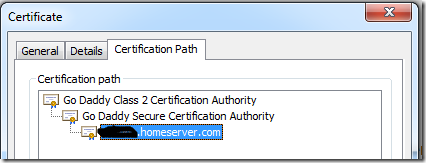
With certificates, it’s slightly different. The computer follows the certificate chain outlined in the certificate path (IE view):

Certificate Chain

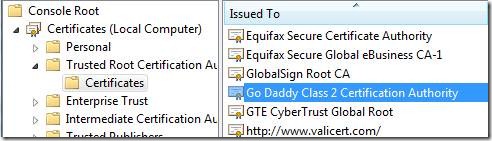
In the above example for Home Server, the client will check if it trusts foo.homeserver.com.  It looks into it’s trusted certificate store for a matching certificate, none would exist of course, so it would then look for the “GoDaddy Secure Certification Authority” in the same store.  Because the “GoDaddy Secure Certification Authority” trusts foo.homeserver.com, the client can base it’s trust on that.  Again, it won’t find that certificate, so it bounces up to the root certificate and looks for “Go Daddy Class 2 Certification Authority” in the trusted root store:

Trusted Root Certification Authority Store

As you can see from a view on my Windows 7 box, Windows 7 by default trusts this certificate, so since I trust that certificate, and that certificate trusts the “Go Daddy Secure Certification Authority”, then my Windows 7 machine also trusts this authority, and since the “Go Daddy Secure Certification Authority” trusts foo.homeserver.com, then My Windows 7 client also trusts foo.homeserver.com, and a trusted certificate connection is established.

In the non-computer world, think of it this way.  When I try to get on a plane, and I present my drivers license (domestic flights only!), they trust WA state and allow me on the plane.  If I were to present my Microsoft Identification, they would probably look at me sideways and ask for another ID, because the airlines don’t trust the Microsoft employee issuing authority.  However, if I go to my companies Christmas party I can present EITHER my drivers license, or my Microsoft ID, and they trust both, since they trust WA state, and the Microsoft employee issuing authority.

In Windows SBS 2003/2008 and the use of self issued certificates.  You install the leaf cert (sbs 2003) or the root cert (sbs 2008) into your client trusted root store, and now your client will trust that issuing authority as mentioned above.  This is outlined in my old post.

On Mobile devices, such as Windows Mobile, you need to ensure the certificate is in that root store as well, which is why some certs work and some don’t on older Windows Mobile devices.  Additionally it’s important to call out that browsers on clients behave differently too.  For example, Firefox has it’s own certificate store and doesn’t use the one in Windows.  The certificates in Windows and also on later mobile devices are updated and maintained through the secure connection of Windows Update.

Hopefully this clears up the server to client authentication.  Of course we know the client authenticates to the server by providing your username and password to prove you are indeed the user the server should give access to. 

Last important thing to remember, is NEVER install a certificate over an unsecure or un-trusted  internet connection, you should always use a SECURE method of installing certificates.  That means you download a cert over an already trusted and secure connection, or you bring it home in your pocket on a USB key.  You never know if there is going to be a malicious server giving you a bad certificate for the wrong server on the Internet.  Then you will just be giving your username and password to the wrong server on the Internet, and that would be disaster.


Update: Continue on to Part 2, now posted.

Thursday, November 05, 2009

The Big Easy Offer is back – Limited time

Woa, just received the U.S Partner newsletter and noticed that the Big Easy Offer is back!  This means that for a limited time (until January 2010), the Big Easy gives customers a choice when purchasing Microsoft products and solutions.

They get the right solution, and earn money back in the form of partner subsidy funds which can be used to implement their Microsoft solution.

Check it out at the Microsoft Partner Network.

Tuesday, August 25, 2009

Help Configuring your Router for Remote Access

Windows Home Server

Windows Home Server and Windows Small Business Server 2008 depend heavily on the router protecting your network to allow remote access to your server while away from the home or office.  Both servers will attempt to use UPnP to automatically configure the router and keep it up to date, but on many routers, UPnP fails, or the router is reset etc.  As a result, sometimes it’s the right thing to configure your router manually to ensure it just always works, regardless of if a UPnP call fails.

For this, I have recently been alerted to a great Wiki on HomeServerLand that goes through the UI for a bunch of common routers.  Click here to find that Wiki database. While the database is designed for Windows Home Server, such that it creates DHCP reservations for the server on the network (Windows Home Server is configured with a Dynamic IP address on the Local Area Network (LAN) ).  It also talks about how to configure a port, which is all you need for Windows SBS 2008.

Each router model listed has step-by-step instructions on how to configure both the DHCP exclusions and the port mappings.

To modify these steps for Windows SBS 2008, simply ignore the DHCP reservation steps, and instead get the IP address of your server by typing ipconfig at the command prompt on the server.  The “IPv4 Address” is the address of the server you’ll want to give the router.  Remember for SBS you need 80 and 443 (same as Home Server), and also 25 for email, and 1723 (if you plan on using VPN).  Port 4125 is only used in Windows Home Server and SBS 2003 (the previous version of SBS).

And while you’re in your router configuration UI, make sure you turn the Wi-Fi security to WPA or WPA-2.  Remember, WEP is easy to crack, and isn’t considered secure.

Again, it’s the Remote Access Router Configuration Wiki

Wednesday, June 24, 2009

Using the POP3 Connector to download Windows Live E-Mail

[This post courtesy of Vita Xiao]

If you haven’t heard, Windows Live Mail has recently made access to your mail via POP3 a standard account, instead of a premium paid account feature!  This means that you can configure your Small Business Server 2008 POP3 Connector to download mail directly from Windows Live Mail, making a transition from Windows Live Mail to Small Business Server and Exchange even easier!  You can do this for all your @hotmail.com, @live.com and @msn.com email addresses!

Simply use the following settings in your POP3 Connector UI:

  • POP3 Server: pop3.live.com
  • Port: 995
  • Require SSL
  • Logon Type: BASIC
  • Provide your LiveID credentials

The UI will look like this:

image

While you’ll also notice you can send mail via Windows Live via their SMTP server (smtp.live.com, port 25), Live requires that you send as the LiveID you authenticate as, so while it might be tempting that you use Windows Live as your smart host, you won’t want to because all of your company email will come from one email address.  Furthermore, when you send mail through the Live Mail service, you are sending on behalf of that particular user.  If you send too many pieces of email, or too many NDRs, that particular user can be classified as a spammer, and limited in their ability to use their account.  So stay away from using this as a smart-host!

Enjoy your seamless transition to Exchange from Hotmail.

Tuesday, February 24, 2009

How to Synchronize the DSRM password with a Domain User

[This post courtesy of Paul Fitzgerald]

If you have a disaster and you need to recover, are you going to be able to log into your system?  When using the Directory Service restore Mode (DSRM) Administrator password, you may not be able to remember it!  This could lead to a whole whack of problems, as great as not having access to log into your machine to recover data!

In Windows Small Business Server 2003, the product itself kept the DSRM Administrator password in sync with the Administrator account on the system.  So whenever that password was changed, so was the DSRM password.  Making things super easy for you.

With Windows Small Business Server 2008, the built in administrator account is disabled, so this functionality was never implemented.   However, a new feature is available for download for you to choose which account the DSRM password is sync’d with.  KB Article 961320 talks about what’s needed to download.  You can download the patch by clicking on the:

  image

icon (it will probably be included in Server SP2), and then the command line that you need to run to choose which domain account to sync it too.

That’s all there is to it!

Friday, February 20, 2009

Keys to Success in SBS 2003-2008 Migrations

The Official SBS blog has put out some notes on how to make sure you’re migration from SBS 2003 to SBS 2008 is successful.That blog post is here.

From my own experience, the documentation, is very very complete, and very thorough.  The catch of course is, this isn’t like normal SBS documentation where you can skip steps, every part of every step is crucial.  If you’re not reading every word and doing every step, then your failed migration on your head.  READ and then READ again!

Check out the Official Blog post.

The Importance of a Strong Password

I can’t emphasis enough how important creating a strong password is. Lots of people have easy to remember passwords that are just not secure.  The most notable ones are bank PIN numbers.  The difference here is you have to physically have the card to use the password, in an environment where you only have a username and password, the password is super important.  It’s quite likely that your username is right there in your email address, so the password is all that keeps those hackers out.

If you like the idea of having something “physical” that you are required to have with you, you can add these technologies to Windows Small Business Server.  Using 3rd party software, you can either take advantage of SmartCard authentication built right into Windows, or use something designed specifically for SBS, called Auth Anvil, which requires you to have a FOB with a random number on it when logging into Remote Web Workplace.

If a low cost solution is required, you can jack up the password policy requirements on your network and require users to have super strong passwords.  Below is the password policy out of the box with Windows Small Business Server 2008. 

image

You can change the frequency of when the password needs to change, which prevents brute force attacks (as those usually take time), and change the number of characters.  When you enable password complexity requirements, you’re forcing the following:

  1. Not containing the user’s account name or parts of the user’s full name that exceeds 2 consecutive characters
  2. Contains letters from the following:
    1. English Uppercase A-Z
    2. English Lowercase a-z
    3. Base 10 digits 0-9
    4. Non-alphabetic characters (e.g. !, $, #, %)

The trick of course is to educate your end users to remember these passwords.

Microsoft has a great article on Strong Passwords: How to Create and Use them.  Creating (and remembering) a strong password is far easier than you think.  Microsoft calls out these 5 easy steps:

  1. Think of a sentence that you can remember. This will be the basis of your strong password or pass phrase. Use a memorable sentence, such as "My son Aiden is three years old."
  2. Check if the computer or online system supports the pass phrase directly. If you can use a pass phrase (with spaces between characters) on your computer or online system, do so.
  3. If the computer or online system does not support pass phrases, convert it to a password. Take the first letter of each word of the sentence that you've created to create a new, nonsensical word. Using the example above, you'd get: "msaityo".
  4. Add complexity by mixing uppercase and lowercase letters and numbers. It is valuable to use some letter swapping or misspellings as well. For instance, in the pass phrase above, consider misspelling Aiden's name, or substituting the word "three" for the number 3. There are many possible substitutions, and the longer the sentence, the more complex your password can be. Your pass phrase might become "My SoN Ayd3N is 3 yeeRs old." If the computer or online system will not support a pass phrase, use the same technique on the shorter password. This might yield a password like "MsAy3yo".
  5. Finally, substitute some special characters. You can use symbols that look like letters, combine words (remove spaces) and other ways to make the password more complex. Using these tricks, we create a pass phrase of "MySoN 8N i$ 3 yeeR$ old" or a password (using the first letter of each word) "M$8ni3y0".

If you want Microsoft to check how secure your password is, you can use the handy password checker.  I would recommend going for at least a password that indicates a Strong or Best green rating.  Weak passwords are usually compromised easily either by brute force attacks, or simply by knowing a bit about you.