Showing posts with label Digital LifeStyle. Show all posts

Wednesday, February 19, 2014

Backing up your Contacts from the Cloud

I can’t stress how important backing up is, I even have a special tag just for tips and tricks with backup, across various technology. 

So you might think, well, my contacts are *in* the cloud, so they are safe right?  Wrong!  If you don’t take backups into your own hands, you can have issues down the road, even with all the resiliency built into these Cloud services, you can loose data, here are just a few ways:

  • The Delete key could get stuck on your wireless keyboard and end up deleting a majority of your contacts in an instant, which then syncs to your service and then instantly to all your devices (this happens in my inbox all the time when my keyboard battery is low). (don’t have this? learn how to set it up here)
  • You could get hacked, be that @Matt or @N style, or simply by a script kiddy (you’ve enabled 2-factor authentication for your account already right? (Outlook.com, GMail.com)
  • You could get a virus that deletes, corrupts or worse (encrypts) your data so you can’t access it
  • You could cause yourself to get locked out of your account, maybe because you broke the Terms of Use?
  • The cloud service can make a mistake and delete your files (although it’s likely they can get it back, this is hours of support calls)

So, it’s in your best interest to do your own backup, and manage your data on your own, even in a cloud service.  I keep my Contacts in the cloud and I backup periodically (manually, but all the same, it’s periodically).  What would be great if these services did this monthly and emailed it to you…. a request in progress!

This is how I do it with Outlook.com

  • Browse on over to https://people.live.com and log in
  • On the title bar at the top, choose Manage and click on Export for use with Outlook.com and other services. People Export
  • This will prompt you to download (or automatically download) a file called OutlookContacts.csv. which is a coma separated values file that contains pretty much every important field that is in your contacts.  This is what you have to save in a safe place.

If you loose your contacts for whatever reason, you can use this file to work on importing them into another app or the same service but different account, etc.

This is how I do it with GMail.com

  • Browse on over to https://www.google.com/contacts/ and log in
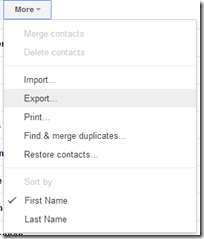
  • On the More drop down, select Export… to start the process Contacts Export
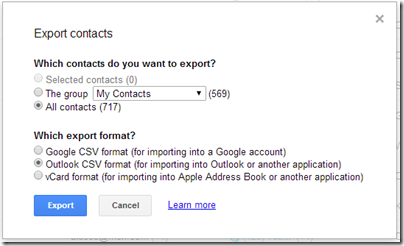
  • Choose the best format that you want to export in.  I think that Outlook CSV is the most widely used format, but you may wish to export in all formats, or specific formats to meet your needs. Export Contacts
  • This will prompt you to download a contacts.csv (or automatically download it), and this is the file you want to keep safe. 

There are multiple ways to import these files if your data is lost… more on that to come, but at least you doing this if only once a year, will save you a lot of hassle if you run into trouble.

Monday, April 29, 2013

Cloud Sharing your Email, Contacts, Calendar Between Different Devices

I’ve come across a lot of people who still struggle with different devices and having to physically plug them into their computer when they want to sync their calendar or contacts.  Sure, Email is a solved problem for them, but not that pesky Calendar or the list of Contacts.  This post is intended to help those people.  But those people have to embrace “the cloud”…

The cloud sounds scary, but it’s not, you’ve been using it for years, it’s just a server on the Internet that’s always accessible. Sure this can be a single mail server that’s been holding your email until you connect it, or it can be a scale-out solution that offers compute, storage, and database needs, but let’s start small.  Your email server, is in the cloud.  Yes, that same one offered to your by your Internet Service Provider (ISV).  That’s “cloud”.  See, you have email, you’re already using “the cloud”.  Your problem is you either (a), have an e-mail only server that uses POP3, or (b), you’re not taking advantage of the features of your server to leverage contacts and calendar.

If you have an e-mail server that only does email (i.e. only offers you IMAP or POP3 access), then you are living in the stone ages.  IMAP and POP3 are to email what rotary dialing is to the telephone.  The first is to switch to something that offers the email, calendar, contact suite of products.  I find it best to switch to the product that your spouse or significant other is using, primarily because it makes it easier to share things like the calendar.  My preference is Outlook.com, but you can also use GMail or Yahoo! Or if you wanted something more powerful, you could choose Office365.  The bottom line is you need to ditch that ISV email server.  Some ISVs leverage the above services for their email solution.  That’s better than POP3, but I still don’t like being tied to an ISV, because if you move or that ISV gets bought by another, things change, but this is your call.  This may or may not require you to get a different email address.  This is by far the most painful part of the process, so you’ll want to do this part once.  If you want to use your own domain name, so your email address never needs to change.  I have instructions on how to do this with Hotmail / Outlook.com.

Let’s overview the set up that you’re aiming for:

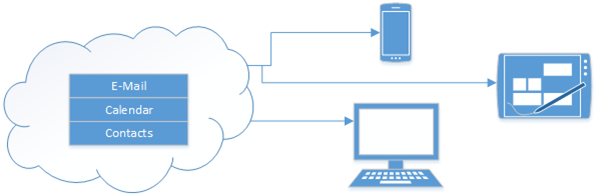
Cloud to Device


This means that each phone, tablet or computer connects directly to the Internet (or cloud) to get your Email (which it does today) and your calendar and your contacts.  This means that the primary location for your E-mail, Calendar and Contacts is in the cloud.  Your devices and computers are just a “view” into that.  While you probably won’t need this with today’s devices. All of my computers are configured to use Exchange Active Sync (EAS).  Apparently Google is the only service that doesn’t use this anymore.

This works for me, and allows me to share my calendar with my wife, so we can always be in sync (provided she enters her events into her calendar!). 

I have the following devices, that are always up to date and never need to be plugged into a computer for “syncing”.

  • Windows Phone 8
  • Surface RT
  • Windows 8 PC (both built in e-mail client, and Outlook 2013)
  • iPhone
  • iPad
  • Blackberry Playbook

This is the set up you “don’t” want, as you are now dependent on your computer, and if you’re computer crashes, or dies, you loose your calendar and contacts.

Bad Setup

Monday, July 09, 2012

Get Cloud Services working for you, even when you’re not!

As the saying goes, a user will do things over and over and over again, but a developer will automate it and never touch it again (until something breaks of course).

I am not a developer, but I do have a developer education, and that makes me want to automate stuff.  Why do something over and over again that a computer can handle just fine?  I do this sort of thing on a client computer, and often write scripts using AutoHotKey.  I wrote about it earlier, now’s a good time to check it out. 

I’m now excited to say that I’ve found a way for things to happen for you, without you doing anything.  Getting those beloved Cloud services working for you.IFTTT

Have you heard about If this then that? or IFTTT (pronounced “lift” without the “L”)

IFTTT is an online “batch” file service that allows you to set a trigger (“if this”), and have an action take place on your behalf (“then that”).  You can learn more about it here.

It’s my new favorite service.  Supporting all kinds of existing services including: Bit.ly, Blogger, Buffer, Craigslist, Date & Time, Delicio.us, Dropbox, Email, Evernote, Facebook, RSS feeds, Flickr, Foursquare, GMail (and almost all of Google’s services that I don’t use), Instagram, Last.fm, LinkedIn, SMS, Stocks, Twitter, Vimeo, Weather, Belkin power, Wordpress, Youtube, and more!

You can then simply create what they call “recipes”, which allows you to set some trigger on some service, and then have a action take place when that trigger happens.  For example, this is a popular one:

AutoSave Instagram Pictures to DropBox

It’s that easy, you set up your trigger actions and define your reactions.  In just a day, I’ve created a few recipes:

  • I save all my tweets to Evernote (easy and fast searching of historical tweets)
  • I automatically tweet blog posts (like this one), and then re-tweet them again later using BufferApp.com
  • I have an email alert set up for my favorite stocks
  • I automatically blog my Instagram shots on my photoblog.
  • I’m going to tweet exactly at Midnight on new years to wish everyone a great new 2013!

Security

What I like most about IFTTT is I never have to give it any of my passwords for my other sites/services, it just simply gets granted access, and I can always revoke it from the target service if I want.

So if you like automation, and you find yourself repeating the same actions over and over again, try out IFTTT

This blog post was automatically tweeted by IFTTT

Monday, July 02, 2012

Enjoying the Cloud way of Life

A few years ago, I made a decision to move almost everything to the cloud. Steve Ballmer did say that Microsoft employees were "All In!" and I decided to take that to heart. See what it's like. I have since ditched running Exchange in my house for the power of Hotmail (Although I also have an Office365 account), and I have focused most of my energy on cloud services in the public cloud instead of those in the private cloud, although I still run Windows Home Server strictly because cloud storage is expensive.

I have to say that thus far I like it. I have minimized the number of computers in my house from 4 desktops, 2 laptops and a server, down to 1 laptop and a tablet and a [light-weight] server. It makes patch-tuesday much easier to swallow as I'm not chasing down computers for updates. My wife still has her laptop and her phone, but otherwise it's a minimalistic approach.

I did make some other changes. I switched out my Zune player for a Sonos player (well, actually 2!), and I stopped buying CDs and ripping them to my home server and now simply subscribed to Rdio, which is kind enough to allow me to play any song I want at any time, to any device. It's cheaper than actually buying the CDs now too. It fits nicely in with the Sonos player as well.

Part of moving to the Cloud was I wanted to have almost no data on my computers or tablets. I store a backup of all my personal documents on my SkyDrive using their new app for the PC, which gives me access to all my stuff from my iPad and soon to be Windows Surface! I store all my work documents on SharePoint at the office, and my laptop is really just a vessel of information that's actively being worked on until it's saved to one of those two locations.

In fact, all I use my Home Server for is media storage. Ripped DVDs for streaming to the xbox, my old music collection, and most importantly my photo collection. My Home Server also provides a gateway to the cloud for online backup (see my Online Backup posts). It's also the "computer" that's on all the time, so it runs any long-time running tasks which allows my PC to sleep as often and as aggressively as it likes.

So far living the Cloud is easy, but I've made some important decisions as to where I store my data, and admittedly, there is some data that I still don't put in the cloud, but I could probably count it on one hand.

Are you in the cloud yet? why not? Drop me a comment and let me know why.

Thursday, February 09, 2012

How to Configure a Vanity Domain on Hotmail

The Oatmeal, one of my favorite comic sites, has an info-graphic on what your e-mail address says about you.  While I disagree about the @gmail.com and @hotmail.com priority in life, I’m in pretty much agreement on using your own domain for your e-mail.  Especially for business, and quite possibly also for individuals (or *home* e-mail addresses as you might call them.)

Why do you want to have your own domain name for your e-mail address? Because it gives you long term flexibility without having to update your friends.  using my @seandaniel.com email address has helped me over the years as I first obtained it in University.  This meant I could just point the email domain to the university mailbox, then I moved it to my own SBS 2000 box, then SBS 2003, then SBS 2008, and then I moved it to GMail for a short period of time (which I discovered I didn’t like GMail at all), and now I actually have my personal e-mail hosted on Hotmail, and through all that, I didn’t have to notify my friends once about an email address change.

Naturally I get spam on my account, but Hotmail is so good, I never get any in my inbox, it just goes into the junk email folder, which I pay no attention to unless someone tells me to check my junk email folder.

Side note here: I find that with most spam filters these days, they are “learning” filters.  If you abandon your email account, it can’t learn your preferences with new spam so you end up with some in your inbox.  This is the same for Hotmail and GMail.

So let’s get started.  First you need a domain name.  If you’re in the US or Canada, I strongly suggest using eNom Central or GoDaddy.  Both registrars are incredible, but offer different experiences.  eNom is slightly more expensive, but I consider their UX cleaner and easier to understand.  GoDaddy wins for price though, you just have a gauntlet to run to check out.  So it’s up to you which one you choose.  Outside of the US and Canada, these domain registrars are still phenomenal choices, but there are some “local” registrars (particularly in Germany or Australia) that offer more local offerings you might want to check out.

Once you own a domain, you can do all sorts of things with it, but this post is focused on setting up your email address on Hotmail.  Let’s get started:

  1. Navigate over to Domains.Live.com, and sign-in with your LiveID (which is probably an existing Hotmail address)
  2. Click on Add Domain
  3. On the Create a Windows Live Experience for your domain page, type in the domain name you just bought.  For me it was “seandaniel.com”, and ensure that Set up Windows Live Hotmail for my domain is selected, and click Continue.
  4. Click I Accept on the agreement…. after you agree of course. :o)setting up foobar21.com

At this point you need to prove ownership of this domain name and you get a page that walks you through all the settings you need to configure in your DNS provider’s website.

This is a screenshot for one that I created called “foobar21.com” which of course I don’t own, this is just an example.

In a different browser window (since you’ll need to copy and paste from this one), you’ll want to navigate to your domain registrar’s website and log in.

Once logged in, you’ll want to find the host record management or Email/MX record management, that’s where you’re going to make the changes to your domain name. 

Since I use eNom Central, this is how I do it.  eNom has the MX (Mail eXchange) or email records separate than the host records

  • Log in, and go to Domains, and then My Domains.
  • I click on the domain that I want to manage, in this case, seandaniel.com
  • on the next page, I click on Email Settings.

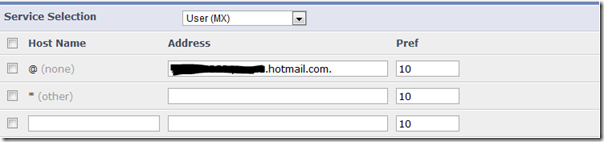
Now I’m ready to set up my email record to match the first item in the list on the Windows Live page.  the “@” record is the root of the domain (i.e. if you want your email address to be @seandaniel.com, that’s the root of the domain instead of @mail.seandaniel.com, which would be under the “mail” host name.  Here is how mine looks:

User MX settings

All I did was copy and paste the Live configuration site into the eNom too. Once the MX record is done, I hit Save and move onto the next record in the Live webpage’s list above.  The rest of the items are done on the Host Management page, so I switch to that.  Here is what mine looks like (I have a lot more but I stripped it down to just the mail records to make things easy to understand):

Host Records

Again, just a copy and paste above from the Live site into the eNom or your own GoDaddy tool.  Just a few things to note here

  1. My TXT record above is a standard (mostly adopted by Microsoft is my opinion) that tells mail servers that receive your email, which mail servers have permission to send on your domains behalf.  So you’re telling other servers that hotmail.com can send mail on your behalf.
  2. The SRV record is for using Windows Live Messenger, it’s listed at the bottom of the live page (which is cut off in the screenshot).
  3. The CNAME for mail, is one that I set up myself, which you also have to configure on the domains.live.com (under “custom addresses”), which automatically redirects mail.seandaniel.com to Hotmail’s logon page.  Kinda slick, but not necessary.
  4. The URL Redirect for * isn’t on all domain providers, it’s another neat DNS trick that eNom does, so if you type in FluffySlippers.seandaniel.com it redirects to my webpage.  Also optional.

Make sure you hit SAVE on your domain registrar’s page.

Now, the next part can take some time.  If you have a domain that’s been around for a while, it’s probably going to finish replicating in < 6 hours or so.  If your domain is new, it could take up to 2-3 days for it to get into all the systems around the Internet.  Regardless, you can keep returning to domains.live.com and refreshing to know when it’s complete.

Now that you have your domain set up, let’s create an account!

At this point, you again to to your management console and hit up the Member Accounts link.  This is where you create your mailbox(es) (I have some domains that I host family email on so in those cases I have multiple email addresses).

On the Member Accounts page

  1. Click the Add button to add your first user
  2. Give this user an account name, first name, last name, and a password, you can require them to change this when they log in.

That’s it, the account is created.  Now simply go to www.hotmail.com (or mail.domain.com if you set that up!) and log in as this user account.  The mailbox will be created for you upon log in.  The user will set up their new Hotmail account as if they were setting up a new Hotmail account on @live.com or @hotmail.com, complete with security related questions.

That’s all there is to it.  Mail starts flowing to your new Hotmail account with your own vanity domain name.  Create up to 500 email accounts.

Now when Hotmail adds the ability to add “aliases” to vanity domain names, I’ll be even *that* much more happy with the situation.

Oh, and one more thing, that Hotmail account that you signed into domains.live.com as? be sure to link it in the options to your new Hotmail account, then you can use either to log in.  You can also get the mail from one Hotmail account into another, so you only need to check one place as people learn your new vanity email address!

You can do this with GMail too, but they classify you as a business and I believe charge you $50/year, with Hotmail this functionality is free!  The link to get started on Gmail.

Tuesday, January 03, 2012

How to use your Home Server as an AirPrint server for only $10

As I move more and more of my computing and data to the Cloud with services like SkyDrive.  I am reducing the amount of computing power I have in my house.  I have an iPad (v1), a Laptop, and of course my Windows Home Server.

As I’ve mentioned before, I’m looking for more ways to take advantage of my low-powered Home Server to do more for me as an *always* on device.

Over the holiday’s we had a few visitors, which of course means printing boarding passes prior to leaving for the airport.  It was frustrating to have to take out the laptop when the iPad is just right there.  But without a compatible AirPrint printer, you can’t print from the iPad….

Or can’t you?FingerPrint

I found an application for Windows (and Mac OS) that installs on your computer that shares almost any printer connected to the computer, to the AirPrint service. 

There was an old version that doesn’t work with iOS5 that is free.  But obviously, I have iOS5 on all my devices, so that wasn’t an option.  I’m also not a big fan of Jail-Breaking (I guess I know too much about security to allow a hacker full access to my device).

This application, called FingerPrint by Collobos Software, will share out any connected printer, as well as DropBox locations to the AirPrint service.  I started with the trial to make sure it worked first.

To get it set up, I downloaded the FingerPrint installer, copied it to the desktop of my Home Server and installed it. Then of course ran FingerPrint on the server.  I also had to add my network printer to a printer on my Home Server, just by going to Control Panel and adding a printer as I normally would on any Windows machine.

However, it didn’t initially work.  I had to make two changes to the configuration for it to work, probably specific to my network.  I’ll share them here incase you have the same problems.

Enabling Multicast on my router

First, I discovered that my DLink DIR-655 router wasn’t allowing Apple’s discovery service, Bonjour.  This is not always the case with routers.  But I discovered that I can enable MultiCast, on the router, which seemed to allow it.  I did this on the DIR-655 by going to Advanced, then Advanced Network, and at the bottom, selecting to Enable Multicast Streams:

MultiCast Streams

This required a router reboot, which took down my network for 30 seconds, and then it took another approximately 5 minutes for my iPad to discover the services running.

This enabled me to see the list of printers connect to my Home Server

Opening an Additional Port on the server

Per Collobos support page, I had to manually open the port 6631 on my Home Server to allow AirPrint to send the document to FingerPrint.  To do this I simply:

  1. Logged into the Home Server
  2. Clicked Start, then Run, and ran the wf.msc firewall configuration utility
  3. I clicked on New Rule
  4. In the wizard that opened, I selected Port, and clicked Next.
  5. The port is a TCP port which was the default, and I typed in the specific port of 6631
  6. I also chose to Allow the connection even if it’s unsecure (this might not be available in SBS 2011, in which case you’d also need to make a group policy change)
  7. On where does this rule apply, I ensured that it only apply to Private networks, meaning that I unchecked Domain (which doesn’t apply to WHS anyways) and Public. (Note for SBS 2011, you’d have to select Domain)
  8. Finally, I gave it a friendly name.  I used FingerPrint Port 6631 so I could easily find it in the list again if I ever wanted to remove FingerPrint, and clicked Finish.

At this point, the printing just started! woo hoo!  Of course I can play around with this for 7 days on trial, then I’ll have to get a license key for FingerPrint.

Additional Bonus!

As an additional bonus, you can manage all the documents printing from the Home Server’s print queue.  So I think it’s worth the $10 to be able to print directly from the iPad.  Plus Collobos has support if you ever get stuck.

As a final note, I have noticed that you don’t want your iPad to go to sleep before the print has happened, and it’s not exactly the fastest thing/

[Note: This is untested on Small Business Server 2011, but I don’t see why it wouldn’t work, changes are noted above, leave a comment if you try and have modifications]

Saturday, February 05, 2011

Why I plan on using the new Windows Home Server 2011

I’m sure you have heard by now, that the Release Candidate of the new Windows Home Server 2011 is available for download. It’s a huge milestone, and I’m excited for the final RTM sometime the first half of this year!

Windows Home Server 2011

There has been a lot of negativity around upgrading to the Windows Home Server (version 1) product, to the Windows Home Server 2011 or even using it at all, all due to the Drive Extender removal. I do understand the pain. I do. But I don’t understand why people instantly now hate WHS????

Looking back, we remember that Drive Extender had some initial problems after the v1 release. Some corner case of editing large files that lived on the server, in some rare cases, these large files were corrupt, people wanted to turn Drive Extender off, it scared them. After Power Pack 1 came in to save the day, only then did people start to trust Drive Extender, and yes, they immediately fell in love with it. Easy drive extension with a side benefit of duplicating files on multiple hard drives (“dup ‘em if you got ‘em!”).

Removing DE was a very tough decision, but I ultimately agree with the decision given what I know.

But without drive extender, is the product not awesome? is your data not safe? This blog post is intended to tell you why I think WHS 2011 is still awesome, and still keeps my data safe. I am a new father (she’s 8 months old at the time of writing this) and I’m a hobbyist photographer. My photos are probably the most important digital thing to me, then my countless hours of work I’ve spent on my documents, then my e-mail, then all that other stuff, like ripped CDs and DVDs, and some HD DVDs.

Let’s start with the “Just Awesome” stuff… most of this bucket falls into the Remote Web Access site, so from the outside in we go!

Remote Access is just Awesome!

For one, right from the get-go you can customize the RWA about as much as you want:
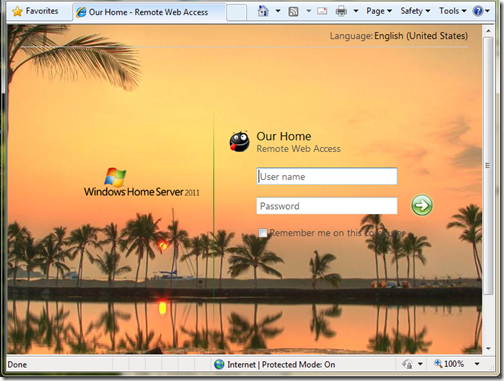
Customized Logon Page

(This picture can be found on my photoblog here)

Remember, you also still get that free 3rd level web domain and matching trusted web certificate (from GoDaddy.com) on the home server.com domain name. Did I mention free security?

You get remote access to computers behind your network, but this time it’s powered by TS Gateway for Server 2008 R2! Yes, that means you can get dual monitor support, and you can take advantage of better optimization for remote access to your PC and better security using that same web certificate for encryption! Thus no longer using security protocols from 8 years ago.

Remote Silverlight Video Streaming

Yes, no more TwonkyMedia chewing up your processor, a built-in, secure, streaming engine based on Silverlight, with (if you put in a fast enough processor) media transcoding:
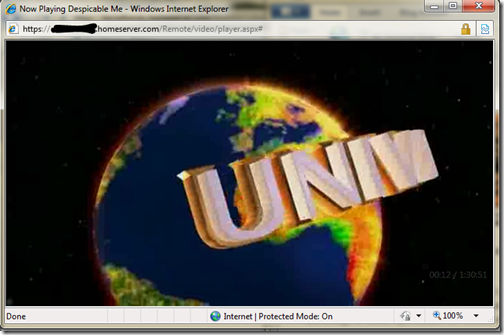
Silverlight Streaming

I also just *love* the photo slide shows. Sending access to the folks and letting them just watch 1000s of photos via a slide show, priceless:
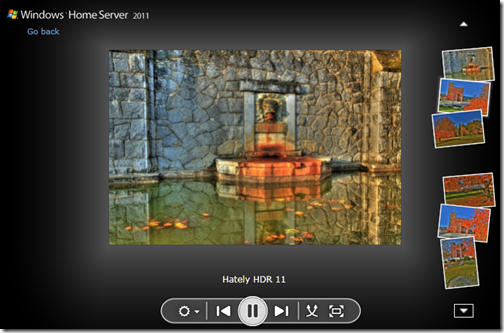
Home Server Picture Slideshow

A Silverlight Music Player that you can make, save and use playlists on. which you can quickly switch music around in. I even use this player in my living room when I have get a get together. People just understand how to use it:
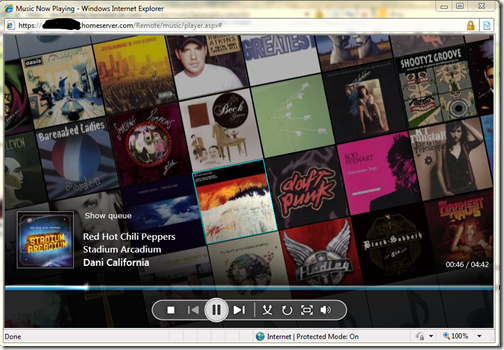
Silverlight Music Player

The ability to download or the ability to move files around without having to download. Yes, that’s right, delete, copy, cut and paste things all over the shared folders without actually having to download it.
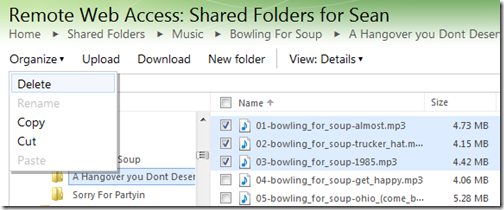
Organize your Folders Remotely

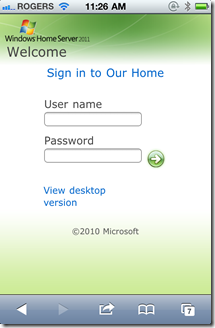
That’s a pretty powerful remote access story, one you won’t find with add-ins that run this flawlessly on the WHS v1 product… oh wait, I’m not finished, check out my iPhone formatted remote access webpage:

iPhone Logon

iPhone Folder and File View

And it looks just as good on an Android and Windows Phone 7!

While we’re talking about media, let’s focus on the internal network. With an implementation of DLNA 1.5 open standard for compatible streaming, you can stream to your XBOX 360, Playstation 3, DLNA capable TV, iPad (with application), Windows 7 PC (or slate!) or any other DLNA compliant device. You can also configure which folders participate in the streaming, simply by adding them to the set of defaults.
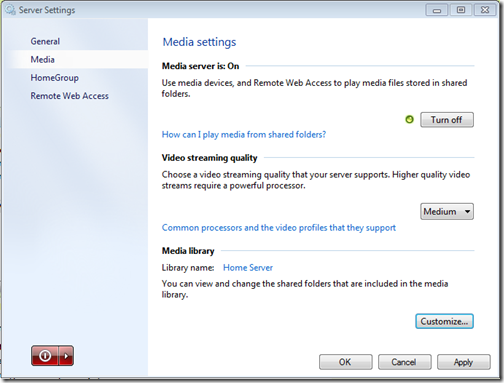
Media Streaming Settings

If we’re going to talk about handy apps, do you remember that awesome Vista Gadget for WHS v1 by homeserverhacks.com? It was called ShareMaster. Well, now included in WHS 2011, is the Launchpad, which enables you to easily backup your PC, access your Remote Web Access site (without having to know the URL, even if it changes!), Shared folders, and if you’re an admin, the Dashboard. It’s also completely extensible by the SDK, so developers can kick it up a notch and add more functionality:
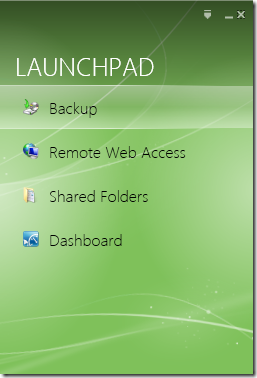
Client side Launchpad

That’s a whole lot of awesome packed into one box! I want to switch gears now and talk about how WHS 2011 protects my data, and why I think it’s safe. To me, the leading cause of data loss is usually hardware failure, most often then not, it’s a harddrive failure. Although there is the rare instance it can be a natural disaster, which happened to my uncle about this time last year.

Last but not least, is something you can’t see, that excites me the most. The Windows Home Server 2011 SDK (still in beta) is HUGE compared to the v1 product. Moreover, it’s SHARED with both Windows Small Business Server 2011 Essentials, and Windows Storage Server 2008 R2 Essentials. What does that mean? it means that things designed for business, can easily be used in the home (and vice versa). That means lots and lots of add-ins! and high quality ones at that. Nothing like developing for 3 platforms, instead of just one.

Data Protection, Why My Data is Safe on WHS 2011!

Data protection is all about having data on multiple drives. Take a look at RAID configurations. RAID5 is one of the most popular RAID configurations in the small and medium businesses, it’s probably sufficient for a home too, but sometimes it can be challenging to set up. RAID5 is a drive configuration that wastes up to 1 of a set of 3 or more drives to maintain “parity” bits. These parity bits are used to rebuild data on a drive if it’s lost. The system can run in limited capacity as soon as this drive dies without the end user knowing it. All in all, it’s a sweet system, but loose that 2nd drive before you can rebuild the array, and your data is toast!

What does Windows Home Server 2011 do? It keeps the data you choose on a second hard drive. Yep, the data on all your client computers is automatically backed up nightly to the Home Server. That’s up to 10 PCs safely backed up, every night. So now the data on your clients, is also on your server, two hard drives. There is a delay of 24 hours, but it’s there. Even if you get a Facebook Virus, you can roll back to the day before. This is exactly the same functionality as WHS v1, except it’s faster, and more robust.

What about the data on the server? Server’s hold data, isn’t that data safe? Yes of course it is. You can backup that data to an internal, or better yet, external hard drive! Unlike WHS v1, this has HUGE improvements. First, the backup is automated. Automated backups take the human error factor out, and the backup uses snapshots, so even open files are captured. I think I remembered to backup my WHS v1 about once/month. Now I’m getting 2x/day! And you know what, I choose the defaults because the server on my data doesn’t change that often. You can bump this up to as often as every 30 minutes. That’s your data, on another hard drive, 30 minute window of possible loss, but if I can’t trust a hard drive for 30 minutes, I’ve got problems with all the data that DOES change on my client computers, because that backs up every 24 hours! [And you can’t tell me that the purchase of an external hard drive isn’t worth your data backup, especially you, Mr. 22TB WHS v1! With or Without Drive Extender]

And…. if you want to do RAID, you can do RAID, you can do RAID1, RAID5, or even RAID10! If you want to do cloud backup (which I do because I’m too lazy to take the backup hard drive out of my house), you can do that, as a few providers are building add-ins.

So what did I really loose with Drive Extender being gone?

  • In the event of a hard drive failure, all my data isn’t still available until I put in a new hard drive and restore that drive back to its original state, if I didn’t configure RAID.
  • I can’t easily extend my storage when I have a disk that’s running out of space.
  • I can’t grow my share sizes past the size of all the hard drives in the system
  • My server storage responds faster because I’m not using DEMigrate.exe all the time

None of the above actually pertains to data loss. It’s all convenience. It was definitely nice to have in WHS v1, but I don’t think it’s absolutely needed in a server in the home.

Massive Data Collections

Let’s talk about Massive Data Collections quickly. Because WHS v1 made it so easy to grow your data collections, far beyond the size of one disk, without having to worry, “have I locked myself in to only X amount of data?”.

Let’s talk about my photo collection. It’s 80GB right now. That’s still not 1TB. I’m an amateur photographer, one that shoots a lot of photos, with a Canon 5D Mark II (a 21mp camera). I still have tones of space on a single 2TB drive to grow. What if I’m a professional photographer? Well, professional photographers don’t use Windows Home Server, at least I haven’t come across one. A good friend of mine has been interviewing professional photographers for some time, and they work with such large photos, they keep them locally, then archive them, usually via USB. Then if they want to work on them, they just plug them into the computer they are on, and it’s a local picture again. \

Video collections. My Canon 5D Mark II takes 1080p video. I use it a lot, that’s probably what jumped my photo collection from 60-80G in a year… but I’m still within reason. My video collection, is a rip of all my DVDs, and some HD-DVDs, and it’s still only 130GB, that’s still less than 1TB, and I still have all the DVDs in the closet, my music collection is 40GB… still have all the CDs. But I agree these data collections can get quite huge. This is probably the one place folks will actually miss Drive Extender. I couldn’t agree more.

… But maybe it’s time to take a hard look at what data you’re hording on your server. Do you really need to be a digital hoarder and save everything? I mean even Mozy can’t deal with you, as they announced they are killing their unlimited data plan. People save a lot, and it costs money, but do you really need it all? The guys at TechCrunch say “I assure you that you will never print those 10,000 pictures you have stored in iPhoto. Never. Ever.”.

If you absolutely *must* keep all that data, you should have a plan for it anyways. It’s not like if you store magazines for comic books, you don’t put aside space in a closet for them. With a plan, you can easily map out your storage needs, and growth. In fact, a few people even have growth charts of their storage growth from WHS v1, so you *know* the storage you’re going to need! I also suggest turning on File System Resource Manager and cataloging exactly which data is being used. I bet after a year, you use less than 30% of it.

So bottom line, I stay trim with my data (rule #1 of becoming a better photographer is forcing yourself to throw away 70% of your photos), I feel like Windows Home Server 2011 is the right product for me, for simplified access to my data. Simplified Management of my network, and extremely safe data protection plans. Moreover, because it’s Windows, it just works with other things in my house.

I liked Drive Extender too, but the product isn’t dead, in fact, it’s still awesome!

Tuesday, September 22, 2009

Spotted! On Microspotting

Sean slaving away in his office. Not shown: his coworker Chico.

Recently I’ve been talking to Ariel Stallings who works at Microsoft and realized that many preconceptions about Microsoft weren’t quite right.  As a result, she’s made it her mission to meet as many ‘softies as she can and post about them up on her Microspotting blog.

This morning Ariel decided to feature me on her blog, as well as my crazy Chinhuahua, Chico.  If you’re interested, you can read more about my interesting working environment at Microsoft.

Click here to read the article.

And click around if you’re interested in learning about other ‘softies who make the products you love!

Friday, August 21, 2009

Digital Lifestyle: What’s all this Tweeting About?

Digital Life

Well, I’m back with another Digital Lifestyle corner post.

Today’s Topic is about Twitter and social networking.  I often witness the debate, “to Twitter” or “not to Twitter”, so I thought I’d take some time today to explain why I Twitter, and most importantly, how I tweet.

Think of Twitter as individual 140 character real-time updates.  Each 140 character update is called a “tweet”.  In fact, there is no reason for me to hash out all the basics here, as I have discovered this amazing beginners guide to Twitter Speak.  The key thing to remember, is if you’re updates are not locked, then it’s an update to the world.  Let me dive right into how I use Twitter.

I’ll be the first to admit, when I first signed up for my account at Twitter, and got a feed of updates from friends, I was a little underwhelmed, it wasn’t until I started using additional applications combined with Twitter search, that Twitter became useful to me.  Being able to get up to date information on topics that I care about and socializing with other people who care about the same topics is pretty powerful.

Your Own Updates

image

I struggled a while here on what I was going to update.  I mean I work from home so updates such as “I’m at my desk” or “I’m still at my desk” is just not that exciting.  I essentially use Twitter now to follow people, and update people on technology and such that I find interesting, or useful.  To me the most important thing to realize is you have 140 characters to say something interesting.  When you do that, your followers increase, and you’re more interesting.  I try not to reply to people about private conversations, unless it’s useful to the general public.  If you decide to join, or do already, here are some tips (albeit for Facebook, it still applies) about how to avoid being annoying.

I post a lot of URLs to my Tweets, with a limit of 140 characters, it’s important to use a URL shrinker.  Most of the Twitter applications will do this for you, but you can also go to many different places to shrink your URL, my place of choice is TinyURL, which will take something that can be > 140 characters and make it quite small.  Think of it as a forwarding service.  You send your reader to one place and they turn around and send them to the correct place on your behalf.

Who you Follow

This is where I think Twitter gets very interesting.  You can follow specific people, or searches.  You’ll need to be careful here, I find it’s super easy here to get information overload here by following too many people who’s updates are not useful.  I tend to keep it to a short list of key people who have interest to me.  I often follow someone, and after a day, remove them from my follow list.  I’ve also noticed that on Friday people tend to Tweet who they like following, so if someone is particularly interesting, sometimes I check out who they follow.

Following searches is just as important as following people.  On Twitter, people tend to use search tags, or “Hash” tags as they are called, such as “#WHS” (For Windows Home Server) or “#SBS08” (for Small Business Server 2008).  These allow you to generate searches on these hash tags and view common themes about specific themes.  I also follow #yyj, which is my airport code for my closest city, and #seahawks, although this is more beneficial during a game.  ;o)

One of the places where Bing and Google are currently lacking is this life search.  There is a site I found for Bing called “BingTweets” where you can search for something and get instant Tweets next to your search:

image

I use the instant search to keep tabs on what I care about, such as where I life (what am I going to do on the weekend, I can just search for what’s going on in #yyj.

Here is an example from today, simply by following #yyj,  Yesterday my town was considering a $200,000 investment in a 2 week Olympic Games party.  My wife said it was all the controversy yesterday (as I knew already from yesterday’s tweets).  However, I’d already read a tweet from a news source in town that said they had opt’d for the $50,000 viewing screen, which was widely accepted by the public.

Applications

I’ve tried a number of applications, including Twhirl, Opera, Witty, Blu and Seemic, but my application so far of choice is TweetDeck.  I’m a little disappointed it uses Adobe Air, as I dislike installing infrastructure pieces for applications, but it works well, and does what I need.  TweetDeck allows me to easily see everyone that I follow, and either reply or forward (re-tweet) their message, people who mention my me, my direct messages, and all my searches in one window. 

image

TweetDeck also supports some key features that I need.  Multiple Personalities is one of the key features for me.  Working for Microsoft I also can Tweet on behalf of @WindowsSBS and @WinHomeServer, so it allows me to easily jump between accounts, or post to multiple accounts at the same time.  Additionally, as you may have read in my last digital life corner post, I have a few PCs.  TweetDeck allows me to create an account with them and keep my searches and columns in sync between PCs.

As a note, Seemic desktop had similar (and in some places flasher and cooler features) than TweetDeck, but it drank the RAM as if it was going out of style, which doesn’t work for my netbook.

Extending Your Twitter Experience

Twitter is super accessible, you can configure it to send updates via SMS to your phone (US & Canada only I believe at this point), and you can also text twitter to send an update if you’re on the move.  You can also point your mobile browser to Twitter’s mobile page if you want to quickly check your friends on the go without the SMS.

Additionally, if you’re looking for a bit more with Twitter, like pictures and video, sign up with TwitPic, or TwitVid, allowing you to put links to videos or pictures in your tweets!  Since pictures are similar to 1000 words, maybe you can use this to expand beyond 140 characters.

Final Note

I’ve been asked a lot of times “Why do you use Twitter”, and I want to officially answer that question with “to stay up to date”.  I keep track of my friends around the globe, I keep track of changes in my home town, things to do where I currently live, trending issues, problems and exciting things to do with the products that I sell, and just all together engaging.  It’s like a public IM conversation, just like Blogs can be considered a public e-mail. 

I have seen plenty of other uses as well.  For example, our product teams are working on leveraging twitter to announce new things or problems with the product and how to go ahead and fix those.  If you’re going to consider corporate twittering, I suggest checking out HootSuite, which will allow multiple twitters to participate on the same twitter account without duplication.  I’d also highly recommend going against “Bots” to tweet for you, it’s obvious and people won’t listen, plus you never know what a Bot might re-tweet.  ;o)

A co-worker once told me that sending a tweet or reading a tweet is like tossing a stick in a large river.  Some people will notice you, and some won’t, and you shouldn’t feel like you need to start at the bottom of the river and read back.  Just plug in and unplug when you have time.

I hope to see you online in the future.

Friday, August 07, 2009

Digital Lifestyle: Syncing Your Digital Life

digital life

I’m starting something new: The Digital Lifestyle corner.

On Friday’s (when I have time), I wanted to write a blurb on some different types of technologies, how I use them and how they have made my life easier.  Plenty of times my wife complains that “computers slow her down”, but that’s not what computers, software and the Internet do for me, and I wanted to share my usage with different technologies in hopes that you can leverage computers to save you time as well, for the fun stuff!

Today’s topic: I want to discuss some software that has changed the way I use multiple computers.  “Sync

I’m probably not a typical computer user in the fact that I use 4 computers almost daily, but I’m sure a lot of people use at least two.  I was talking to a friend the other day who has a desktop but wants to use a Netbook for taking notes at school, but then be able to work on homework using the bigger monitor and more powerful desktop.  Using Sync technology she need only have a hotspot at school to get those files home.  Ease of access *and* a backup! How convenient eh?

I primarily use two Sync technologies today.  Windows Live Mesh, and Windows Live Folder Sync.  Both have their pros and cons as I’m sure any other sync technology would.  Again, I am only covering what I have familiarity with, comments are open for other apps that you love.

Live Mesh

First, Windows Live Mesh provides a number of different services.  Synchronizing files is it’s primary function, but it also provides remote desktop functionality and sharing with friends, family or co-workers as secondary functions.  I primarily use it to Sync my own files and folders.  Mesh can sync files between many different PCs, you can choose any personal folder on your system to sync with any folder on different PCs, and you can choose it to sync with your “Mesh Desktop”.  This is the best part!  The Mesh desktop is a 5GB store that you can throw data up to, so you can use the “Mesh Desktop” as your always-on PC.  Plus I bet it has better bandwidth than any of your home or mobile PCs, so once the data is synced with the “Mesh Desktop”, it screams down the pipe to your other PCs.  The limit here is of course the 5GB limit of space.  Once it’s gone, it’s gone, and you’re doing PC-2-PC sync, which is slower, and requires your PC to be on.

Currently with Mesh, I sync

  • My Favorites.  Having my favorites the same on all my PCs is awesome, I can add a favorite on the couch watching TV at night, and it’s ready for me on my PC at the office the next day.
  • A Wallpaper directory. Windows 7 will rotate desktops as part of the OS, so I sync my wallpaper (280 pictures) from PC to PC and have Windows 7 rotate these.  Once I drop a photo in on my home PC, I see it on my work PC a few days later, without making a change
  • A Tools directory.  I have a directory that has a bunch of .reg files and .cmd files as well as some apps that I want to install on all of my PCs.  After installing Mesh, I’m set with everything else that needs to be installed all being local
  • The Live Writer Posts Directory.  I blog from 3 of my 4 different PCs, so having all the offline posts sync is great.  Start it on one PC, finish it on another
  • Collaboration folders.  I share some work with some peers around the Internet, and instead of emailing the file, we just drop or edit it out of the directory and the updates are handled and distributed to the peers.
  • Mobile Pictures. I run the Mesh beta client on my Windows Mobile device, such that when I take a photo, that photo syncs to the cloud and my home PC almost immediately!

In addition to the sync, you can access your files from anywhere in the world simply by going to the Mesh Homepage.  If you’re not at your PC, but just need that tool, or that favorite, or access to that file you know is up there, just log in and download it directly to the PC you’re at!  And finally, Mesh let’s me Remote Desktop to any PC turned on to boot! (Although I wouldn’t say it’s as fast as remoting to your PC directly, or using a product like Windows Home Server or Small Business Server directly, but it works in a pinch!)

Ok, so here is my problem with Mesh, it uses between 45-100mb of RAM depending on what it does.  Between the “MOE.EXE” (Mesh Operating Environment) and the “MOEMONITOR.EXE”.  This is problematic for those Netbooks that are limited to 1GB of RAM.  Especially when you jump from your 250MB Windows XP footprint to your 550MB Windows 7 footprint.  After your applications, you’re a bit limited.  For that I jump over to Windows Live Sync.

Live Sync

Windows Live Sync was born from an older technology called FolderShare.  Live Sync is will synchronize files between PCs without the cloud back-end, so you are limited to at least one of your PCs being on for the sync to occur.  But you still get to sync between PCs and you can also sync with other peers or co-workers that are using Windows Live Sync.

The good news for Netbooks about Live Sync is the foot print (as I’ve monitored it over time) is less than 2 MB!, perfect for a Netbook running Windows 7!  I use it to sync my documents that I create on my Netbook and my favorites.  Thus meaning that if I add a favorite on my Netbook, Live Sync will update it on my home desktop, which will then use Mesh to toss it around all the other client computers.