Enjoy the blast from the past!
Blast from the Past: The BackOffice Server 4.5 Daily Cycle
Enjoy the blast from the past!
This morning Microsoft released the Windows Small Business Server “7” release to Beta. This marks yet another major milestone for the Windows Server Solutions Team, now releasing both the Windows Home Server “Vail”, and Windows Small Business Server Hybrid Edition “Aurora” into beta.
SBS 7 marks a major release in the *next* set of all-on-premise solutions. Updates include:
You can try out the new SBS “7” beta by pointing your favorite browser to the SBS Connect site, or jump straight to the downloads page. Don’t forget if you need help, or find an issue to give us feedback, or talk about it in the Newsgroups.
I found this awesome tip on LifeHacker, one of my favorite blogs… Shift your fingers one key for easy to remember, super complex passwords!
You're constantly told how easy it would be to hack your weak passwords, but complicated passwords just aren't something our brains get excited about memorizing.
His clever solution: Stick with your weak, dictionary password if you must; just move your fingers over a space on the keyboard.
If you want a secure password without having to remember anything complex, try shifting your fingers one set of keys to the right. It will make your password look like gibberish, will often add in punctuation marks, and is quick and simple.
When John Pozadzides showed us how he'd hack our weak passwords, he listed his top 10 choices for getting started hacking away at your weak passwords. Let's take a look at how a few of those popular passwords fare when finger shifting to the right:
Something longer but still really lame, like, say, "topsecretpassword", becomes "yp[drvtry[sddeptf". These may not be perfect compared to secure password generators, but they're likely orders of magnitude better than a lot of people's go-to passwords.
Browsing my one of my favorite RSS feeds: LifeHacker. I came across something that might be useful to a bunch of Small Business Server VAPs configuring your network. In many cases, some companies like to provide a courtesy kiosk for visiting folks or perhaps they have a single computer for the break room.
Over at How-To Geek is where they outline the steps. Basically it leverages local Group Policy (although there is no reason you can’t do this in global group policy on your Windows Small Business Server 2008 machine) to allow users to only run certain applications. Thus preventing users from getting into trouble and lowering your total cost of ownership on that client PC (or your whole network).
I’m copying the steps here for convenience. Thanks How-To Geek!
If you have a shared or public computer you might want to allow users to use only specified programs. Today we take a look at a setting in Local Group Policy that allows you to set only specified programs to run.
Note: This process uses Local Group Policy Editor which is not available in Home versions of Windows 7.
First click on Start and enter gpedit.msc into the search box and hit Enter.
Navigate to User Configuration \ Administrative Templates \ System. Then under Setting scroll down and double click on Run only specified Windows applications.
Set it to Enabled, then under the Options section click on the Show button next to List of allowed applications.
A Show Contents dialog comes up where you can type in the apps you want to allow users to run. When finished with the list, click OK then close out of Local Group Policy Editor.
If a user tries to access an application that is not on the specified list they will receive the following error message.
This is a nice feature for limiting what programs users can or cannot access on the computer.
Hyper-V and virtualization seems to be one of the most versatile ways to run servers and clients these days. Single piece of hardware, many different machines. For me, Hyper-V is really my primary test environment for building Windows Small Business Server and Windows Home Server.
To date I constantly am using Remote Desktop to connect to my virtual server, at which point I can connect to all my different machines. While I could connect via remote desktop to all the machines, they are on a separate, network connection behind a router, and it’s just been easier to connect to one machine to get access to them all.
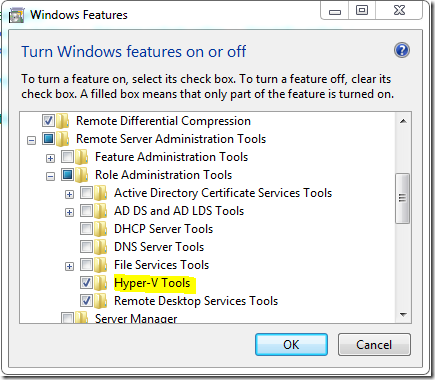
Well, I have recently discovered the Hyper-V Management tool, which is a part of the Remote Server Administration Tools for Windows 7. This manually installed Windows Update package enables the server administration tools to be installed via the turning Windows Features on or off in the Control Panel.
Once you’ve installed the MSI, simply click on this section of the control panel and choose the remote administration tools you want, I chose the Hyper-V tools
Once this is finished installing, you get the familiar Hyper-V console, and you can open the machines on your client, and make changes directly.
My only caution is to make sure you continue to keep the host patched and up to date from Windows Update.
Here at WPC, we just finished our first SMB Session by the Leadership teams of Windows Small Business Server 2008, Windows Essential Business Server 2008, as well as Foundation Server.
The session was a great success and its already posted (with Pictures) over at the Official SBS Blog.
The session was a great success!
The Official Exchange Team Blog just announced the release of their Exchange Server Remote Connectivity Analyzer. The connectivity check will allow you to choose what type of Exchange protocol you want to talk to your Windows Small Business Server on and prompt you for a particular user and it will tell you what the problem is for connecting to that server.
Overview
The Exchange Server Remote Connectivity Analyzer is a web site for IT Administrators to validate and diagnose end-to-end Exchange scenarios. The site simulates multiple Exchange client access and inbound SMTP scenarios from outside the customer’s infrastructure and reports whether the test was successful. If the test fails, we tell the IT Admin exactly where in the process it failed as well as provide troubleshooting tips on resolving the issue. See the screenshot below.
In this version, the tool provides the following end-to-end tests:
Note: The Outlook Anywhere test will fail when the server is running MOMT (e.g. an Outlook.com mailbox) since the tool doesn’t currently test encrypted RPC… but check out the detailed and clear error message!
Coming Soon
We will be expanding the Exchange scenarios in the next few months to include the following:
Quick demo
Check out the short video describing the tool on TechNet Edge. Or try the high quality version.
Now that both Windows Essential Business Server and Windows Small Business Server 2008 have launched, the marketing team has put together a 33 page FAQ today! The FAQ is available on the Partner Portal, just point your web browsers here.
The FAQ includes links and information on:
All you have to do is register as a partner and the information is yours!
November 12th is creeping up faster than you are probably thinking about it. The Launch will be a virtual launch, hosted at The Dream Server Launch website. I will be participating in the launch event, along with a few of my SBS and EBS buddies. Be there or Be Square!
Also, secure your position as trusted advisor by implementing Windows Essential Server Solutions to help your customers reduce costs and increase productivity by streamlining their IT infrastructure. Generate leads by inviting your customers and prospects to the Windows Essential Server Solutions special launch webcast using guidance and an invitation email template.
Similar and not far behind Windows Small Business Server 2008; The Essential Business Server has been released to Manufacturing. Thus, by the same launch date for the Windows Essential Solutions Family, of November 12th, 2008, both products will be available in many of the retail channels. Additional pricing, and support information will be available by this time.
Enjoy!
As you know, Windows SBS 2008 has RTM'd! ... And right on the heals of SBS, comes out the new Essential Business Server. If you are a medium-sized business, or help manage a medium-sized business, and are anticipating the release of this product, why wait? You can get started today!
The EBS team has provided a Jumpstart Online Kit that will help you determine, through a seven-step process if Windows EBS is the right fit for your business, including how to start or improve your Windows EBS Practices. The tool includes checklists, resources and Return on Investment calculators to help you prepare and set you up for EBS.
Plus there is some marketing "Jumbo" as well. :o)
Seriously, the tool offered to scan and offer you suggestions on your network is top-notch, over 90 checks and solutions taken from Microsoft's top-notch enterprise specialists support group, all boiled down into a single tool. If you're running a medium-sized business on Windows, or planning to get EBS at some point, definitely check out the tools available at the Jumpstart Online Kit.
For those of you who weren't aware, SBS has a big brother now, a monster 3-server sku specific for Medium Businesses called Essential Business Server. If you aren't aware, it's time to fix that! (details on the Essential Family web site)
Bjorn gives you a demo of EBS over on TechNet Edge. The specific link to the demo video is here.
If that gets you super excited, and you just can't wait to get your hands on this 3-server power-house, then you might want to jump into the EBS Public Preview!