Showing posts with label Handy Apps. Show all posts

Tuesday, October 08, 2013

Removing the Required PIN code on Windows Surface

My corporate E-Mail requires that any device I sync it to, enable a 4-digit PIN to unlock the device, at a minimum.  I can make this as complex as I like, but I must at least have a 4-digit PIN.  I'm fine with this, I think it's a good practice to have a PIN on your phone or tablet, so if it's lost, the thief or casual finder can't access all the data on it.  Even more so all those corporate secrets that I have! (har har! Like I'm trusted with corporate secrets!)

What I'm not fine with, is once you decide that you no longer want your work account on a device, you can't get rid of the requirement for the PIN, like how I'm re-purposing an old SurfaceRT (yes, I pre-ordered a Surface2!) to be a digital music player / weather station / morning news station / upstairs Skype phone, in the bedroom, I don't have *anything* on it that would need a PIN, and the likely hood of the tablet leaving the bedroom aside from when I move houses, is extremely small.

Searching around turned up nothing, asking around (especially @Microsoft) usually turns up something.  And this time it turned up this super handy How do I Turn Off the AutoLock in Windows 8 article.  And here I was searching around in gpedit.msc or regedit, and it's right there in the Control Panel UI!

Here's how to do it:
  • Open up the Control Panel (either Win+X or Win+R then type "Control", enter)
  • Click on the title User Accounts and Family Safety
  • Click on the title User Accounts
  • Click on the Reset Security Policy 
  • Click on the Reset Policies Button 
That's all there is to it. Now you can go into PC Settings and set the password policy to never required!  This also allows you to change the default screensaver time out as well.

There you have it.  It took me a lot of effort to find that, so I'm sharing it here (so I don't forget as well).  And now I don't have to factory reset my SurfaceRT! w00t!

Monday, July 16, 2012

How to add a “Send To” shortcut for SkyDrive

With personal cloud computing on the rise with SkyDrive, Google Drive, Drop Box, etc.  you want super easy ways to get things into and out of the Cloud.  If you’re like me, sometimes you’re in a hurry and just need to slap something into the cloud on the way out the door, and organize it later.

SkyDrive

Into Windows has a great article on how to add a “Send to SkyDrive” shortcut to the context menu of the shell. You can find that article here.  Basically it boils down to simply putting a shortcut to the SkyDrive folder into your sendto special folder.  You need to be also running the SkyDrive software for Windows.

Here’s what I did, after installing the SkyDrive software

  1. Navigate to the folder above your SkyDrive folder, it’s typically c:\users\%username%\ (where %username% is the username of you on your computer)
  2. Right-Click on the SkyDrive folder and choose create shortcut.
    1. I renamed this file from SkyDrive – Shortcut to just SkyDrive, for a cleaner look
  3. Next open up Start, then Run, and type in “shell:sendto ”. This will open another explorer window in your sendto folder. 
  4. Move the shortcut created early into this sendto folder.

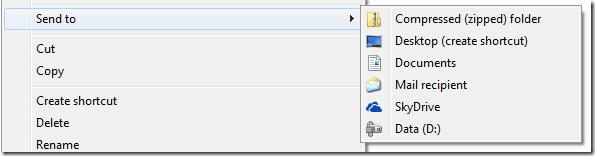
That’s it! now simply right click on any file you want to send to your SkykDrive, go to the “Send To” option and you’ll see SkyDrive in the list.

SendTo SkyDrive

Just remember to leave your laptop open long enough to wait for that file to be sync’d to the cloud!

Monday, July 09, 2012

Get Cloud Services working for you, even when you’re not!

As the saying goes, a user will do things over and over and over again, but a developer will automate it and never touch it again (until something breaks of course).

I am not a developer, but I do have a developer education, and that makes me want to automate stuff.  Why do something over and over again that a computer can handle just fine?  I do this sort of thing on a client computer, and often write scripts using AutoHotKey.  I wrote about it earlier, now’s a good time to check it out. 

I’m now excited to say that I’ve found a way for things to happen for you, without you doing anything.  Getting those beloved Cloud services working for you.IFTTT

Have you heard about If this then that? or IFTTT (pronounced “lift” without the “L”)

IFTTT is an online “batch” file service that allows you to set a trigger (“if this”), and have an action take place on your behalf (“then that”).  You can learn more about it here.

It’s my new favorite service.  Supporting all kinds of existing services including: Bit.ly, Blogger, Buffer, Craigslist, Date & Time, Delicio.us, Dropbox, Email, Evernote, Facebook, RSS feeds, Flickr, Foursquare, GMail (and almost all of Google’s services that I don’t use), Instagram, Last.fm, LinkedIn, SMS, Stocks, Twitter, Vimeo, Weather, Belkin power, Wordpress, Youtube, and more!

You can then simply create what they call “recipes”, which allows you to set some trigger on some service, and then have a action take place when that trigger happens.  For example, this is a popular one:

AutoSave Instagram Pictures to DropBox

It’s that easy, you set up your trigger actions and define your reactions.  In just a day, I’ve created a few recipes:

  • I save all my tweets to Evernote (easy and fast searching of historical tweets)
  • I automatically tweet blog posts (like this one), and then re-tweet them again later using BufferApp.com
  • I have an email alert set up for my favorite stocks
  • I automatically blog my Instagram shots on my photoblog.
  • I’m going to tweet exactly at Midnight on new years to wish everyone a great new 2013!

Security

What I like most about IFTTT is I never have to give it any of my passwords for my other sites/services, it just simply gets granted access, and I can always revoke it from the target service if I want.

So if you like automation, and you find yourself repeating the same actions over and over again, try out IFTTT

This blog post was automatically tweeted by IFTTT

Thursday, July 05, 2012

Windows 8 Keyboard Shortcuts

I’m a big believer in short-cut keys, moving your hand to your mouse, moving the mouse, and then back to the keyboard is inefficient.  If you can save a few seconds using keyboard shortcuts, and you do this constantly during the day, it’ll save you time. 

imageFurthermore, as we approach Windows 8, and you end up getting that fancy touch screen, it’s going to be even more important to use keyboard short cuts.  In fact, you can navigate Windows 8 much better with the keyboard than the mouse if you don’t have a touch screen.

So, let’s take a refresher on our keyboard shortcuts:

Shortcut

Action

Ctrl+Shift+Esc

Starts Task Manager.

Windows (tap)

Toggles between the Start screen and the foremost running app (Metro-style) or the Windows Desktop.

Windows+,

Peeks at the Windows desktop.

Windows+.

Snaps application to the left.

Windows+/

Initiate input method editor (IME) reconversion.

Windows+1, Windows+2, etc.

Switch to the (classic) Windows desktop and launch the nth shortcut in the Windows taskbar. So WINKEY + 1 would launch whichever application is first in the list, from left to right.

Windows+Arrow Keys

Aero Snap.

Windows+B

Switch to the (classic) Windows desktop and select the tray notification area.

Windows+C

Display Charms and time/date/notification overlay.

Windows+Ctrl+Tab

Cycle through apps, snapping them as you go.

Windows+D

Toggle Show Desktop (hides/shows any applications and other windows).

Windows+E

Launch Windows Explorer with Computer view displayed.

Windows+Enter

Launch Narrator.

Windows+F

Search Files using the new Windows Search pane.

Windows+H

Open the Share charm.

Windows+I

Display Settings charm.

Windows+J

Swap foreground between the snapped and filled apps.

Windows+K

Display Connect charm.

Windows+L

Lock PC and return to Lock screen.

Windows+M

Minimize the selected Explorer window.

Windows+O

Toggle orientation switching on slate and tablet PCs.

Windows+P

Display the new Project (for "projection") pane for choosing between available displays.

Windows+PgDown

Move the Start Screen or a Metro-style application to the monitor on the right.

Windows+PgUp

Move the Start Screen or a Metro-style application to the monitor on the left.

Windows+Q

Open the Search pane.

Windows+R

Display Run box.

Windows+Shift-.

Move the gutter to the left (snap an application).

Windows+Shift+.

Snaps application to the right.

Windows+Shift+Tab

Cycle through apps in reverse order.

Windows+Shift+V

Cycles through Notification toasts in reverse order.

Windows+Spacebar

Switch input language and keyboard layout.

Windows+Tab

Cycle through apps.

Windows+U

Launch Ease of Access Center.

Windows+V

Cycles through Notification toasts.

Windows+W

Display Settings Search pane

Windows+X

Access the advanced context menu on the Start preview tip.

Windows+Z

Open the App Bar.

Happy Keyboarding!

Friday, April 08, 2011

Using the KeepVault Connector to backup Roaming Client Computers

Previously, I covered the basics of Proxure’s KeepVault Online Backup, as well as what you got if you went Pro.  With the release of the RC of KeepVault for, I noticed I didn’t cover the KeepVault Connector, which is a separate add-in for Windows Home Server 2011, and Windows Small Business Server 2011 Essentials than the original KeepVault add-in. 

This add-in allows you to do the incredible.  Back up roaming computers via a “Sync” while the computer is connected to the Internet, anywhere.  Now I use Windows Live Mesh to sync most of my items between my computers and the cloud, but there are some things that I don’t.  For example, if I’m travelling and I process photos, those don’t get into my Mesh, but I still worry about them.  This solution solves that.

Simply download and install the KeepVault Connector for Mac & PC.  Make sure you choose the WHS/SBS 2011 version, and not the WHS Original.  Once installed, and the dashboard restarted, you’ll notice that KeepVault has an extra tab

KeepVault Connector

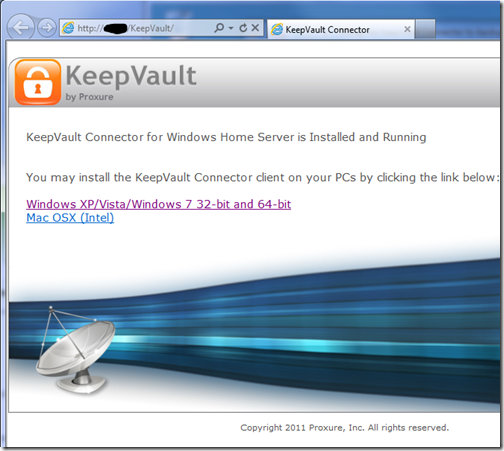
This add-in installs into the dashboard and adds a \KeepVault directory to your default website.  It also reads your servername (orange above), your remote access domain name (blue above) and provides an extremely secure recommended password (yellow above).  Simply click the link to Download and install the client setup.  This downloads the client component directly from your server:

KeepVault Client Download

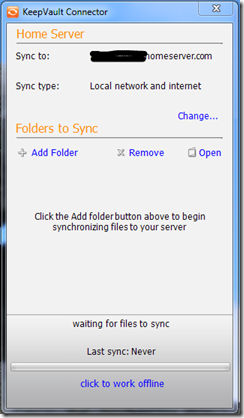
KeepVault Connector Client ApplicationOnce installed, just find the KeepVault Connector in the start menu, or in your system tray, and load up this fancy little “Sync” application and click the Add Folder button.  This will allow you to to pick a local folder on your client computer which will perform the backup. 

For me I created a “backup to home server” folder as a test, and dropped a few files in there.  While I’m local on the network, the backups are SUPER quick, but away from the network they’ll be throttled by my connection speed back to my server.

You can also choose to modify the backup locally only, or over the Internet.  Given that the built in Client Backup functionality runs when you’re local, you might not use this.  However, it’s some nice flexibility if you use a tethered 3G connectivity, so you can choose to sync when you’re on wi-fi and by default not always.  Speaking of Sync, you’ll notice at the very bottom you can click the hyper-link to work offline, so if you end up tethering your PC to your cell phone and then dumping a ton of pictures in there, you can click that and work offline, and prevent the backup from happening over your 3G connection, if you valued cost of data over loss of data.  :o)

If I had a gripe with this system, it’s only that the KeepVault connector isn’t also available to launch directly from Launchpad via the Add-ins area.  As you can see AWIECO does take advantage of this, it’d be great to see “KeepVault Connector” in here:

Launchpad with Add-ins

Add ins

I’ve heard on a few occasions that the road warrior doesn’t like the stop in the office to do a much needed backup, perhaps this solution can help.  Backups can be done from home, or coffee shops, or in my case, at work to my home!

Wednesday, February 23, 2011

Windows Server Solutions Best Practice Analyzer (BPA)

Wow, the new Best Practice analyzer is up and ready for download! This new BPA can be installed on the following products and will show you best practices for each one!

  • Windows Small Business Server 2011 Standard
  • Windows Small Business Server 2011 Essentials
  • Windows Multipoint Server 2011
  • Windows Storage Server 2010 R2 Essentials

So if you’re unsure if you’re doing something right, or want to make sure you’re following best practices, get the BPA installed!


UPDATE: As called out in the comments, you'll also need the Microsoft Baseline Configuration Analyzer 2.0 before installing.

Friday, July 09, 2010

Windows Home Server “Vail” Remote Web Access Extensibility

The 3rd in a series of blog posts on Vail extensibility went live today, teaching the developer in you how to extend the Remote Web Access website.  The full article can be found on the Windows Home Server blog - “Vail” Remote Web Access and Its Extensibility

What is new in Remote Web Access site of Vail?

Let’s check out the latest look & feel of Remote Web Access site first (RWA site for short). Pretty, hah? Do you like it? :-)

clip_image004

When we designed this new RWA site, we had two visions to guide our engineering team. First, we want to provide an easy, reliable way for users to access their data and computers from anywhere, anytime, on any device. Second, we want to provide an extensible platform for OEM and ISV partners/developers to add tightly integrated remote web access value. The second vision maps exactly to the extensibility framework of RWA site.

Basically, every built-in feature you are looking at (i.e. Computers, Shared Folders, Media Library, etc) is built on top of the extensibility framework. All the APIs we used are public to you (our favorite developers) as well. We can build it, you can build it.

Besides the look & feel and extra functionalities, the extensibility framework is the key difference comparing the new and old Remote Web Access sites.


For reference, here are the previous posts:

Happy Development!

Monday, May 31, 2010

How Developers “Extended” the Vail Launchpad

Vail LaunchpadIf you’re a developer and you’re interested in writing something for Windows sHome Server, our Lead Developer Dileep has another tip for you on how to extend the Vail launch pad.  Dileep has had a previous post on the location of the SDK for Vail and how you can get involved.

Most recently, Dileep appeared back on the Home Server blog with how to extend the launchpad, and when you should extend the Launchpad.  You can read that blog post here.

If you haven’t been on the forums already, I did a forum post on why we created the Launchpad, with feedback from you, the customer.  Dileep extended on this, copied here for your reading convenience.

What is Launchpad?

Launchpad is a light weight and extensible client-based user interface that we built for Vail. It was born out of a couple of pain points that our customers experienced from Home Server v1. While Home Server v1 provided the ability for developers to add what we call ‘administrative’ or ‘server management’ tasks to the Admin console, it did not provide any means by which a day-to-day or non-administrative task could be presented to users in a coherent manner that resonates its association with Home Server. As a result we started seeing add-ins for day-to-day consumption of home server capabilities that were deployed to Admin Console, but did not belong there since they were not administrative tasks. We realized that there is a need for providing a coherent and consistent grouping as well as entry point for home server related tasks that everyone in the household can perform from their client PCs. This was the first pain point.

The second one, and perhaps the more significant one of the two, was the limitation around having matching usernames and passwords on the server and the PCs. If you recall, in Home Server v1 we require users to create user accounts on the server that had the same username and password as that of the client PCs so that they can seamlessly access the shared folders on the server as soon as they login to their PCs. This generated lot of confusion with consumers, as was evident from the feedback that we got. With Vail, Launchpad acts as the login UI for signing the user onto the server, thereby granting them access to the Server shares and other platform services exposed via the SDK. We no longer have the requirement to have the user accounts matching on server and client, instead users can use Launchpad to ‘sign-in’ to the server with any user account and password combination that was set up in Dashboard!

In short, Launchpad serves the following purposes:

  1. It is the entry point for the day-to-day tasks related to Windows Home Server from the client PCs.

  2. It eliminates the need for matching usernames and passwords setup between server and client, and eliminates the password sync dialogs.

  3. It Provides a logical and centralized location where all home server related tasks are exposed, resulting in much better awareness of home server and its capabilities.

  4. It allows everyone in the household to have visibility to developers' add-ins, than just home server administrators.

So, if you’re a developer, head on over to Dileep’s full post, and start coding up some cool apps that will make users love your add-in, and increase the value of Vail.  I know I’ll appreciate it when we ship!

Friday, May 07, 2010

Calling All Developers–Windows Home Server “Vail” needs you!

Do moreA few weeks ago, we released the Home Server codename “Vail” public preview.  Along with that came a software development kit.  Like Windows Home Server version 1, the product is extensible, and we need add-in developers!!  We’ve put a great deal of effort into the improvement of the extensibility of the product. 

Over on the Home Server blog, Dileep, our Development Lead talks about how to jump in and get engaged.  Keep your eye on the official blog for updates as it is a planned series to help you get involved.  If you want to jump straight to the SDK, you can download the complete set of information here (You will have to sign in to Microsoft Connect site).  Any questions can be posted in the developer forum.

UPDATE: See what others are saying about the SDK.

Thursday, November 12, 2009

Managing Hyper-V servers from Windows 7

Hyper-V and virtualization seems to be one of the most versatile ways to run servers and clients these days.  Single piece of hardware, many different machines.  For me, Hyper-V is really my primary test environment for building Windows Small Business Server and Windows Home Server.

To date I constantly am using Remote Desktop to connect to my virtual server, at which point I can connect to all my different machines.  While I could connect via remote desktop to all the machines, they are on a separate, network connection behind a router, and it’s just been easier to connect to one machine to get access to them all.

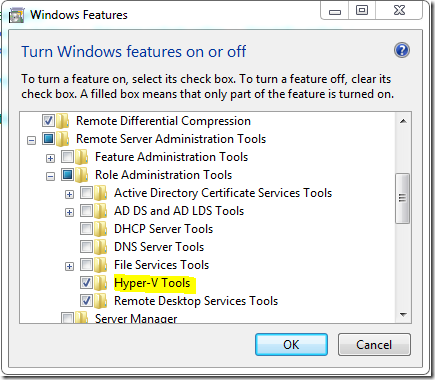
Well, I have recently discovered the Hyper-V Management tool, which is a part of the Remote Server Administration Tools for Windows 7.  This manually installed Windows Update package enables the server administration tools to be installed via the turning Windows Features on or off in the Control Panel.

Turn Windows features on or off

Once you’ve installed the MSI, simply click on this section of the control panel and choose the remote administration tools you want, I chose the Hyper-V tools

Windows Features

Once this is finished installing, you get the familiar Hyper-V console, and you can open the machines on your client, and make changes directly.

My only caution is to make sure you continue to keep the host patched and up to date from Windows Update.

Friday, August 21, 2009

Digital Lifestyle: What’s all this Tweeting About?

Digital Life

Well, I’m back with another Digital Lifestyle corner post.

Today’s Topic is about Twitter and social networking.  I often witness the debate, “to Twitter” or “not to Twitter”, so I thought I’d take some time today to explain why I Twitter, and most importantly, how I tweet.

Think of Twitter as individual 140 character real-time updates.  Each 140 character update is called a “tweet”.  In fact, there is no reason for me to hash out all the basics here, as I have discovered this amazing beginners guide to Twitter Speak.  The key thing to remember, is if you’re updates are not locked, then it’s an update to the world.  Let me dive right into how I use Twitter.

I’ll be the first to admit, when I first signed up for my account at Twitter, and got a feed of updates from friends, I was a little underwhelmed, it wasn’t until I started using additional applications combined with Twitter search, that Twitter became useful to me.  Being able to get up to date information on topics that I care about and socializing with other people who care about the same topics is pretty powerful.

Your Own Updates

image

I struggled a while here on what I was going to update.  I mean I work from home so updates such as “I’m at my desk” or “I’m still at my desk” is just not that exciting.  I essentially use Twitter now to follow people, and update people on technology and such that I find interesting, or useful.  To me the most important thing to realize is you have 140 characters to say something interesting.  When you do that, your followers increase, and you’re more interesting.  I try not to reply to people about private conversations, unless it’s useful to the general public.  If you decide to join, or do already, here are some tips (albeit for Facebook, it still applies) about how to avoid being annoying.

I post a lot of URLs to my Tweets, with a limit of 140 characters, it’s important to use a URL shrinker.  Most of the Twitter applications will do this for you, but you can also go to many different places to shrink your URL, my place of choice is TinyURL, which will take something that can be > 140 characters and make it quite small.  Think of it as a forwarding service.  You send your reader to one place and they turn around and send them to the correct place on your behalf.

Who you Follow

This is where I think Twitter gets very interesting.  You can follow specific people, or searches.  You’ll need to be careful here, I find it’s super easy here to get information overload here by following too many people who’s updates are not useful.  I tend to keep it to a short list of key people who have interest to me.  I often follow someone, and after a day, remove them from my follow list.  I’ve also noticed that on Friday people tend to Tweet who they like following, so if someone is particularly interesting, sometimes I check out who they follow.

Following searches is just as important as following people.  On Twitter, people tend to use search tags, or “Hash” tags as they are called, such as “#WHS” (For Windows Home Server) or “#SBS08” (for Small Business Server 2008).  These allow you to generate searches on these hash tags and view common themes about specific themes.  I also follow #yyj, which is my airport code for my closest city, and #seahawks, although this is more beneficial during a game.  ;o)

One of the places where Bing and Google are currently lacking is this life search.  There is a site I found for Bing called “BingTweets” where you can search for something and get instant Tweets next to your search:

image

I use the instant search to keep tabs on what I care about, such as where I life (what am I going to do on the weekend, I can just search for what’s going on in #yyj.

Here is an example from today, simply by following #yyj,  Yesterday my town was considering a $200,000 investment in a 2 week Olympic Games party.  My wife said it was all the controversy yesterday (as I knew already from yesterday’s tweets).  However, I’d already read a tweet from a news source in town that said they had opt’d for the $50,000 viewing screen, which was widely accepted by the public.

Applications

I’ve tried a number of applications, including Twhirl, Opera, Witty, Blu and Seemic, but my application so far of choice is TweetDeck.  I’m a little disappointed it uses Adobe Air, as I dislike installing infrastructure pieces for applications, but it works well, and does what I need.  TweetDeck allows me to easily see everyone that I follow, and either reply or forward (re-tweet) their message, people who mention my me, my direct messages, and all my searches in one window. 
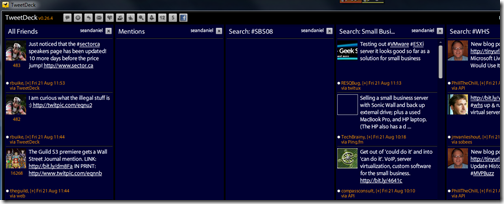
image

TweetDeck also supports some key features that I need.  Multiple Personalities is one of the key features for me.  Working for Microsoft I also can Tweet on behalf of @WindowsSBS and @WinHomeServer, so it allows me to easily jump between accounts, or post to multiple accounts at the same time.  Additionally, as you may have read in my last digital life corner post, I have a few PCs.  TweetDeck allows me to create an account with them and keep my searches and columns in sync between PCs.

As a note, Seemic desktop had similar (and in some places flasher and cooler features) than TweetDeck, but it drank the RAM as if it was going out of style, which doesn’t work for my netbook.

Extending Your Twitter Experience

Twitter is super accessible, you can configure it to send updates via SMS to your phone (US & Canada only I believe at this point), and you can also text twitter to send an update if you’re on the move.  You can also point your mobile browser to Twitter’s mobile page if you want to quickly check your friends on the go without the SMS.

Additionally, if you’re looking for a bit more with Twitter, like pictures and video, sign up with TwitPic, or TwitVid, allowing you to put links to videos or pictures in your tweets!  Since pictures are similar to 1000 words, maybe you can use this to expand beyond 140 characters.

Final Note

I’ve been asked a lot of times “Why do you use Twitter”, and I want to officially answer that question with “to stay up to date”.  I keep track of my friends around the globe, I keep track of changes in my home town, things to do where I currently live, trending issues, problems and exciting things to do with the products that I sell, and just all together engaging.  It’s like a public IM conversation, just like Blogs can be considered a public e-mail. 

I have seen plenty of other uses as well.  For example, our product teams are working on leveraging twitter to announce new things or problems with the product and how to go ahead and fix those.  If you’re going to consider corporate twittering, I suggest checking out HootSuite, which will allow multiple twitters to participate on the same twitter account without duplication.  I’d also highly recommend going against “Bots” to tweet for you, it’s obvious and people won’t listen, plus you never know what a Bot might re-tweet.  ;o)

A co-worker once told me that sending a tweet or reading a tweet is like tossing a stick in a large river.  Some people will notice you, and some won’t, and you shouldn’t feel like you need to start at the bottom of the river and read back.  Just plug in and unplug when you have time.

I hope to see you online in the future.

Tuesday, June 23, 2009

Microsoft Security Essentials Beta


Looks like Microsoft’s new Anti-Malware software is available for download in beta.  I’ve been running the Alpha for a while now on my Acer Aspire One Netbook.  I like it because the Acer has limited resources. I’m running Windows 7 RC on the Acer, the Live Essentials for email, messenger, and I wanted to protect the laptop because it jumps between networks often.

I like MSE because:

  1. It’s invisible.  I’ve opened the UI twice, once to see what it looked like, and once to perform a scan because it hadn’t been on for a few days, but even that was superfluous, as you can just click “yes” from the Action Center
  2. It provides “hero” statistics when I want to go and see them (ie, opening the UI), but otherwise, it’s completely invisible, just silently protecting the Netbook
  3. It uses very little RAM and processor power, essential for my Netbook
  4. It’s Free, Once this is RTM, I can toss out the OneCare yearly fee I pay for my grandfather, my sister, my parents, and even my cousins! (yes that’s right, it’s easier for me to pay than it is for me to explain the value in them paying).

So if you wanted to try out the new Security Essentials, you can today!

Monday, March 30, 2009

Scripting Hot Keys & Making Life Easier

This past weekend, I had a fellow geek in town visiting and I noticed he was doing some pretty wild things without touching his mouse.  When diving in deeper, I figured out he was using a program called AutoHotKey.

Mouse and keyboard macros and hotkeys.AutoHotKey is a small (2mb RAM footprint) program that intercepts keys from the keyboard and can perform actions on those hot keys.  It’s pretty flexible too! you can have it execute hot keys only on specific applications, or globally to the system.  The hot keys are all controlled and programmed by you, so you can add or remove any specific ones that you want.  You can have it change text for you, so if you say “BRB”, it’ll can automatically expand it to “Be Right Back”, and so on.  Once you’ve mastered the easy stuff, you can also use it create GUI!

What caught my intention was the ability to write a short script to “Paste as Clear Text”, if you want to strip out all that rich text for an email or some other purpose.  I find myself having to use specific clear text all the time!

You can download AutoHotKey and start immediately using their documentation.