


My wife got a new laptop, first one in 10 years. I’m very proud of her. She’s the opposite of me, and pretty much doesn’t like change on her computer. This is most likely due to the fact she touches a computer for less than 1/2 an hour a day, and doesn’t want to spend 10 minutes of the 30 figuring out where the “File” menu went (yes, the IE7 upgrade just about killed my wife). She went with the Lenovo Yoga 2 Pro. It’s an amazing laptop, but doesn’t have a TPM chip, so I can’t use it for work (otherwise I’d have one too!) The screen is breathtaking, but I digress.
We have a Home Server 2011 in our house (obviously), but it doesn’t back up UEFI machines (not that I know of anyways) via the Client Backup. So installing the Launch Pad seemed a bit of overkill so she could just go to \\server. Her Windows Explorer has a link to the root of the Server share so she can get to the pictures, the videos, the TV shows, and so on. I’m a big fan of security, and she has her own account on the server, but I couldn’t get her username and password to save for the server through a reboot. And as you can probably guess, it has to be easy for her (a click to get access).
I ended up simply saving this into her Windows Credential Storage (details below). Worked like a charm. It got me thinking, does this work on my Surface 2? Sure enough it did!! This means that I can simply access the server without providing credentials every time. Now when I’m in my home, my Surface can just access an additional 4TB of data, right from inside the Metro Apps (more on this in my post "Adding Server Shares to Modern Photo App").
Let me tell you how to use the credential manager first.
For reference, here is the official Windows Help topic on this.
We have a Home Server 2011 in our house (obviously), but it doesn’t back up UEFI machines (not that I know of anyways) via the Client Backup. So installing the Launch Pad seemed a bit of overkill so she could just go to \\server. Her Windows Explorer has a link to the root of the Server share so she can get to the pictures, the videos, the TV shows, and so on. I’m a big fan of security, and she has her own account on the server, but I couldn’t get her username and password to save for the server through a reboot. And as you can probably guess, it has to be easy for her (a click to get access).
I ended up simply saving this into her Windows Credential Storage (details below). Worked like a charm. It got me thinking, does this work on my Surface 2? Sure enough it did!! This means that I can simply access the server without providing credentials every time. Now when I’m in my home, my Surface can just access an additional 4TB of data, right from inside the Metro Apps (more on this in my post "Adding Server Shares to Modern Photo App").
Let me tell you how to use the credential manager first.
- Hit the Start key or swipe out the charm bar and press the Start button
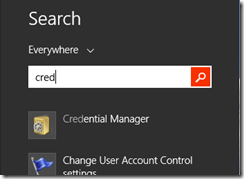
- Type in Cred to search the start menu for the Credential Manager.
- Launch the Credential Manager, and select the Windows Credentials button.
- Under that button, simply click the Add a Windows credential.
- Fill out the wizard with the name of your server, in my case “SERVER”, my credentials
- Notice it’s in the list and then close the Credential Manager

For reference, here is the official Windows Help topic on this.


