Showing posts with label Media. Show all posts

Saturday, February 05, 2011

Why I plan on using the new Windows Home Server 2011

I’m sure you have heard by now, that the Release Candidate of the new Windows Home Server 2011 is available for download. It’s a huge milestone, and I’m excited for the final RTM sometime the first half of this year!

Windows Home Server 2011

There has been a lot of negativity around upgrading to the Windows Home Server (version 1) product, to the Windows Home Server 2011 or even using it at all, all due to the Drive Extender removal. I do understand the pain. I do. But I don’t understand why people instantly now hate WHS????

Looking back, we remember that Drive Extender had some initial problems after the v1 release. Some corner case of editing large files that lived on the server, in some rare cases, these large files were corrupt, people wanted to turn Drive Extender off, it scared them. After Power Pack 1 came in to save the day, only then did people start to trust Drive Extender, and yes, they immediately fell in love with it. Easy drive extension with a side benefit of duplicating files on multiple hard drives (“dup ‘em if you got ‘em!”).

Removing DE was a very tough decision, but I ultimately agree with the decision given what I know.

But without drive extender, is the product not awesome? is your data not safe? This blog post is intended to tell you why I think WHS 2011 is still awesome, and still keeps my data safe. I am a new father (she’s 8 months old at the time of writing this) and I’m a hobbyist photographer. My photos are probably the most important digital thing to me, then my countless hours of work I’ve spent on my documents, then my e-mail, then all that other stuff, like ripped CDs and DVDs, and some HD DVDs.

Let’s start with the “Just Awesome” stuff… most of this bucket falls into the Remote Web Access site, so from the outside in we go!

Remote Access is just Awesome!

For one, right from the get-go you can customize the RWA about as much as you want:
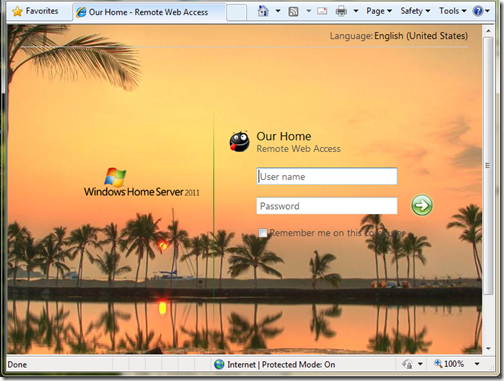
Customized Logon Page

(This picture can be found on my photoblog here)

Remember, you also still get that free 3rd level web domain and matching trusted web certificate (from GoDaddy.com) on the home server.com domain name. Did I mention free security?

You get remote access to computers behind your network, but this time it’s powered by TS Gateway for Server 2008 R2! Yes, that means you can get dual monitor support, and you can take advantage of better optimization for remote access to your PC and better security using that same web certificate for encryption! Thus no longer using security protocols from 8 years ago.

Remote Silverlight Video Streaming

Yes, no more TwonkyMedia chewing up your processor, a built-in, secure, streaming engine based on Silverlight, with (if you put in a fast enough processor) media transcoding:
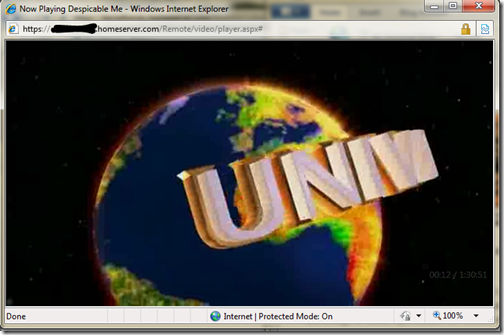
Silverlight Streaming

I also just *love* the photo slide shows. Sending access to the folks and letting them just watch 1000s of photos via a slide show, priceless:
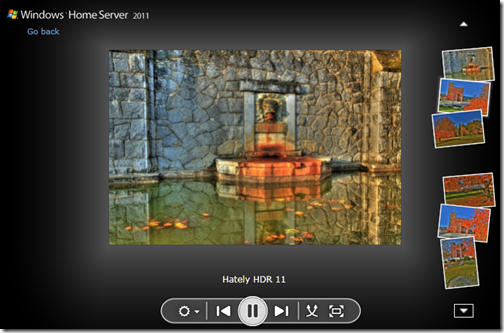
Home Server Picture Slideshow

A Silverlight Music Player that you can make, save and use playlists on. which you can quickly switch music around in. I even use this player in my living room when I have get a get together. People just understand how to use it:
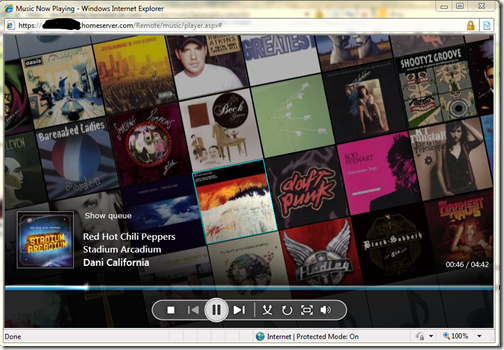
Silverlight Music Player

The ability to download or the ability to move files around without having to download. Yes, that’s right, delete, copy, cut and paste things all over the shared folders without actually having to download it.
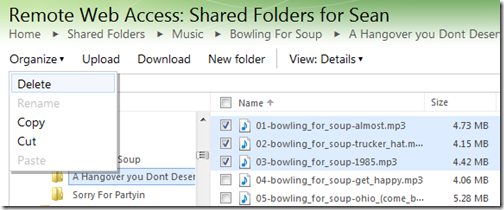
Organize your Folders Remotely

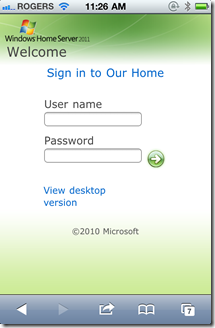
That’s a pretty powerful remote access story, one you won’t find with add-ins that run this flawlessly on the WHS v1 product… oh wait, I’m not finished, check out my iPhone formatted remote access webpage:

iPhone Logon

iPhone Folder and File View

And it looks just as good on an Android and Windows Phone 7!

While we’re talking about media, let’s focus on the internal network. With an implementation of DLNA 1.5 open standard for compatible streaming, you can stream to your XBOX 360, Playstation 3, DLNA capable TV, iPad (with application), Windows 7 PC (or slate!) or any other DLNA compliant device. You can also configure which folders participate in the streaming, simply by adding them to the set of defaults.
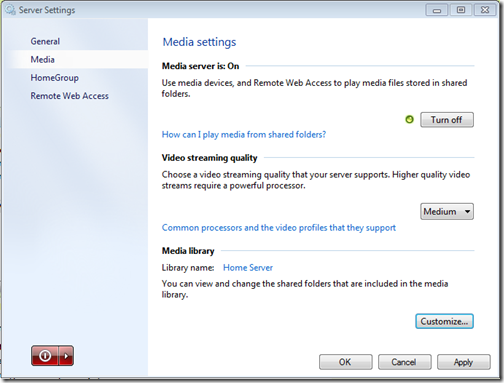
Media Streaming Settings

If we’re going to talk about handy apps, do you remember that awesome Vista Gadget for WHS v1 by homeserverhacks.com? It was called ShareMaster. Well, now included in WHS 2011, is the Launchpad, which enables you to easily backup your PC, access your Remote Web Access site (without having to know the URL, even if it changes!), Shared folders, and if you’re an admin, the Dashboard. It’s also completely extensible by the SDK, so developers can kick it up a notch and add more functionality:
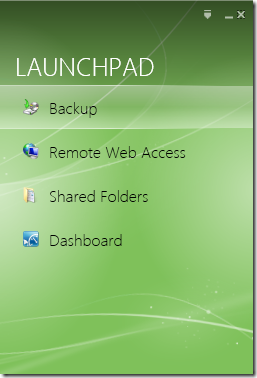
Client side Launchpad

That’s a whole lot of awesome packed into one box! I want to switch gears now and talk about how WHS 2011 protects my data, and why I think it’s safe. To me, the leading cause of data loss is usually hardware failure, most often then not, it’s a harddrive failure. Although there is the rare instance it can be a natural disaster, which happened to my uncle about this time last year.

Last but not least, is something you can’t see, that excites me the most. The Windows Home Server 2011 SDK (still in beta) is HUGE compared to the v1 product. Moreover, it’s SHARED with both Windows Small Business Server 2011 Essentials, and Windows Storage Server 2008 R2 Essentials. What does that mean? it means that things designed for business, can easily be used in the home (and vice versa). That means lots and lots of add-ins! and high quality ones at that. Nothing like developing for 3 platforms, instead of just one.

Data Protection, Why My Data is Safe on WHS 2011!

Data protection is all about having data on multiple drives. Take a look at RAID configurations. RAID5 is one of the most popular RAID configurations in the small and medium businesses, it’s probably sufficient for a home too, but sometimes it can be challenging to set up. RAID5 is a drive configuration that wastes up to 1 of a set of 3 or more drives to maintain “parity” bits. These parity bits are used to rebuild data on a drive if it’s lost. The system can run in limited capacity as soon as this drive dies without the end user knowing it. All in all, it’s a sweet system, but loose that 2nd drive before you can rebuild the array, and your data is toast!

What does Windows Home Server 2011 do? It keeps the data you choose on a second hard drive. Yep, the data on all your client computers is automatically backed up nightly to the Home Server. That’s up to 10 PCs safely backed up, every night. So now the data on your clients, is also on your server, two hard drives. There is a delay of 24 hours, but it’s there. Even if you get a Facebook Virus, you can roll back to the day before. This is exactly the same functionality as WHS v1, except it’s faster, and more robust.

What about the data on the server? Server’s hold data, isn’t that data safe? Yes of course it is. You can backup that data to an internal, or better yet, external hard drive! Unlike WHS v1, this has HUGE improvements. First, the backup is automated. Automated backups take the human error factor out, and the backup uses snapshots, so even open files are captured. I think I remembered to backup my WHS v1 about once/month. Now I’m getting 2x/day! And you know what, I choose the defaults because the server on my data doesn’t change that often. You can bump this up to as often as every 30 minutes. That’s your data, on another hard drive, 30 minute window of possible loss, but if I can’t trust a hard drive for 30 minutes, I’ve got problems with all the data that DOES change on my client computers, because that backs up every 24 hours! [And you can’t tell me that the purchase of an external hard drive isn’t worth your data backup, especially you, Mr. 22TB WHS v1! With or Without Drive Extender]

And…. if you want to do RAID, you can do RAID, you can do RAID1, RAID5, or even RAID10! If you want to do cloud backup (which I do because I’m too lazy to take the backup hard drive out of my house), you can do that, as a few providers are building add-ins.

So what did I really loose with Drive Extender being gone?

  • In the event of a hard drive failure, all my data isn’t still available until I put in a new hard drive and restore that drive back to its original state, if I didn’t configure RAID.
  • I can’t easily extend my storage when I have a disk that’s running out of space.
  • I can’t grow my share sizes past the size of all the hard drives in the system
  • My server storage responds faster because I’m not using DEMigrate.exe all the time

None of the above actually pertains to data loss. It’s all convenience. It was definitely nice to have in WHS v1, but I don’t think it’s absolutely needed in a server in the home.

Massive Data Collections

Let’s talk about Massive Data Collections quickly. Because WHS v1 made it so easy to grow your data collections, far beyond the size of one disk, without having to worry, “have I locked myself in to only X amount of data?”.

Let’s talk about my photo collection. It’s 80GB right now. That’s still not 1TB. I’m an amateur photographer, one that shoots a lot of photos, with a Canon 5D Mark II (a 21mp camera). I still have tones of space on a single 2TB drive to grow. What if I’m a professional photographer? Well, professional photographers don’t use Windows Home Server, at least I haven’t come across one. A good friend of mine has been interviewing professional photographers for some time, and they work with such large photos, they keep them locally, then archive them, usually via USB. Then if they want to work on them, they just plug them into the computer they are on, and it’s a local picture again. \

Video collections. My Canon 5D Mark II takes 1080p video. I use it a lot, that’s probably what jumped my photo collection from 60-80G in a year… but I’m still within reason. My video collection, is a rip of all my DVDs, and some HD-DVDs, and it’s still only 130GB, that’s still less than 1TB, and I still have all the DVDs in the closet, my music collection is 40GB… still have all the CDs. But I agree these data collections can get quite huge. This is probably the one place folks will actually miss Drive Extender. I couldn’t agree more.

… But maybe it’s time to take a hard look at what data you’re hording on your server. Do you really need to be a digital hoarder and save everything? I mean even Mozy can’t deal with you, as they announced they are killing their unlimited data plan. People save a lot, and it costs money, but do you really need it all? The guys at TechCrunch say “I assure you that you will never print those 10,000 pictures you have stored in iPhoto. Never. Ever.”.

If you absolutely *must* keep all that data, you should have a plan for it anyways. It’s not like if you store magazines for comic books, you don’t put aside space in a closet for them. With a plan, you can easily map out your storage needs, and growth. In fact, a few people even have growth charts of their storage growth from WHS v1, so you *know* the storage you’re going to need! I also suggest turning on File System Resource Manager and cataloging exactly which data is being used. I bet after a year, you use less than 30% of it.

So bottom line, I stay trim with my data (rule #1 of becoming a better photographer is forcing yourself to throw away 70% of your photos), I feel like Windows Home Server 2011 is the right product for me, for simplified access to my data. Simplified Management of my network, and extremely safe data protection plans. Moreover, because it’s Windows, it just works with other things in my house.

I liked Drive Extender too, but the product isn’t dead, in fact, it’s still awesome!

Monday, April 12, 2010

Windows Media Player 12 Streams Your Media Library over the Internet

Windows Media Player 12 Streams Your Media Library over the 
Internet

Here's a new one to us: Linking your Windows Live ID to Windows Media Player 12 in Windows 7 allows you to stream your entire music library to any computer. Even better: no need to install third-party software with this method.

There are many, many ways to stream your music collection over the internet—but there's something appealing about using the built-in software that Microsoft bundled with Windows 7. If you're already using Windows Media Player 12, you can listen to your home music collection from any Windows computer through the internet. What's more, it actually should work with all your media, not just your music.

In order to use this feature, you'll need a Windows Live ID then you've got to link your Windows Live ID to your media collection. In Windows Media Player, navigate to the Stream menu and choose "Allow Internet access to home media." You'll want to "Link an online ID." If you see "Add an online ID provider" in the next box, click it because you'll need to download some software depending what version of Windows 7 you're running.

Windows Media Player 12 Streams Your Media Library over the 
Internet

Enter your Windows Live email address and password to link your media collection. Go back to the Stream menu, and click "Allow Internet access to home media." In order to enable another Windows 7 PC access, you'll need to repeat these steps. After you're finished, your library will show up in the Other Libraries category of the left-side pane in Windows Media 7.

We don't know a lot of people who actually use Windows Media Player, but this awesome feature could convince some—and it's something that would be great to see in more tight-fisted media players. (Ahem, iTunes, we're looking at you.)

Post courtesy of Lifehacker

Thursday, November 19, 2009

Get Windows Home Server Power Pack 3 on November 24th!

According to the Official Windows Home Server blog, Windows Home Server Power Pack 3 will be available for install on November 24th!

The Windows Home Server Team is pleased to announce that Power Pack 3 will be available in all shipping languages (Chinese, English, French, German, Italian, Japanese, and Spanish) on November 24th, 2009. Power Pack 3 will be made available to existing users via Windows Update. Users need to have Windows Home Server with Power Pack 2 already installed on their home server. Power Pack 3 will automatically install as part of Windows Update if Automatic Updates is enabled on the home server.

Details on what’s new:

Windows 7 Backup & Recovery

While backup of Windows 7 clients worked prior to Power Pack 3, there were definitely some noticeable problems, such as when a Windows 7 PC was sleeping, when it woke up, there was no guarantee it would do the backup or not.  Having run Power Pack 3 for the past week, my two Windows 7 PCs haven’t missed a backup yet!  Additionally it suppresses that pesky Windows 7 backup warning designed for single PC homes!

Windows 7 PC Backup support

Windows 7 Libraries

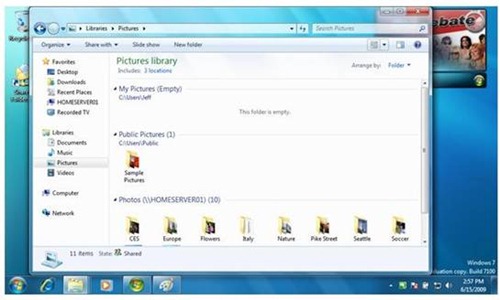
If you haven’t used Windows 7  Libraries yet, you’re missing out.  On my Netbook I added the Home Server shares in myself, since there is no data there.  I was happy to discover this is done automatically for me on my other PCs now and I can access all my data with a simple CTRL+E without having to use the handy Share Master gadget.

Windows 7 Library Support

Windows Search

Windows Search 4 is included, which drastically increases the speed at which you can search shares from Windows 7 clients (and other clients with Windows Search 4 installed).  Additionally, EFS encrypted files are supported!

Windows Search

Windows Media Center TV Archiving

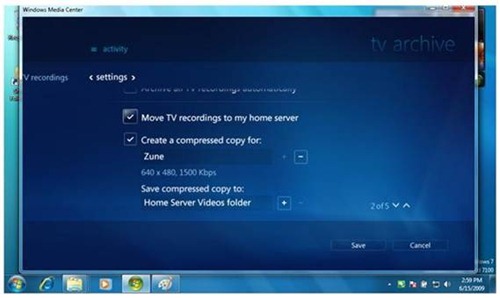
If you have a Windows Media Center in your home (which I don’t), then you’ll be easily able to Archive your TV to your home server.  Did you like that episode of “How I met your Mother”?  Save it without using valuable recording space on your MCE!  Additionally, you can get statistics such as storage space, backup status, etc right from your Media Center

Media Center Improvements

So, Tuesday night when you get home from work, you might want to check out Microsoft Update and get this little gem of free upgrade software for your Home Server.

Here’s what the MVPs are saying:

If you've recently upgraded to Windows 7, Windows Home Server Power Pack 3 is an essential download providing enhanced integration between the two platforms and a number of cool new features. Combine library support with enhanced features for Windows Media Center, and we're really starting to see Microsoft bring together the Windows Home Server and Windows 7 client experience so that your media can be stored on your home server and enjoyed seamlessly on TV, PC and Mobile devices with little effort from the user. The bad old days of copy, paste, convert and transcode may well be behind us,” says Microsoft Most Valued Professional (MVP) Terry Walsh of We Got Served.

Microsoft MVP Alex Kuretz of MediaSmartServer.net says “Windows Home Server Power Pack 3 makes storing and accessing your media easier by bringing all the content contained on your Home Server smoothly into your Windows 7 libraries. TV Archive is also a very nice feature that has allowed me to record TV shows and move them to my Home Server to be watched at a later time.”

Trackback: Windows Home Server Blog.

Thursday, September 10, 2009

How to Add more Playlists to the HP EX485 MediaSmart Server’s Web Streaming Application

One of the most frustrating things for me when I first used my EX 485 HP MediaSmart server’s web-streaming application for my music was my playlists that I have in the Zune software don’t automatically appear here.

In fact, I couldn’t get them to appear at all!  I dropped them into the music share, I made new ones with Windows Media Player, both .wpl and .m3u and they still didn’t appear in the list.  Well, I finally figured it out and I wanted to share exactly what I did so I don’t forget, and in hopes that someone else might benefit from the same (wasting a little less time!).  If you have a simpler way, I’d love to hear it.  Comments are open!

Let’s say I want to move my “Favourite Albums” playlist.  Here is how I did it:

  1. Browse using Windows Explorer to the location of your playlists.  They are “.zpl” files.  If you aren’t sure where this is, in the Zune software click Settings and then select Collection. Look at your music folders for where it might be stored.
  2. Once you’ve found the .zpl file, copy it to a new location like your Desktop.  This can be an auto-playlist, or a made playlist, it doesn’t matter.
  3. We’re going to need to change the extension on the file to one that Windows Media Player will read.  So if you haven’t already you’ll need to show the file extensions in Windows by using a Windows Explorer Window. 
    1. Press Win+E to open Explorer
    2. Press Alt to activate the menu
    3. Under Tools select Folder Options.
    4. Under the View tab, uncheck Hide Extensions for known file types.  (you can un-check this again after your finished if you don’t like the extensions showing)
    5. Click OK and close Windows Explorer.  You will notice your Zune playlist will now be <name>.zpl .
  4. Rename the file either by slow-clicking or pressing F2. Select the .zpl extension and change it to .wpl . 
  5. Click Yes on the dialog that warns you about changing the extension. Notice the icon will change to one that is recognized by Windows Media Player.
  6. Double click the playlist, and it should open in Windows Media Player.  I’m using Windows 7, so these steps will be for that version of Windows Media Player
  7. Click the icon to drop the player into library mode.  I circled it in red for you:
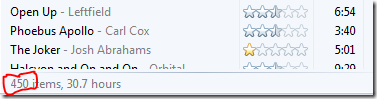
  8. Before we save the playlist, we have to remember that the HP MediaSmart streamer has a limit of 500 songs in a playlist.  Windows Media Player will tell you how many songs are in your playlist at the bottom of the “Now Playing” list.  Make sure this is < 500 before you continue.
  9. Now we need to save the list as a .m3u file.  Again press the ALT key to activate the menu, and hover over File and click on Save Now Playing List As…
  10. Choose the same location, the Desktop, just to keep things easy.  Then drop the Save as type box down and choose the .m3u one:
  11. Change the extension on the file name to .m3u and save the file:

Now we’ve got a .m3u file.  All of the above steps are to convert from either a .zpl file or a .wpl file as you see fit.  If you already have .m3u files, those steps can be skipped.

Now, as I mentioned above.  I dropped custom .m3u file into the music folder before, and it didn’t work.  The challenge here, is since the streaming app is running in the context of IIS, it’s access to the folders on the server is limited.  If you opened the .m3u file in notepad, you'd see that each music file’s location is referenced as “\\HPSERVER\Music\<Path to song>” .  IIS doesn’t have access to this.  So we need to reference from the directory that the playlist is going to be stored in.  I keep my playlists at the root of the Music directory, so we’ll do it this way.

To make the playlist readable by the Streaming application, we need to change the path to the file location:

  1. Open Notepad on your computer.  I use Start, then Run, and type Notepad and press Enter
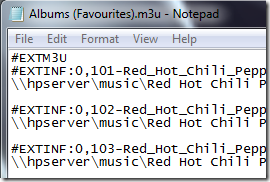
  2. Drop the .m3u playlist you created into the notepad window using the mouse, you’ll see it has the path to the file as mentioned above:
  3. Click Edit and then Replace.
  4. In the "Find what:" box type in \\hpserver\music\ , in the Replace with: box type .\
    1. .\ is a reference to the location of the playlist file of where you will place it on the server.  If you plan to put it in a folder such as \\hpserver\music\playlists, then you should use ..\ instead.  the period references the current directory, two periods represent one directory higher, three periods are 2 directories higher, etc. 
    2. Don’t forget the \ at the end of each item, otherwise you may build an invalid path to the music file!
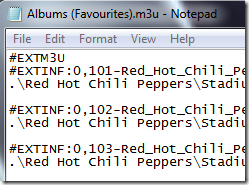
  5. Click Replace All and the file should change to look more like this:
  6. Save the file now using the File and Save menu in Notepad, then close Notepad.

Now we have a perfect .m3u file that won’t work from a client inside your network, but it WILL work from inside the media streaming web UI.  As the final step:

  1. Copy the .m3u doctored file over to \\hpserver\music.
  2. Log into your media streamer
  3. Enjoy your familiar playlist from the Zune software, or any other application you use to create playlists.
    1. You may have to wait for the TwonkyMedia server to recognize the new playlist and show it in the UI
    2. Finally, the TwonkyMedia add-in periodically tests for new playlists, so it might not appear for a while.  The first one I did appeared in 10 minutes, the second one took a few hours.

Phew.  I think I broke a sweat on this one.  It’s not pretty, but it works, I now have my familiar playlists on my EX485 HP MediaSmart server, available for media streaming. 

I do want to ask, does anyone know a better way to do this?  I’d love to have Zune automatic playlists automatically update on the HP MediaSmart server, but this is just a huge process to try to automate.