Showing posts with label Awesomeness. Show all posts

Monday, February 24, 2014

How to map your FourSquare data

I use FourSquare, not for the mayor-ships, or the points (although they are fun) but as a bit of history in my travels.  It’s easier to check in somewhere, then write it down the location and map it later.  My goal has always been to get some form of map with push pins in it.  Sure FourSquare provides a bit of history, but the map is SUPER tiny, and very hard to use

FourSquare activity - actual size

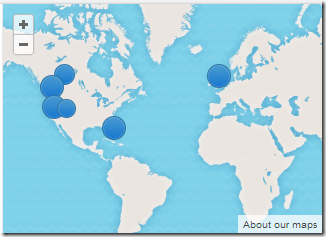
I’ve tried a bunch of solutions, usually provided by LifeHacker (one of my favourite websites), and they’ve all been just ok.  I think I’ve finally found a solution, that based on my check-in frequency, works for me.  LifeHacker posted a link to Billy Burle’s blog (follow BillyBurle here).  Billy had a blog post on How to Create a Heat Map of your FourSquare check-ins using Google Fusion Tables.  It’s quite frankly, awesome, but needed some adjustments.  I can get push-pins, or heat maps with this approach!  For example, here is my push-pin history for 2013:

Pushpin history

Or a Heat map of my travels to Seattle

Heat Map

Are you a map geek and want to do this?  So here is how…

Step 1: Obtain your check-in history from FourSquare

First you need to get your FourSquare check in history.  For this I browsed to my FourSquare Feeds, and got the URL for my KML feed.  It has a unique character set in it, because that’s your private feed.

Clicking the link will give you the last 50 or so check-ins.  what I did was right click on the link and say “Copy” url, pasted it into the address bar, then at the end of the URL I added the text “?count=1000” to get the last 1000 items (1000 is a key number in a lower step).  This will download a .kml file with the file name patching that crazy string character set in the URL.  I renamed mine to “Foursquare Data 2013”, just to make it easier to find.  Since I stored the .kml files for use if a better solution comes up down the road.

Step 2: Prepare the KML file to have only the years data

It’s pretty unlikely that you checked in exactly 1000 times in a given year, but in Step 1 we downloaded exactly 1000 historical check-ins.  So let’s make that exactly the year.  What I did (and I’m trying to figure out how to automated some of this) is to open the .kml file I downloaded in Notepad (I also turned on “word wrap”, since the file is one line, that’s 1000s of characters long).  I searched for “31 Dec” (or “30 Dec” or the last day you checked in on the previous year).  Then I scanned backwards in the file from that last check-in from the previous year until I found the “</Placemark><Placemark>”.  This is the end of the first check in of the current year, and the start of the last check in of the previous year.  I put my cursor between “><” characters and scrolled to the bottom of the document.  I then held shift and clicked between the “><” of the “</Placemark></Folder>”.  I then hit delete.  The end of the file should still look like “</Placemark></Folder></kml>”, but now everthing from the beginning of the document to the end of the document is exactly the current year you wish to display. 

The reason you need to do this, is because the Fusion Tables (at least as far as I can tell) have a hard coded limit of 1000 objects in them. So by limiting it to the year, I noticed in 2013, I had 783 check-ins, which is well under the 1000 limit.  But if I included 2010-2014 (my entire life of FourSquare check ins (obtained by adding to the URL: ?Count=10000”), I had 1723 check ins, and I was missing a bunch of data, hence my decision to break it up by year.  You may have to break it up further if you’re a FourSquare fanatic.

Step 3: Prepare Google Drive if you haven’t already

This was my first time using Google Drive, and as such, this is a one-time step I did for each year I imported.  I have OneDrive, where most of my online data is stored and I have a Home Server where my local data is stored, so I haven’t needed it. So I logged into my Google Drive account, and needed to add Fusion tables.  I clicked the down arrow on the settings gear ( Gear) and chose Manage Apps, then clicked on Connect more apps in the pop-up window.  In the search box I typed “fusion table”, and it was the only one I could install.  I installed it.  At the time of writing it is an experimental app…. which I figure is just typical of Google.  Is anything ever really out of Beta with them? ;o)

Step 4: Importing the data into a Fusion Table

This is where Billy Burle’s blog post really shines (I had to figure out all the above), and even helped in the comment section of Billy’s post with the data.  So here is the fun part

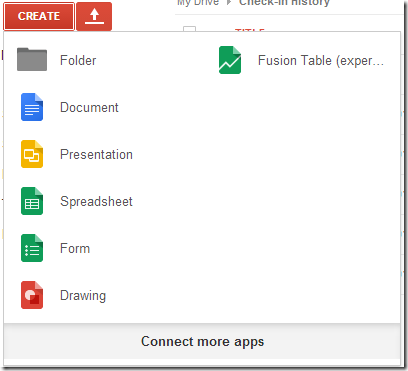
  1. Click on the Create Button
  2. Choose to create a new Fusion Table (experimental) Create / Fusion Table
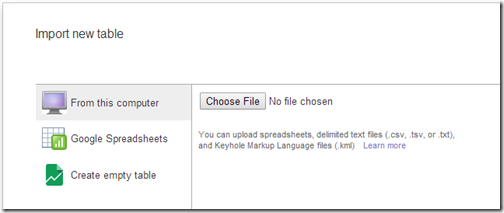
  3. Choose to upload a file from your computer by clicking Choose File and select the file that you created and edited in step 1 and 2, then click Next Choose File
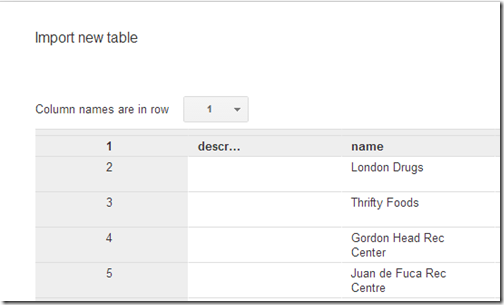
  4. On the import new table row, I just click Next again and leave the columns as is Column Headers
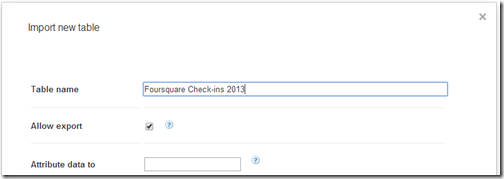
  5. On the final page, I give it a good friendly Table Name, and click Finish Import Finish

That’s it, now you have a new Fusion table.  Ready to see your check-in history?  Check out the Map of Geometry page, and now you can play around with the map, and choose the Feature Map (default) which is the push-pin view, or the Heatmap view:

Map of Geometry

Last but not least, if you ever want to revisit your data, just hit up your Google Drive and select the fusion table and it’s all saved there for you for that year.  So you can quickly pull it up at a map-tastic party.  What’s also awesome, is if you have a Windows 8.1 tablet (Like a Surface 2) then you can also just get the Windows Google Drive Client, and show it there instantly.  Works like it does on the web!

Enjoy and have fun with your data!

Thursday, October 11, 2012

Windows Server 2012 Essentials RTM!! (and Eval today!)

Well, The product formerly known as Windows Small Business Server 2012, is finally at RTM!  This was the last version of SBS I had the pleasure of working on, owning the storage system from the ground up as well as the initial design of the Online Backup functionality.  Of course a lot of things change when you leave a team before the first major milestone, so I can’t wait to fire this one up and see where the teammates I left behind took this product.

According to the Office Blog Post on the RTM announcement, the product highlights include:

  • Enable a dynamic, modern work style with access from your devices by using Remote Web Access (RWA), and take advantage of Windows Phone 8 and Windows 8 devices for a superior experience with rich modern “My Server” apps.
  • Enjoy peace of mind knowing that your data is well-protected by complementing your on-site backups with Windows Azure Online Backup, as well as utilizing integrated support for the new Windows 8 File History feature.
  • Choose the email and collaboration option that’s right for you, whether that’s in the cloud with Office 365 or a hosted service provider, or running on a local server.
  • Quickly and easily respond to increasing data capacity needs with support for Storage Spaces, which allows you to create elastic, resilient storage for your files and folders.
  • Run the line-of-business applications that you depend on by leveraging our greatly improved application compatibility, now with a single logo certification for all Windows Server 2012 editions.
  • Purchase with confidence knowing that your technology investment can easily grow to Windows Server 2012 Standard if the needs of your business grow.
  • Deploy today with full support for 19 languages, all releasing simultaneously.

If you’re itching to try it like I am, you can pop on over to the evaluation center and download the trial version today, which is also on MSDN or TechNet if you prefer those.

Please join me in congratulating the team on another launch of a fantastic product for small businesses.  And we all know you’re going to hook it up to Office365 right?? Smile

Monday, July 09, 2012

Get Cloud Services working for you, even when you’re not!

As the saying goes, a user will do things over and over and over again, but a developer will automate it and never touch it again (until something breaks of course).

I am not a developer, but I do have a developer education, and that makes me want to automate stuff.  Why do something over and over again that a computer can handle just fine?  I do this sort of thing on a client computer, and often write scripts using AutoHotKey.  I wrote about it earlier, now’s a good time to check it out. 

I’m now excited to say that I’ve found a way for things to happen for you, without you doing anything.  Getting those beloved Cloud services working for you.IFTTT

Have you heard about If this then that? or IFTTT (pronounced “lift” without the “L”)

IFTTT is an online “batch” file service that allows you to set a trigger (“if this”), and have an action take place on your behalf (“then that”).  You can learn more about it here.

It’s my new favorite service.  Supporting all kinds of existing services including: Bit.ly, Blogger, Buffer, Craigslist, Date & Time, Delicio.us, Dropbox, Email, Evernote, Facebook, RSS feeds, Flickr, Foursquare, GMail (and almost all of Google’s services that I don’t use), Instagram, Last.fm, LinkedIn, SMS, Stocks, Twitter, Vimeo, Weather, Belkin power, Wordpress, Youtube, and more!

You can then simply create what they call “recipes”, which allows you to set some trigger on some service, and then have a action take place when that trigger happens.  For example, this is a popular one:

AutoSave Instagram Pictures to DropBox

It’s that easy, you set up your trigger actions and define your reactions.  In just a day, I’ve created a few recipes:

  • I save all my tweets to Evernote (easy and fast searching of historical tweets)
  • I automatically tweet blog posts (like this one), and then re-tweet them again later using BufferApp.com
  • I have an email alert set up for my favorite stocks
  • I automatically blog my Instagram shots on my photoblog.
  • I’m going to tweet exactly at Midnight on new years to wish everyone a great new 2013!

Security

What I like most about IFTTT is I never have to give it any of my passwords for my other sites/services, it just simply gets granted access, and I can always revoke it from the target service if I want.

So if you like automation, and you find yourself repeating the same actions over and over again, try out IFTTT

This blog post was automatically tweeted by IFTTT

Monday, March 26, 2012

Extreme Make-Over–Take 2: Cincinnati Housing Partners Increase Efficiency

Well, Microsoft and HP are at it once again, performing an extreme make-over of a not-for-profit company.  In this case they are helping lower income families get their first home, Cincinnati Housing Partners.  Once again, Microsoft came together with HP lots of awesome technology including Windows Small Business Server 2011 Essentials running on an HP Proliant Microserver and Windows MultiPoint Server running on an HP ML110. as well as some other great hardware from HP (Printers and UPS devices!). 

Check out the video:

Find the Official HP Blog post here, and the Case Study here.

If you were wondering for previous Extreme Makeovers, you can see the first one here.

Learn more about Kevin Royalty and his company here.

Friday, September 16, 2011

HP/Microsoft do an Extreme Make-Over of a Not For Profit Organization

Earlier this year, I had the pleasure to be able to participate in a very heart warming story.  Families For Effective Autism Treatment of Washington (or FEAT WA), was the first winner of the HP & Microsoft Extreme technical make-over.  FEAT really does a lot of work for children with autism, and were struggling with their hobbled together IT infrastructure. 

Microsoft and HP came together to set up the IT Infrastructure backbone running Microsoft Windows Small Business Server 2011 Essentials on a maxed out HP ProLiant MicroServer. And for the children and office workers, Microsoft Windows MultiPoint Server 2011 Premium on an HP ML 110 G7; to be connected to with the HP t5749e thing clients and HP EliteBook 8460p Notebooks. HP also improved their networking infrastructure with the HP ProCurve 1810G-24 switch.

It was so awesome to meet and help out Brenne and Amanda at FEAT of WA to do their job and help children with autism.  Check out the video:

Thursday, June 02, 2011

First Preview of Windows 8

If you’ve been living in a cave since yesterday afternoon, this video is for you. Director of PM, Jensen Harris, has revealed the first look at Windows 8.

Building Windows 8–Jensen Harris

Jensen talks about the “Tile” and “Multi-Tasking” designs of the Windows 8 new shell.  Using Tiles, similar to Windows Phone 7, allows for more space for the app to bleed out goodness (personality as Jensen calls it), and give you active views.

The other slick feature I liked was the multi-tasking, the ability to flip seamlessly between apps, or show two apps at the same time, something that the iPad doesn’t do today.

Finally, the “thumb mode” on screen keyboard is *amazing*, I can’t tell you how frustrating it is to have to stretch your thumb to the middle of the screen… now designed for your thumbs….

Well, enough typing, check out the video!

Monday, May 16, 2011

Windows Home Server saves the day…

Being in my position, I often come across people wishing Windows Home Server was this way, or had this, or didn’t do that.  I suppose it’s the nature of the job to focus on what needs improvement, but every once in a while it’s nice to reflect on what works really really well.

On an internal discussion alias for Home Server, we had a fellow Microsoft employee leverage Windows Home Server to remotely assist his father, and I wanted to share that story here.  This same sort of story can show you what you can do with SBS 2011 Essentials as well.  Here is the story:

My parents recently moved down to NC. My father is an avid golfer and recently retired from State Farm after 25 years which explains why NC. Prior to the move south they lived about 40 minutes from me in north eastern Pennsylvania. I first installed a WHS in their home after getting tired of hitting numerous issues trying to setup remote control of their machines with the constant external IP changing. WHS solved that issue for me since it did dynamic updates in order to host the remote access webpage. I was happy for many months being able to log into the remote access webpage and then remote control their machines from the available computers connections tab. On a few occasions while they lived in PA minor issues happened that WHS was the savior but nothing major usually only saving a few hours of time for each incident.

Fast forward to last night around 9:30 at night when my father calls me in a panic stating that my mom is going to kill him for being on “her” computer. All he wanted to do was quickly check some Pittsburgh Steelers news site that he frequents. Well that site had a link to another site that my dad decided to check out and BLAM virus! We have all dealt with viruses before, some worse than others but this one was really annoying and pretty well thought out if I do say so myself. The virus somehow watched for any .exe file to be run and then popped up a dialog saying the .exe you ran contained a virus and to pay $39.99 to remove the virus. I tried all the usual tools to help me get rid of viruses in the past taskmgr, cmd, regedit and msconfig none of them would launch, I even got frustrated and tried sol, spider and chess also blocked.

The last course of action was to walk my dad through booting into safe mode and see if we figure out what is kicking off the virus and stop it from running. I checked the usual auto run locations and nothing fishy was there. I was stumped and without being able to remote control the machine I was in serious trouble. My next idea was to use my “dads” machine to download from my WHS the DART tools .iso which includes a version of system sweeper to scan for the virus. Well my dad convinced me to forget the DART disk and just make sure the virus was gone by going to the WHS and applying the backup from Monday at 3:00am. I remoted my dad’s machine and downloaded the restore CD from the Microsoft site [restore CD provided in box, later discussed on thread] and then walked my dad through the restore wizard. I got lucky that the network driver was built into the CD so no issues there and before we knew it the restore was off and running. I got an email from my parents this morning about how excited they were to have their PC back and they didn’t need to waste time and money shipping it back and forth.

I have since upgraded their browser to IE9 and installed any outstanding important updates on their PC to help stop this from happening again but if it does I know the fastest and easiest way is to have WHS save my bacon!

Friday, April 08, 2011

Using the KeepVault Connector to backup Roaming Client Computers

Previously, I covered the basics of Proxure’s KeepVault Online Backup, as well as what you got if you went Pro.  With the release of the RC of KeepVault for, I noticed I didn’t cover the KeepVault Connector, which is a separate add-in for Windows Home Server 2011, and Windows Small Business Server 2011 Essentials than the original KeepVault add-in. 

This add-in allows you to do the incredible.  Back up roaming computers via a “Sync” while the computer is connected to the Internet, anywhere.  Now I use Windows Live Mesh to sync most of my items between my computers and the cloud, but there are some things that I don’t.  For example, if I’m travelling and I process photos, those don’t get into my Mesh, but I still worry about them.  This solution solves that.

Simply download and install the KeepVault Connector for Mac & PC.  Make sure you choose the WHS/SBS 2011 version, and not the WHS Original.  Once installed, and the dashboard restarted, you’ll notice that KeepVault has an extra tab

KeepVault Connector

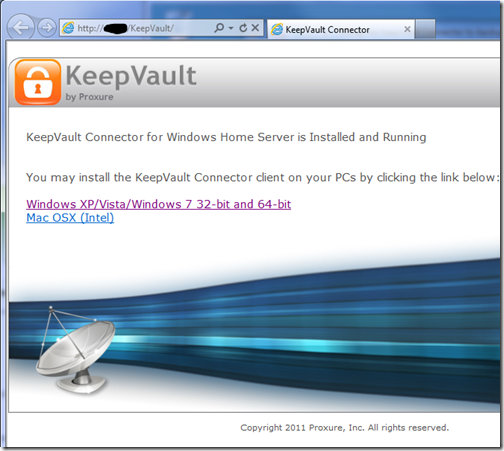
This add-in installs into the dashboard and adds a \KeepVault directory to your default website.  It also reads your servername (orange above), your remote access domain name (blue above) and provides an extremely secure recommended password (yellow above).  Simply click the link to Download and install the client setup.  This downloads the client component directly from your server:

KeepVault Client Download

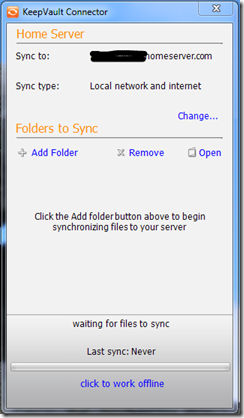
KeepVault Connector Client ApplicationOnce installed, just find the KeepVault Connector in the start menu, or in your system tray, and load up this fancy little “Sync” application and click the Add Folder button.  This will allow you to to pick a local folder on your client computer which will perform the backup. 

For me I created a “backup to home server” folder as a test, and dropped a few files in there.  While I’m local on the network, the backups are SUPER quick, but away from the network they’ll be throttled by my connection speed back to my server.

You can also choose to modify the backup locally only, or over the Internet.  Given that the built in Client Backup functionality runs when you’re local, you might not use this.  However, it’s some nice flexibility if you use a tethered 3G connectivity, so you can choose to sync when you’re on wi-fi and by default not always.  Speaking of Sync, you’ll notice at the very bottom you can click the hyper-link to work offline, so if you end up tethering your PC to your cell phone and then dumping a ton of pictures in there, you can click that and work offline, and prevent the backup from happening over your 3G connection, if you valued cost of data over loss of data.  :o)

If I had a gripe with this system, it’s only that the KeepVault connector isn’t also available to launch directly from Launchpad via the Add-ins area.  As you can see AWIECO does take advantage of this, it’d be great to see “KeepVault Connector” in here:

Launchpad with Add-ins

Add ins

I’ve heard on a few occasions that the road warrior doesn’t like the stop in the office to do a much needed backup, perhaps this solution can help.  Backups can be done from home, or coffee shops, or in my case, at work to my home!

Saturday, February 05, 2011

Why I plan on using the new Windows Home Server 2011

I’m sure you have heard by now, that the Release Candidate of the new Windows Home Server 2011 is available for download. It’s a huge milestone, and I’m excited for the final RTM sometime the first half of this year!

Windows Home Server 2011

There has been a lot of negativity around upgrading to the Windows Home Server (version 1) product, to the Windows Home Server 2011 or even using it at all, all due to the Drive Extender removal. I do understand the pain. I do. But I don’t understand why people instantly now hate WHS????

Looking back, we remember that Drive Extender had some initial problems after the v1 release. Some corner case of editing large files that lived on the server, in some rare cases, these large files were corrupt, people wanted to turn Drive Extender off, it scared them. After Power Pack 1 came in to save the day, only then did people start to trust Drive Extender, and yes, they immediately fell in love with it. Easy drive extension with a side benefit of duplicating files on multiple hard drives (“dup ‘em if you got ‘em!”).

Removing DE was a very tough decision, but I ultimately agree with the decision given what I know.

But without drive extender, is the product not awesome? is your data not safe? This blog post is intended to tell you why I think WHS 2011 is still awesome, and still keeps my data safe. I am a new father (she’s 8 months old at the time of writing this) and I’m a hobbyist photographer. My photos are probably the most important digital thing to me, then my countless hours of work I’ve spent on my documents, then my e-mail, then all that other stuff, like ripped CDs and DVDs, and some HD DVDs.

Let’s start with the “Just Awesome” stuff… most of this bucket falls into the Remote Web Access site, so from the outside in we go!

Remote Access is just Awesome!

For one, right from the get-go you can customize the RWA about as much as you want:
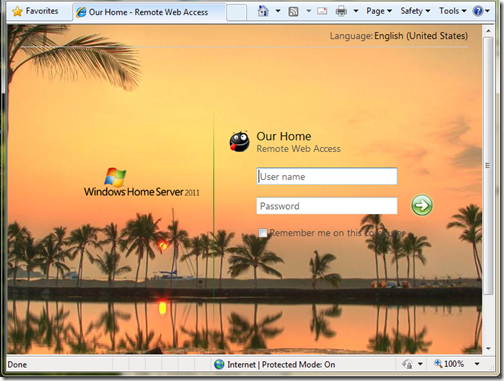
Customized Logon Page

(This picture can be found on my photoblog here)

Remember, you also still get that free 3rd level web domain and matching trusted web certificate (from GoDaddy.com) on the home server.com domain name. Did I mention free security?

You get remote access to computers behind your network, but this time it’s powered by TS Gateway for Server 2008 R2! Yes, that means you can get dual monitor support, and you can take advantage of better optimization for remote access to your PC and better security using that same web certificate for encryption! Thus no longer using security protocols from 8 years ago.

Remote Silverlight Video Streaming

Yes, no more TwonkyMedia chewing up your processor, a built-in, secure, streaming engine based on Silverlight, with (if you put in a fast enough processor) media transcoding:
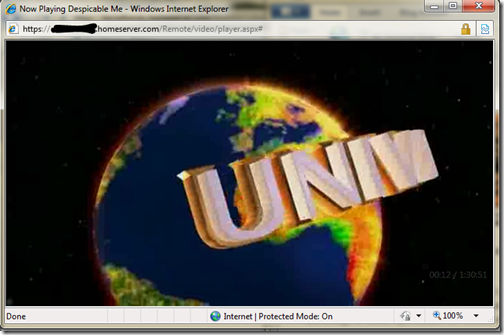
Silverlight Streaming

I also just *love* the photo slide shows. Sending access to the folks and letting them just watch 1000s of photos via a slide show, priceless:
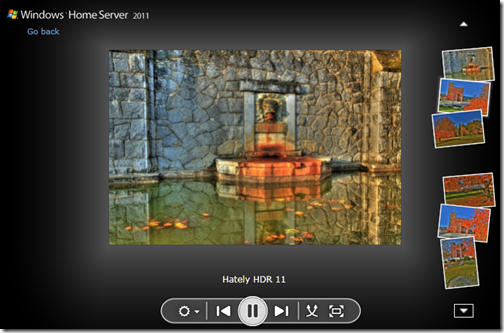
Home Server Picture Slideshow

A Silverlight Music Player that you can make, save and use playlists on. which you can quickly switch music around in. I even use this player in my living room when I have get a get together. People just understand how to use it:
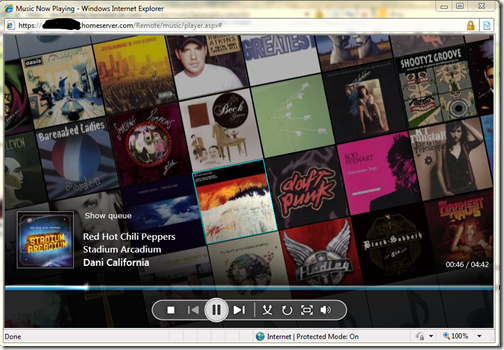
Silverlight Music Player

The ability to download or the ability to move files around without having to download. Yes, that’s right, delete, copy, cut and paste things all over the shared folders without actually having to download it.
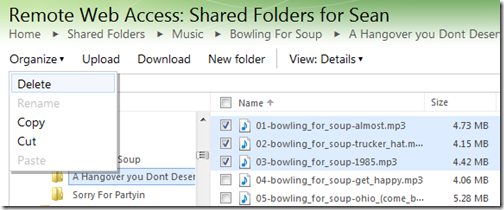
Organize your Folders Remotely

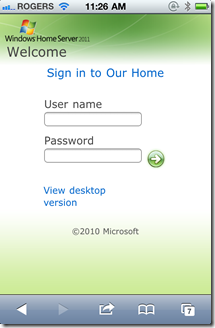
That’s a pretty powerful remote access story, one you won’t find with add-ins that run this flawlessly on the WHS v1 product… oh wait, I’m not finished, check out my iPhone formatted remote access webpage:

iPhone Logon

iPhone Folder and File View

And it looks just as good on an Android and Windows Phone 7!

While we’re talking about media, let’s focus on the internal network. With an implementation of DLNA 1.5 open standard for compatible streaming, you can stream to your XBOX 360, Playstation 3, DLNA capable TV, iPad (with application), Windows 7 PC (or slate!) or any other DLNA compliant device. You can also configure which folders participate in the streaming, simply by adding them to the set of defaults.
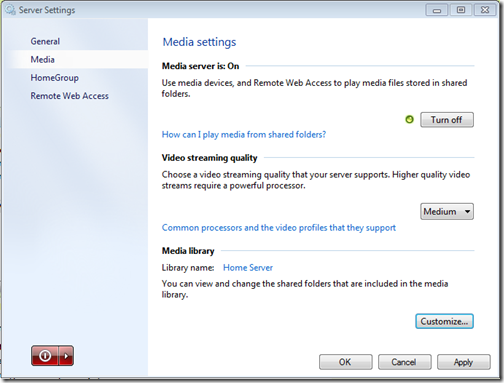
Media Streaming Settings

If we’re going to talk about handy apps, do you remember that awesome Vista Gadget for WHS v1 by homeserverhacks.com? It was called ShareMaster. Well, now included in WHS 2011, is the Launchpad, which enables you to easily backup your PC, access your Remote Web Access site (without having to know the URL, even if it changes!), Shared folders, and if you’re an admin, the Dashboard. It’s also completely extensible by the SDK, so developers can kick it up a notch and add more functionality:
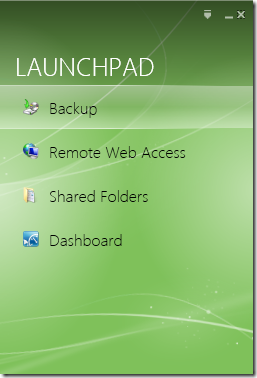
Client side Launchpad

That’s a whole lot of awesome packed into one box! I want to switch gears now and talk about how WHS 2011 protects my data, and why I think it’s safe. To me, the leading cause of data loss is usually hardware failure, most often then not, it’s a harddrive failure. Although there is the rare instance it can be a natural disaster, which happened to my uncle about this time last year.

Last but not least, is something you can’t see, that excites me the most. The Windows Home Server 2011 SDK (still in beta) is HUGE compared to the v1 product. Moreover, it’s SHARED with both Windows Small Business Server 2011 Essentials, and Windows Storage Server 2008 R2 Essentials. What does that mean? it means that things designed for business, can easily be used in the home (and vice versa). That means lots and lots of add-ins! and high quality ones at that. Nothing like developing for 3 platforms, instead of just one.

Data Protection, Why My Data is Safe on WHS 2011!

Data protection is all about having data on multiple drives. Take a look at RAID configurations. RAID5 is one of the most popular RAID configurations in the small and medium businesses, it’s probably sufficient for a home too, but sometimes it can be challenging to set up. RAID5 is a drive configuration that wastes up to 1 of a set of 3 or more drives to maintain “parity” bits. These parity bits are used to rebuild data on a drive if it’s lost. The system can run in limited capacity as soon as this drive dies without the end user knowing it. All in all, it’s a sweet system, but loose that 2nd drive before you can rebuild the array, and your data is toast!

What does Windows Home Server 2011 do? It keeps the data you choose on a second hard drive. Yep, the data on all your client computers is automatically backed up nightly to the Home Server. That’s up to 10 PCs safely backed up, every night. So now the data on your clients, is also on your server, two hard drives. There is a delay of 24 hours, but it’s there. Even if you get a Facebook Virus, you can roll back to the day before. This is exactly the same functionality as WHS v1, except it’s faster, and more robust.

What about the data on the server? Server’s hold data, isn’t that data safe? Yes of course it is. You can backup that data to an internal, or better yet, external hard drive! Unlike WHS v1, this has HUGE improvements. First, the backup is automated. Automated backups take the human error factor out, and the backup uses snapshots, so even open files are captured. I think I remembered to backup my WHS v1 about once/month. Now I’m getting 2x/day! And you know what, I choose the defaults because the server on my data doesn’t change that often. You can bump this up to as often as every 30 minutes. That’s your data, on another hard drive, 30 minute window of possible loss, but if I can’t trust a hard drive for 30 minutes, I’ve got problems with all the data that DOES change on my client computers, because that backs up every 24 hours! [And you can’t tell me that the purchase of an external hard drive isn’t worth your data backup, especially you, Mr. 22TB WHS v1! With or Without Drive Extender]

And…. if you want to do RAID, you can do RAID, you can do RAID1, RAID5, or even RAID10! If you want to do cloud backup (which I do because I’m too lazy to take the backup hard drive out of my house), you can do that, as a few providers are building add-ins.

So what did I really loose with Drive Extender being gone?

  • In the event of a hard drive failure, all my data isn’t still available until I put in a new hard drive and restore that drive back to its original state, if I didn’t configure RAID.
  • I can’t easily extend my storage when I have a disk that’s running out of space.
  • I can’t grow my share sizes past the size of all the hard drives in the system
  • My server storage responds faster because I’m not using DEMigrate.exe all the time

None of the above actually pertains to data loss. It’s all convenience. It was definitely nice to have in WHS v1, but I don’t think it’s absolutely needed in a server in the home.

Massive Data Collections

Let’s talk about Massive Data Collections quickly. Because WHS v1 made it so easy to grow your data collections, far beyond the size of one disk, without having to worry, “have I locked myself in to only X amount of data?”.

Let’s talk about my photo collection. It’s 80GB right now. That’s still not 1TB. I’m an amateur photographer, one that shoots a lot of photos, with a Canon 5D Mark II (a 21mp camera). I still have tones of space on a single 2TB drive to grow. What if I’m a professional photographer? Well, professional photographers don’t use Windows Home Server, at least I haven’t come across one. A good friend of mine has been interviewing professional photographers for some time, and they work with such large photos, they keep them locally, then archive them, usually via USB. Then if they want to work on them, they just plug them into the computer they are on, and it’s a local picture again. \

Video collections. My Canon 5D Mark II takes 1080p video. I use it a lot, that’s probably what jumped my photo collection from 60-80G in a year… but I’m still within reason. My video collection, is a rip of all my DVDs, and some HD-DVDs, and it’s still only 130GB, that’s still less than 1TB, and I still have all the DVDs in the closet, my music collection is 40GB… still have all the CDs. But I agree these data collections can get quite huge. This is probably the one place folks will actually miss Drive Extender. I couldn’t agree more.

… But maybe it’s time to take a hard look at what data you’re hording on your server. Do you really need to be a digital hoarder and save everything? I mean even Mozy can’t deal with you, as they announced they are killing their unlimited data plan. People save a lot, and it costs money, but do you really need it all? The guys at TechCrunch say “I assure you that you will never print those 10,000 pictures you have stored in iPhoto. Never. Ever.”.

If you absolutely *must* keep all that data, you should have a plan for it anyways. It’s not like if you store magazines for comic books, you don’t put aside space in a closet for them. With a plan, you can easily map out your storage needs, and growth. In fact, a few people even have growth charts of their storage growth from WHS v1, so you *know* the storage you’re going to need! I also suggest turning on File System Resource Manager and cataloging exactly which data is being used. I bet after a year, you use less than 30% of it.

So bottom line, I stay trim with my data (rule #1 of becoming a better photographer is forcing yourself to throw away 70% of your photos), I feel like Windows Home Server 2011 is the right product for me, for simplified access to my data. Simplified Management of my network, and extremely safe data protection plans. Moreover, because it’s Windows, it just works with other things in my house.

I liked Drive Extender too, but the product isn’t dead, in fact, it’s still awesome!

Wednesday, July 22, 2009