


As I’ve mentioned before, being a photographer, my photos are my most critical piece of data that lives on my Home Server. When using Windows Home Server v1, I had found an Online Backup solution that I previously reviewed on this blog. While I still think it’s a good solution, it has some draw-backs depending on the Amazon S3 back-end. Like the cost of Amazon S3 is about as expensive as it gets, and signing up for Amazon S3 was probably one of the more confusing processes I have ever done.
While at SMB Nation 2010 in Las Vegas, I had ran into a company called Proxure who build a solution called KeepVault. I watched a demo of their solution run and it seemed reasonable, at least to check out. I thought it was pretty cool that they offer versions for Windows XP, Vista, Windows 7, Standard Server (03 & 08 via their Professional version), and most importantly for me: Windows Home Server.

While this blog covers KeepVault on Windows Home Server 2011 (codename “Vail), the same add-in offers cloud storage to both the Windows Small Business Server 2011 Essentials (codename “Aurora”) and the Windows Storage Server 2008 R2 Essentials. However, for these business products, you need to get KeepVault Pro. The steps and UI, aside from the color of the dashboard, is identical. KeepVault Pro can also be used on Windows Small Business Server 2011 Standard (codename “SBS7”), although that UI is not shown in this blog post.
Back to the review: The first thing I notice was KeepVault doesn’t bill you for what you use, they bill you for storage space in chunks (40Gb, 80GB, 130GB, 200GB … 3.5TB!). So if you’re only backing up a very small amount of data, you could end up over paying, but if you compare to Amazon’s 15cents/GB (up to the first TB), you really see a cross over at about 15GB. Once you get over 15GB, Proxure seems to win hands down on cost. Plus when you hit the top mark, you click a link and you can bump up your storage.
The Setup Process
Using the AWIECO Drive Info add-in, I determined I wanted to back up my Pictures and Documents, the things that I really care about. That came out to about 117GB, so I signed up for the 130GB plan from Proxure. You don’t need the AWIECO add-in, but it made it a “glance” to compute.
Installing the add-in is just as painless as installing any add-in. Just double click on it on the server, or on any server-joined client, read and accept the EULA, and then Install it. You’ll have to re-start the Dashboard to have it appear in the global tabs.

The initial page doesn’t look intimidating at all. Simply click on the Order a KeepVault Backup for Windows Home Server Subscription Now button and sign up. I thought it was pretty slick you could pay via PayPal or with a standard credit card. I’m all for yearly payments too, so I got to save my 10%!! Within 5 minutes I was emailed my subscription ID. Typing that in, with my email ID and I’m good to go.
Choosing an encryption key I can type one in myself, or KeepVault will randomly generate one for me. If you generate one yourself, you have a risk that you forget your key and now your cloud backup is useless. If you’re like me, you’ve installed WHS 2011 on new hardware and it’s probably a while before that fails, so you might forget it. If you don’t want this cumbersome task, you can let KeepVault choose one for you. The interesting thing here is that they generate the key based on your ID and subscription numbers (as its computer agnostic). To me that means that someone at KeepVault *could* decrypt your backup. Although my suspicion here is that you are still safe because our data is stored in blobs and because KeepVault has more than one customer, it’ll be hard for the lay-man IT person at KeepVault to match this up to your backup. For what it’s worth, I went with “Let KeepVault choose one for me”.
I like how KeepVault really focused on the simplicity of the solution. With the previous solution I reviewed I could create multiple backup jobs and multiple schedules, which was nice, because parts of my collection barely every change, I just wanted them backed up. But it was overwhelming at first. KeepVault’s “Always/Real Time” schedule by default and the single “Job” configuration removes any daunting thoughts you might have. The only confusion on the whole page for me was enabling the protection on the shares. I didn’t realize the grey bar across the page were actually buttons, as most of the WHS 2011 console they are just “headers” of columns. So once you realize that you can just click on Enable Protection to add that shared folder to the cloud backup, it was all good. As any good add-in, you can also right-click on a Share in the list and select to enable or disable it from the context menu.

Using the Add button you can also add any folder you wish on the system, so it doesn’t have to be shared out to the network in order for you to back it up. You’ll also notice in the screenshot above that I have changed the schedule to be between midnight and 6am. This is because I am uploading 115GB of data, and I work from home, so from 8am-6pm I use my bandwidth for work, and from 6pm-midnight, I use it for entertainment. By default, KeepVault will Encrypt and Compress your data on the box before it sends it over the wire. Nifty…

The only feature that I think is missing from the Job scheduler is the ability to run 24/7 but use less bandwidth during the day, and all of it at night.
Looking at the other options, you can always pause the backup, view and delete your protected files online (ie. if you want to permanently delete some files, you can delete the file locally, and use this task to delete it from the cloud as well), view the protection/upload history, configure a proxy if your ISP requires one, and most importantly (the reason we all do backups), Recover Files.
The Event Log is KeepVault’s own list of events (like service start/stop, etc events). Messaging (while somewhat confusing of a name, maybe “Job Notifications” or “Job Alerts” might be better, is actually really well done. You can receive emails or SMS alerts (via your carriers E-Mail to SMS service) based on your backup failure rates. KeepVault obviously has some mail service on the back-end that they allow you access too, because unlike the WHS 2011 Built-in Alerts, they don’t ask you to configure an SMTP service.
When the backup eventually kicks off, if you’re backing up as much data as I am, even with the 1900kbps as advertised in my standard version of KeepVault, I’m in for a long wait… This is the same with every cloud solution the first time you back-up. The progress is good, you get both global progress as well as file level progress
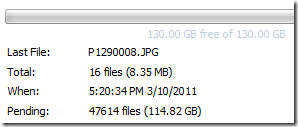
From 5pm to 9am (~16 hours) on a Thursday night over my cable connection, I backed up 5.1GB to KeepVault’s cloud. Not quite as fast as the Amazon S3 solution, but then again, I don’t have a Pro account with KeepVault.
Once your data is uploaded, it lives in Proxure’s Data-Center, encrypted for only you to download in the event of a disaster. Fingers crossed that this is just an insurance policy, and never used.
KeepVault Local Backup
You may have noticed in the above screenshots there was another sub-tab called My Local Backup Job. Yes, KeepVault can back up to a local disk. In the Standard version, it’s similar to the built in WHS 2011 Backup in the fact that it can only backup to hard drives attached to the system (the recommendation is still for USB for offsite storage). If you have KeepVault’s Premium version, you can also back up to SMB Share (i.e. \\NAS\Share), so if you have another device on your network, you can back up to another share on your network.
Also, you’ll notice that this tab also allows you to compress or encrypt. So if you’re taking that disk offsite, the encryption piece might be something you want to consider for safe storage of that disk should it be compromised. If you don’t encrypt it. Files are stored in “explorer friendly” format so a restore on any computer without KeepVault installed is possible. In comparison, WHS 2011 backup is stored in VHD format, which requires you to first mount the VHD before you can actually do the restore of files.
Recovery of Files

The One-Click Recovery, really is just that. Let’s say that you have a little child at home, and their favorite past time was to go into your prized photo library and use the delete button, just randomly through your collection. Or maybe you were searching for your favorite files, and then miss-clicked and deleted your favorite files across your 100GB collection. Restoring that can be painful. This One-Click Recovery makes that a breeze. As *soon* as you click next (i.e., one click), the service will compare the cloud to the local box, and recover all missing files. If the file exists, the restore will be skipped, preferring the local file over a recovery. So you can recover all those files our child deleted randomly, yes with one-click. Obviously this is how you would go on a new server, because none of the files exist.

This way is not a single-click restore, but a selective restore. On the left-hand side if you select a folder, you can select files and folders on the right-hand side for restore. So if you’re restoring a whole folder, select the folder above it, and then check the box next to the folder you want to restore. If you’re restoring all but a few files in a folder, that can take a few extra clicks. Thankfully you can use the CTRL or SHIFT Keys to multi-select as you need (similar to Windows Explorer). Before moving on, you need to select if you want to over-write existing files. This was weird to see on this dialog, because I figured it would be a sub-option on the recovery location which is next.
Once you’re comfortable with the set of files you’re going to restore (and if you want to over-write files), you next choose if you want to restore the files to the original location, or another location. Unless I’m restoring a completely new server, I’d probably always choose another location to make sure that I’m getting what I expected. Once you’ve chosen the folder for the location of the restore, I hit “Recover”, and just wait for the software to download the files and put them in the appropriate place.

The restore is in fact pretty painless, and yes, my photos came down in-tact…

Why Go Pro?
As you saw above, KeepVault has two versions, Standard (which they just call “KeepVault”) and Professional (or “KeepVault Pro”). As a home user, you might not ever need the Pro version, but it’s certainly something you need for businesses. So what do you get if you go Pro?
- Support for Server solutions (aside from the WHS). For example, the Windows Small Business Server 2011 Essentials, Standard and Windows Storage Server 2008 R2 Essentials. Also, if you have additional servers in your environment, you can back them up to the same account (Standard Server 2008 and Standard Server 2003).
- A much faster upload rate (5250kbps instead of 1900kbps). This comes in handy with that first backup. The faster you get the files to the cloud, the sooner you are protected!
- Local Backup to UNC share. Meaning you can back up your server to a local server share as well.
- Higher encryption levels (256-bit encryption can be chosen instead of 128-bit)
- This reminds me. If you backup a file with the pro version, and then downgrade, your standard client can’t understand the 256-bit encryption and thus can’t restore the files. It does work the other way around though. So just be careful which way you go!
- More Access to your data (Web Access, cross device access for restore) and other administration features. Notice my screenshot under “Restore” above, if I had the pro version, I could backup files and folders from other computers, right to this single computer. This means I could support cloud backup on my client computers, and then restore this to the server in the event that the client was dropped while out on a trip! Another brilliant business feature.
- If you’re using a management solution, error notification includes system events, so you can track errors in your online backup with your monitoring tools.
- 5 version retention policy. If you are with KeepVault standard, you only have the latest version stored on the internet, with Pro it keeps up to 5 versions so you can go back in time when you wish to restore.
As a business user, you’ll have to use the Professional version to get the add-in installed. As a Home User, you should review the features above and gauge how critical they will be for you.
If you’re still debating having a Cloud Backup solution for your most prized data, you should approach it like an insurance plan. You have one for your house, you have one for your car. You cross your fingers every day that you don’t need to use it, but when you do, it’s there for you. If your hard-drive fails, recovery of such drives can often cost $1,000s, with no guarantee you can get your data back. If you’re house burns down, like my uncle’s, this sort of thing is priceless.
I’m using KeepVault, what are you using?
UPDATE: Want to learn more about KeepVault Pro? Check out my Going Pro with Proxure’s KeepVault blog post.


